GTM Audit Checklist: 10 Checks for a Google Tag Manager Container
Most Google Tag Manager containers collect old tags nobody remembers adding. This GTM audit checklist gets you through a first pass in about 10 minutes: export the container, find the dead weight, then check triggers, consent and who can publish.
Why audit a GTM container
A Google Tag Manager container is the box that holds the tags you run through Tag Manager: analytics, ad pixels, chat widgets, heatmaps. Each tag has triggers (rules for when it fires) and variables (values it reads, such as the page URL or an order total). Over a few years, agencies change, campaigns end and plugins come and go. The container keeps everything.
That causes real problems. An old tag can still send a purchase twice. A forgotten Custom HTML tag can slow every page. A former freelancer may still have the right to publish. None of it shows on the site itself, so nobody notices until the numbers look wrong.
A GTM audit is a planned look through the container to find those problems. A first pass, with an export and a good overview, takes about 10 minutes. The fixes can take longer, but you will know exactly what they are.
Step 1: export the container
Don’t click through tags one by one in the Tag Manager screen. Export the container and audit the file instead. Tag Manager containers can be exported as JSON, a plain text format that lists every tag, trigger and variable (Container export and import).
- In Tag Manager, click Admin in the top menu.
- In the Container section, click Export Container.
- Click Choose a version or workspace and select the live version.
- Click Download.
Export the whole version. If you leave out items that others depend on, Tag Manager warns you, and references to the missing tags and triggers are removed from the file. An incomplete file gives you an incomplete audit.
Then load the file into the container inspector for Google Tag Manager. It reads the JSON in your browser, lists every tag next to its triggers, flags paused, unused and legacy items, and saves it all as an Excel workbook you can share. Keep that first export: it is your “before” picture.
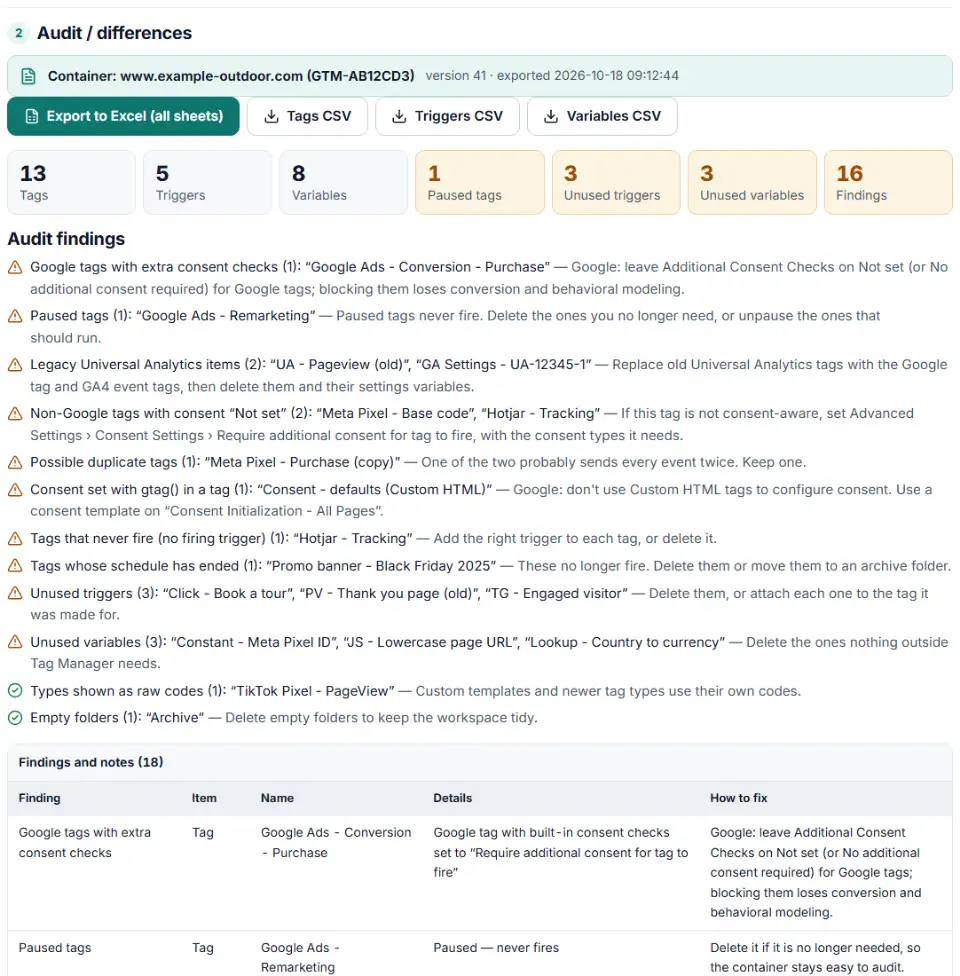
The GTM audit checklist
Work through these ten checks in order. Each one has what to look for and what to do about it.
1. The right container is installed, once
Your container ID starts with “GTM”, like GTM-ABCDEFGH. Google’s install guide puts the first code snippet as high in the page’s <head> as possible and the second right after the opening <body> tag (Install a web container). Sites on WordPress, Shopify or Wix can use an integration instead of editing every page.
Check: view your page source and search for “GTM-”. You should find your ID and no other. Two different IDs mean two containers are running, often an old one left behind by a past agency. If a Shopify, WordPress or Wix integration adds the container, it may not show up the same way in the source, so also confirm it in Preview mode (see below).
2. Paused tags and unused items
Paused tags never fire, but they clutter every future audit and are easy to switch back on by mistake. Unused triggers and variables aren’t attached to anything at all.
Fix: delete what nobody needs. Google’s own advice for a healthy container is to remove items that are no longer needed and combine tags that do almost the same thing (Organize your containers). If you must keep a paused tag, write the reason in its notes.
3. Universal Analytics leftovers
Standard Universal Analytics properties stopped processing hits on July 1, 2023 (Analytics Help). Many containers still hold Universal Analytics tags and their settings variables. Google’s list of tag types marks the old Google Analytics tag and the Google Analytics Settings variable as legacy (Restrict tag deployment).
Fix: replace them with a Google tag, as Google recommends, and delete the old ones. Check first that your GA4 setup doesn’t rely on them: Google notes that some GA4 properties keep using existing UA tagging while it is still on the site.
4. Duplicate tags
Two tags of the same type with the same settings and the same triggers send the same data twice. Typical causes: a container merged with an imported copy, or a tag rebuilt without deleting the old version. Duplicates also hide outside GTM. A Shopify app, a WordPress plugin or a hard-coded snippet can send the same GA4 or pixel event that GTM already sends.
Check: sort the tags by type in your export and compare the ones that look alike. Then test a purchase or a lead in Preview and count how many tags fire for that one action.
5. Triggers that fire too often
A tag fires when any of its firing triggers is true and none of its blocking triggers are. A blocking trigger, also called an exception, is a rule that stops a tag from firing (Tag Manager API). Each tag also has a firing option: unlimited, once per event or once per page load. A conversion tag on “All Pages”, or on a click trigger without filters, counts far more than real conversions.
Check: every conversion tag should fire on one clear signal, such as a thank-you page or a data layer event like purchase. A data layer event is a message your website’s code sends to Tag Manager when something happens. If you set up ecommerce events, the pixel event codes cheat sheet lists the standard event names for each platform.
6. Custom HTML and Custom JavaScript
Custom HTML tags can run any code on your site, which makes them the riskiest items in a container. Custom JavaScript variables are small scripts that work out a value. Google’s container size advice is to “minimize or eliminate” both and use built-in templates where you can (Manage container size).
Check: open each Custom HTML tag and ask three questions. Who added it? Does a built-in tag type do the same job? Does it load a script from a domain you don’t recognize? Also look at the Size indicator on the Versions page. Google says that if it is above 70%, you should optimize the container.
7. Consent settings
The right settings depend on which consent mode setup you use (consent mode overview):
- Basic consent mode: Google tags must not load until the visitor makes a choice in your consent banner. If the visitor declines, no data goes to Google. Your container has to hold these tags back until consent is given.
- Advanced consent mode: Google tags load right away with consent set to “denied” by default, and adjust what they send to the visitor’s choice. The Google tag, Google Analytics, Google Ads, Floodlight and the Conversion Linker have built-in consent checks for this. In this setup, extra blocking triggers on those tags aren’t needed.
In both setups, non-Google tags that don’t read consent need Require additional consent for tag to fire under Advanced Settings › Consent Settings. Such a tag then only fires when every consent type you list is granted (consent mode support).
Check: the tag that sets your consent defaults should fire on Consent Initialization - All Pages, which runs before all other tags. To see every tag’s consent status in one list, turn on Admin › Container Settings › Additional Settings › Enable consent overview. The Consent Mode v2 guide explains basic and advanced mode in plain English.
8. Naming and folders
Names like “Tag 14” or “GA4 copy (2)” make every change slower. Google suggests a pattern such as <item type> - <name of app> - <detail>, and folders that group items by project or by tag type (Organize your containers).
Fix: agree on one GTM naming convention, for example GA4 Event - Website - purchase, and rename as you clean up. Use the same order for triggers and variables.
9. Open workspaces
A workspace is a draft copy where someone makes changes before publishing. Regular accounts can have up to two workspaces besides the default one (Workspaces). Old workspaces fall out of date as others publish, and merging them later brings conflicts.
Check: open each workspace. Finish it, or note what is in it and delete it, before you start your cleanup.
10. Who can publish
At the account level, a person is either a regular user or an administrator, who can also create containers and manage other users. Each container then has five levels: No access, Read, Edit, Approve and Publish (Managing users and permissions). Only Publish can push changes live.
Check: go to Admin › User Management at both the account and the container level. Remove people who have left. Give Publish only to the few people responsible for the live site. Google also recommends at least two active administrators, real user accounts instead of shared logins, and accounts managed by someone in your company, not an outside agency.
How to check GTM is working
An export shows what is set up. Preview mode shows what actually happens.
- In your workspace, click Preview at the top right. Tag Assistant opens in a new tab.
- Enter your site’s address and click Connect. Your site opens and shows “Connected”.
- Go back to the Tag Assistant tab and click Continue.
- Click through a real visit: a product page, a form, a test checkout.
Tag Assistant shows which tags fired on each step, in what order, and what triggered or stopped them (Preview and debug containers). Preview only works in the browser where you started it. To let a colleague test, use Share in Tag Assistant’s menu and send them the preview link.
What to look for in Preview:
- Conversion tags fire once per conversion, not on every page.
- Consent works as planned. Open the Consent tab in Tag Assistant to see the default and updated consent states, then click a tag to check it behaved according to those settings (troubleshoot consent mode).
- Nothing fires twice for one click or one purchase.
Publish the cleanup safely
Make all fixes in one new workspace so they go live together and can be undone together.
When you are done, click Submit, choose Publish and Create Version, and give the version a name and description that say what changed (Publishing, versions, and approvals). “Audit cleanup: removed 6 UA tags, fixed purchase trigger” is far more useful a year later than “Version 48”.
Every version is a snapshot of the container at that moment. If something breaks, open Versions, pick the last good one and publish it again, or use Set as Latest Version to make it your new starting draft.
Finally, export the new live version and compare it with your “before” file. The container audit tool for Tag Manager can compare two exports and list what was added, removed or changed, so you can confirm only the intended changes went live.
A GTM audit template
If you audit containers for clients, record each finding the same way. A simple sheet with these columns is enough:
| Check | What you found | Action | Who | Done |
|---|---|---|---|---|
| Install | One container, ID matches | None | ✓ | |
| Legacy tags | 4 Universal Analytics tags | Delete after GA4 check | ||
| Consent | 2 non-Google tags not set | Require additional consent | ||
| Access | Old freelancer has Publish | Remove user |
Repeat the audit after any big site change, a new agency, or a new platform pixel, and at least once or twice a year. With the “before” export saved, each audit is quicker than the last.
Frequently asked questions
How do I audit a Google Tag Manager container?
Export the live version as a JSON file (Admin › Export Container), list every tag, trigger and variable, and flag what is paused, unused, legacy or duplicated. Then check consent settings, Custom HTML and user access, fix things in a new workspace, test in Preview and publish a named version.
What should a GTM audit checklist include?
The install (right container ID, both snippets), paused and unused items, Universal Analytics leftovers, duplicate tags, triggers that fire too often, Custom HTML and Custom JavaScript, consent settings, naming and folders, open workspaces, and who has Publish access.
How do I export a GTM container?
In Tag Manager click Admin, then Export Container. Click Choose a version or workspace, pick the version (usually the live one) and click Download. You get a JSON file (Tag Manager Help).
How do I check that Google Tag Manager is working?
Click Preview in your workspace, enter your site’s URL and click Connect. Tag Assistant opens your site and shows which tags fired on each page and what stopped the others (Preview and debug). Click through a real visit, including a form or checkout.
How do I find duplicate tags in Google Tag Manager?
Sort your exported tags by type and look for two tags of the same type with the same settings and triggers. Also check whether the same event is sent outside GTM, for example by a plugin or a hard-coded tag. In Preview, a duplicate shows up as two tags firing for one action.
Who should have publish access in Google Tag Manager?
Only the few people who are responsible for what goes live. Publish is the only container permission that can publish; Edit and Approve cannot. Google also recommends at least two active administrators, real user accounts instead of shared logins, and accounts managed by your own company (Tag Manager Help).