Export a GTM Container to Excel: Inspector for Tag Manager
Open a Google Tag Manager container export, see every tag, trigger and variable in one place, export it to Excel, and find unused, paused and legacy items — or compare two exports.
Container Inspector for Google Tag Manager
1 Add your container export
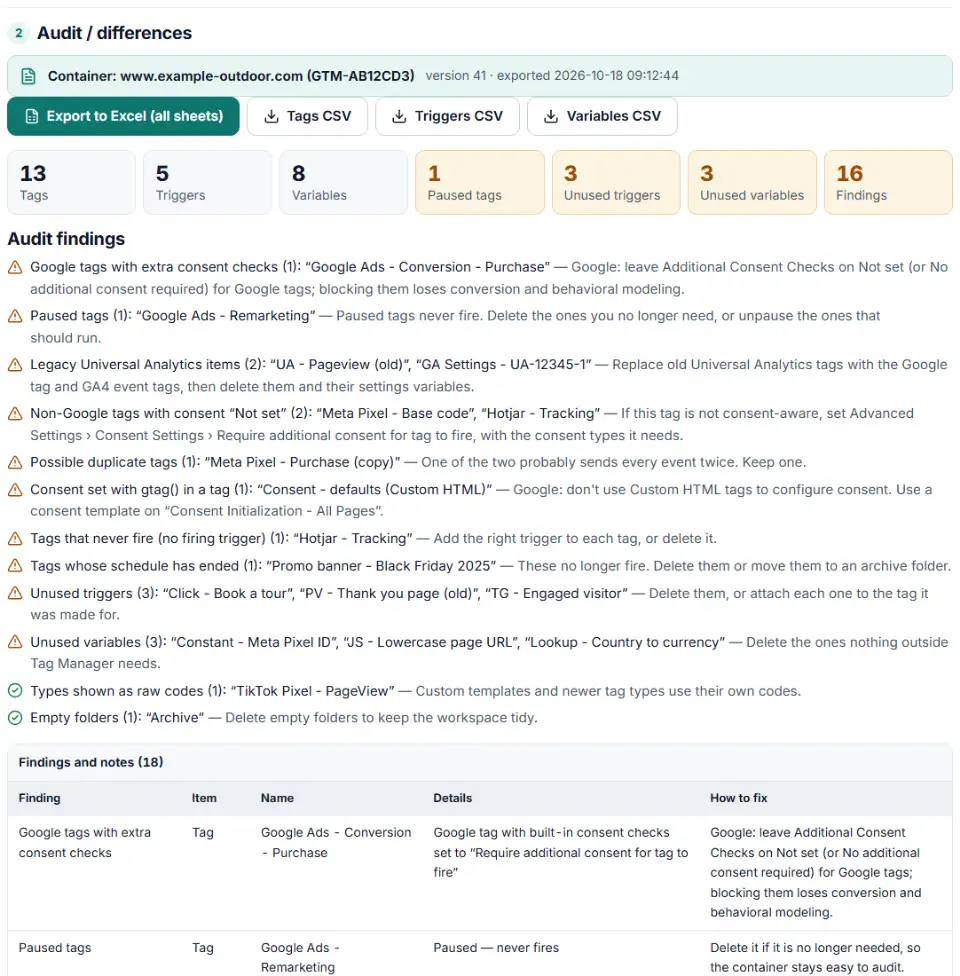
2 Audit / differences
Fill in the settings above — your result appears here instantly.
Rules last checked: against the official pages:
- Container export and import (Tag Manager Help) (Google Tag Manager)
- REST Resource: accounts.containers.workspaces.tags (Tag) (Google Tag Manager)
- Restrict tag deployment (tag / trigger / variable type IDs and classes; last updated 2026-07-30) (Google Tag Manager)
- Tag Manager consent mode support (Google tags with built-in consent checks) (Google Tag Manager)
How to export a GTM container to Excel and audit it
To export a GTM container to Excel, download the container's JSON file from Tag Manager and load it here. Every tag, trigger and variable lands in a readable table you can save as an Excel workbook, with problems flagged. The file format follows Google's container export and import help and the Tag Manager API reference.
- Export the container. In Tag Manager go to Admin › Export Container, choose the live version and click Download.
- Load the file. Drop the
.jsonfile on the box, or paste its text. It is read in your browser only. - Read the audit findings. Paused tags, tags that never fire, unused triggers and variables, Universal Analytics leftovers, duplicates and consent settings to review are grouped at the top.
- Download the workbook. Export to Excel saves four sheets: findings, tags, triggers and variables. Each table also has its own CSV.
- Compare versions. Choose Compare two exports to see what was added, removed or changed between two files, and which problems are new or fixed.
What to do next in Tag Manager
- Clean up in a new workspace. Delete paused tags you no longer need, unused triggers and variables, and Universal Analytics tags with their settings variables. Keep the Excel file as a record of what you removed.
- Fix consent settings. Open each flagged tag › Advanced Settings › Consent Settings. Google tags (Analytics, Ads, Floodlight, Conversion Linker) check consent themselves, so leave them on Not set. Set non-Google tags that aren't consent-aware to Require additional consent for tag to fire.
- Turn on the consent overview. Admin › Container Settings › Additional Settings › Enable consent overview. The Tags list then shows which tags have consent configured.
- Preview, then publish. Test in Preview mode, publish a new version, and export it again. Run a compare against the old file to confirm only the intended changes went live.
- Importing into another container? Admin › Import Container lets you overwrite or merge. With merge, Tag Manager asks whether to overwrite or rename items that have the same name but different contents.
Common GTM container problems and fixes
How to find unused tags in GTM that still fire
A tag "nobody uses" often still fires — an old Universal Analytics pageview on All Pages is the classic case. Tags only stop when they are paused or deleted. The Tags sheet lists the firing triggers next to each tag so you can see what still runs.
Paused tags piling up
Paused tags never fire, but they make every audit harder and are easy to unpause by mistake. If you keep one for later, write the reason in its notes field.
Consent settings on Google tags
Requiring extra consent on Google Ads or Analytics tags, or blocking them with consent triggers, means Google loses conversion and behavioral modeling. Their built-in consent checks are enough.
Consent defaults in a Custom HTML tag
Google says not to configure consent with Custom HTML tags. A gtag('consent', …) call in a Custom HTML tag is queued behind other messages and may run too late. Use a consent template on the Consent Initialization - All Pages trigger.
References removed by a partial export
If you export without some dependencies, Google warns that references to missing tags and triggers are removed; variable references are kept. Export the whole version for a complete audit.
Duplicate tags after an import
Merging with "rename conflicting" keeps both copies of a changed tag, so the same event can be sent twice. The inspector flags tags with the same type, settings and triggers.
Frequently asked questions
How do I export a GTM container?
In Tag Manager click Admin, then Export Container in the Container section. Click Choose a version or workspace, pick the version (the live one is usually best for an audit) and click Download. You get a .json file.
Can I open a GTM container export in Excel?
Not directly — the export is JSON, built for re-importing into Tag Manager. Load it here and click Export to Excel: you get one sheet for tags, triggers, variables and the audit findings, with trigger IDs turned into trigger names.
How do I find unused tags, triggers and variables in GTM?
The inspector lists triggers that no tag, zone or trigger group uses, variables that nothing references with {{Name}}, tags without a firing trigger, and paused tags. Before deleting a variable, check that no code outside Tag Manager depends on it.
Can I compare two GTM container exports?
Yes. Switch to Compare two exports, add the older file as file 1 and the newer one as file 2. Items are matched by name, the same way Tag Manager’s import decides what conflicts, so you can also compare two different containers.
Is my GTM container file uploaded anywhere?
No. The file is read and analyzed by your browser. Nothing is sent to a server — useful because exports can contain IDs, conversion labels and custom code.
Why does a tag show a "built-in or missing trigger"?
Built-in triggers such as All Pages are not listed in the export’s trigger list, so the file only holds their numeric ID. The same label also appears when a partial export removed a trigger that a tag still used.
Related tools and guide
-
Get Google consent mode v2 code for your cookie banner, with defaults for EEA, UK and Swiss visitors and a check for tags that fire before consent.
Google -
Build GA4 ecommerce code for carts and purchases, and check code you already have for old event names, text prices and totals that don't add up.
Google -
Get Google Ads conversion tracking code with the real order value and ID, for a thank-you page, WooCommerce or Tag Manager, and check code you have.
Google -
Get custom pixel code for Shopify that sends checkout and cart events to Meta, Google, TikTok and Pinterest, plus a checker for wrong event names.
ShopifyMetaGoogleTikTokPinterest -
Get Meta pixel code for purchases, leads and other events, with order value and a matching Conversions API event so no sale is counted twice.
Meta -
Get Google Ads enhanced conversions code that sends the buyer's email, phone or address with each conversion, for the Google tag or Tag Manager.
Google
Need help setting this up? Talk to EmproIT