Custom Pixel Code Generator for Shopify
Generate Shopify custom pixel code for Customer Events — Meta, Google Ads, GA4 via Tag Manager, TikTok and Pinterest — with value, currency, product IDs and event IDs, or check the pixel you already have.
Custom Pixel Code Generator for Shopify
1 Build or check your pixel
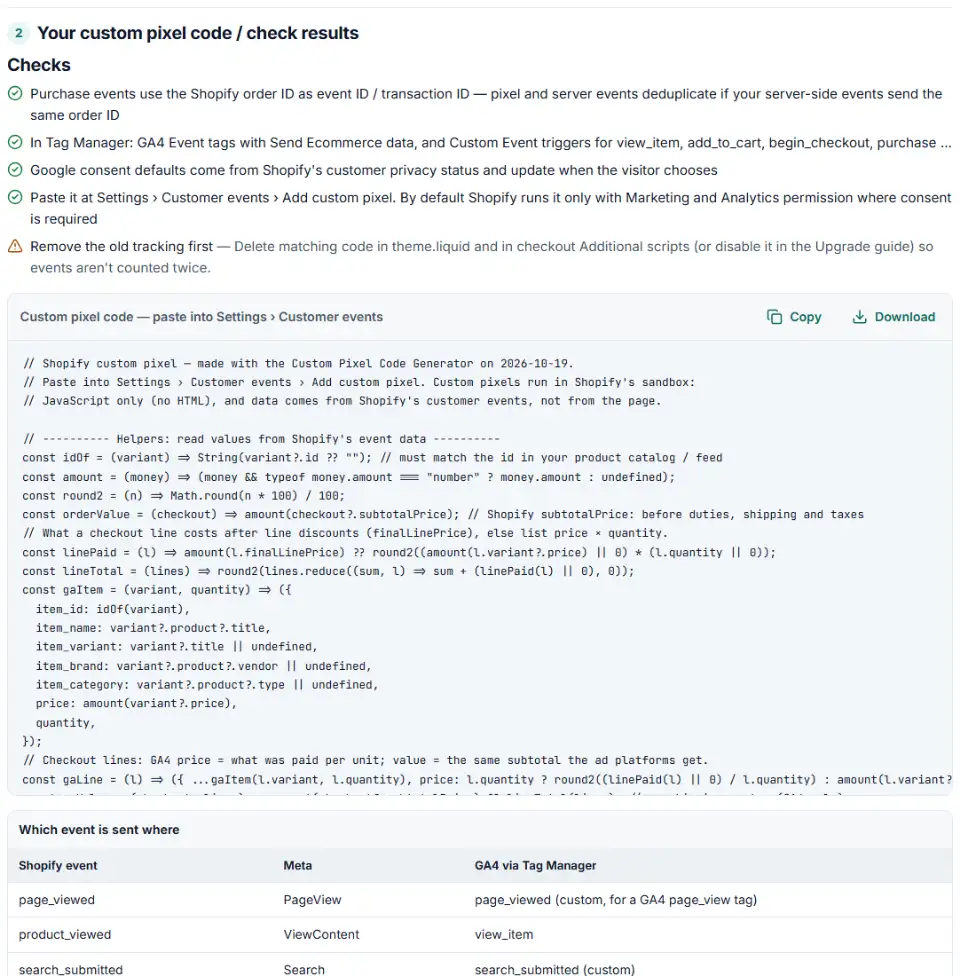
2 Your custom pixel code / check results
Fill in the settings above — your result appears here instantly.
Rules last checked: against the official pages:
- Manage your custom pixels (Shopify)
- Create custom pixel code (Shopify)
- Upgrading and replacing your Thank you and Order status pages (Shopify)
- Standard events (Shopify)
How to use the custom pixel code generator for Shopify
This tool writes Shopify custom pixel code that sends Customer Events to your ad platforms with value, currency, product IDs and event IDs. It follows Shopify's Create custom pixel code guide and the Web Pixels API standard events. Shopify doesn't support custom pixel code, so the tool also checks your existing code.
- Tick your platforms. Enter the Meta pixel ID, the Google Ads conversion ID and label, or your Tag Manager ID. For TikTok and Pinterest, paste the base code they give you.
- Choose the events. The usual set runs from page views to the purchase.
- Pick the product ID. Use the same ID as the
idcolumn of your product catalog, or catalog ads can't match the events. - Copy the code. It has no HTML and uses the order ID as the purchase event ID.
- Check an existing pixel. Paste it into Check my pixel to catch wrong event names, broken data paths, HTML and Liquid.
What to do next in Shopify
Add and connect the pixel
- Remove old code for the same platforms from
theme.liquidand checkout Additional scripts, so events aren't counted twice. - In your Shopify admin, go to Settings › Customer events, give the pixel a name and click Add pixel.
- Paste the generated code into the Code window and click Save.
- Click Connect pixel and confirm. A disconnected pixel never runs.
Customer privacy settings
- New custom pixels require Marketing and Analytics permission. In markets where you ask for consent, such as the EEA and UK, the pixel only runs after the visitor gives both.
- Change this under the pixel's Customer privacy › Permission. Keep both for ad pixels.
- Under Data sale, new pixels count as data sale, so they don't run for visitors who opted out (unless the pixel supports limited data use).
- Using a cookie banner app? It must pass consent to Shopify's Customer Privacy API, or the pixel may never fire.
Test with the Shopify Pixel Helper
- Open the pixel in Settings › Customer events and click Test. If it's awaiting consent, accept the banner or click Give consent to continue test.
- Open a product, add it to the cart and place a test order. A green dot means your code ran; a red dot means it threw an error.
- Then confirm on each platform: Meta Test Events, TikTok Pixel Helper, Pinterest requests in the network tab, and the Google Ads conversion status.
Set up Tag Manager for the pushed events
- For each pushed event (
view_item,add_to_cart,begin_checkout,purchase…) add a Custom Event trigger with that name. - Create a GA4 Event tag with event name
{{Event}}and More Settings › Ecommerce › Send Ecommerce data. - Inside the sandbox, GA4 may record sandbox page URLs. Shopify suggests turning off automatic page views and sending page_view from the
page_viewedpush withpage_location.
Common Shopify custom pixel errors and fixes
Why the Shopify custom pixel is not firing
Check in order: the pixel is connected, the visitor gave the required permissions, and the event name matches Shopify's spelling. purchase or checkout_complete never fire — the event is checkout_completed.
HTML or script src in the pixel
The pixel sandbox only runs JavaScript. A pasted <script> or <noscript> tag is a JavaScript syntax error, so the pixel stops at the first line. Replace <script src=…> with document.createElement('script'), as Shopify's guide shows.
Data paths that don't exist
Shopify's help example reads event.searchResult.query and cartLine.merchandise.productVariant. The developer reference puts search data under event.data.searchResult, and merchandise is already the variant. The generator follows the developer reference.
Money objects sent as the value
totalPrice is an object with amount and currencyCode. Send totalPrice.amount as the value and currencyCode as the currency.
Liquid and page scraping
Custom pixels are not Liquid templates, so {{ order.total_price }} is just text. They also can't read the store's page with document.querySelector. Use event data, or publish a custom event from your theme.
Purchases counted twice
Old Additional scripts plus a new pixel double your conversions. Disable the old script once the pixel is tested, as Shopify's upgrade guide says.
Frequently asked questions
What is a Shopify custom pixel?
A piece of JavaScript you add under Settings › Customer events. Shopify runs it in a sandbox on the storefront, checkout, Thank you and Order status pages, and hands it customer events such as product_viewed and checkout_completed. Your code passes those events on to Meta, Google, TikTok or Pinterest.
How do I add a custom pixel in Shopify?
Go to Settings › Customer events, give the pixel a unique name, click Add pixel, paste the code into the Code window, set the Customer privacy options, click Save, then Connect pixel. Shopify asks you to confirm the pixel meets its Terms of Service before it connects.
Which Shopify customer events can a custom pixel listen to?
Shopify’s standard events include page_viewed, product_viewed, collection_viewed, search_submitted, product_added_to_cart, product_removed_from_cart, cart_viewed, checkout_started, checkout_contact_info_submitted, checkout_address_info_submitted, checkout_shipping_info_submitted, payment_info_submitted and checkout_completed. Your theme can also publish custom events.
Why did my old additional scripts tracking stop working?
Shopify says August 26, 2026 was the deadline to upgrade the Thank you and Order status pages, and stores that missed it were upgraded automatically. Additional scripts don’t run on the new pages, so purchase tracking has to move to an app pixel or a custom pixel.
Can I use Google Tag Manager in a Shopify custom pixel?
Yes — Shopify has a guide for it: paste the container snippet without its HTML tags into a custom pixel and push customer events into the dataLayer. Tags loaded by Tag Manager still run inside the sandbox, and Google Tag Assistant’s Troubleshoot feature can’t see them. For plain Google Ads and GA4, Shopify recommends the Google & YouTube app.
Why is my Shopify custom pixel not firing?
Most often the visitor hasn’t given the permissions the pixel requires (by default Marketing and Analytics), the pixel isn’t connected, an event name is misspelled, or the code contains HTML. Open the pixel and click Test to use the Shopify Pixel Helper; paste the code into Check my pixel here.
Related tools and guide
-
Get Meta pixel code for purchases, leads and other events, with order value and a matching Conversions API event so no sale is counted twice.
Meta -
Get Google Ads conversion tracking code with the real order value and ID, for a thank-you page, WooCommerce or Tag Manager, and check code you have.
Google -
Build GA4 ecommerce code for carts and purchases, and check code you already have for old event names, text prices and totals that don't add up.
Google -
Get TikTok pixel code for purchases, leads and other events with the 2025 event names, value, currency and a matching Events API event.
TikTok -
Get Pinterest tag code for checkouts, leads and sign-ups, with value, order ID, an event ID for the Conversions API and enhanced match.
Pinterest -
Find why your Meta catalog match rate is low: compare catalog IDs with the product IDs your pixel sends and see which ID format breaks the match.
Meta
Need help setting this up? Talk to EmproIT