Conversion Tracking Code Generator for Google Ads
Generate Google Ads conversion tracking code with value, currency and transaction ID — for a thank-you page, a button click, WooCommerce or Tag Manager — or check the code you have.
Conversion Tag Code Generator for Google Ads
1 Build or check
2 Your conversion code / check results
Fill in the settings above — your result appears here instantly.
Rules last checked: against the official pages:
- Use the Google tag for Google Ads conversion tracking (Google tag (gtag.js))
- Track clicks on your website as conversions (Google tag (gtag.js))
- Track transaction-specific conversion values (Google tag (gtag.js))
- Use a transaction ID to minimize duplicate conversions (Google tag (gtag.js))
How to use the conversion tracking code generator for Google Ads
This tool builds Google Ads conversion tracking code with your conversion ID, label, value, currency and transaction ID filled in, and checks code you already use. Every parameter follows Google's Track transaction-specific conversion values and transaction ID help pages.
- Enter the conversion ID and label. Both are on the conversion action's Tag setup screen in Google Ads.
- Pick the conversion type. A thank-you page, a click on a button or link, or calls from the number on your site.
- Choose where it goes. Page code for any site, a ready PHP snippet for WooCommerce, or the field-by-field settings for a Tag Manager tag.
- Set value and transaction ID. For sales, read both from the order: the generator writes them as variables, never as fixed text.
- Copy, then test. Install the code, place a test order and check the request in Tag Assistant. Paste live code into Check my code to catch broken IDs.
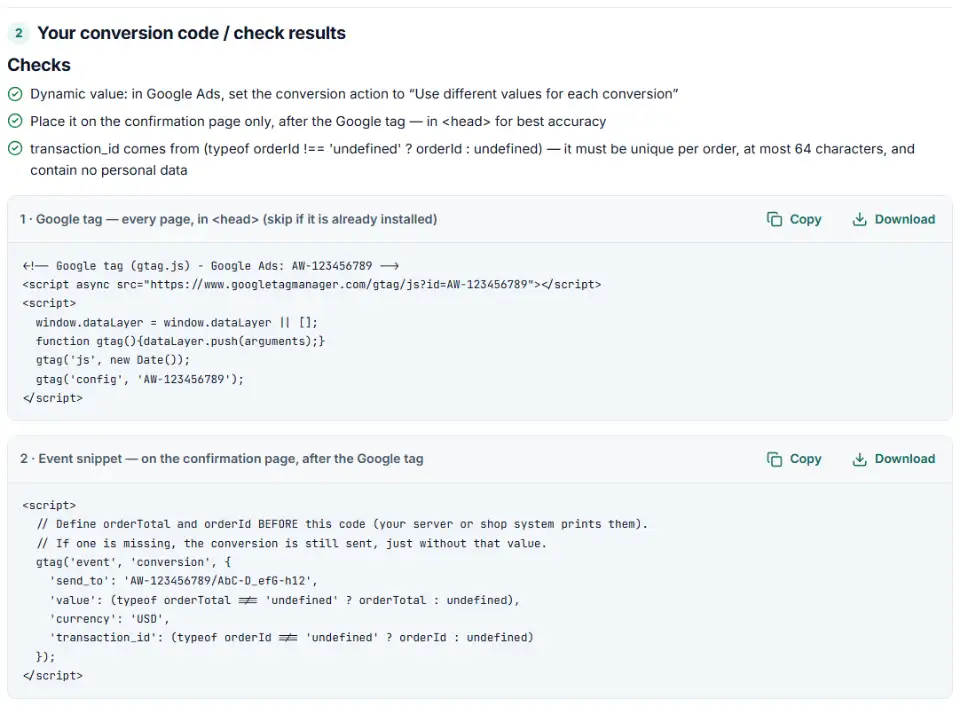
What to do next: install the conversion code
The Google tag belongs on every page. The conversion part only runs where the conversion happens. Pick your setup:
Plain HTML
- Paste the Google tag into the
<head>of your shared page template, once. - Paste the event snippet into the head of the confirmation page only, below the Google tag.
- Have your server define
orderTotalandorderIdabove the event snippet, from the order that was just placed.
WordPress and WooCommerce
- Install the Google tag once — through your theme's head hook or a plugin, not both.
- Choose WooCommerce above and paste the PHP at the end of a child theme's
functions.php— the file already starts with<?php. WooCommerce runswoocommerce_thankyouwith the order ID on the order-received page. - Place a test order, open the page source and confirm the value and order number were printed.
Shopify
- Shopify recommends the Google & YouTube app for Google tags; Google maintains it.
- Additional scripts no longer run on the new Thank you page, so hand-written purchase tags must move to a custom pixel — our custom pixel code generator for Shopify adds the Google Ads conversion for you.
Google Tag Manager
- Add a new tag › Tag Configuration › Google Ads › Google Ads Conversion Tracking.
- Enter the Conversion ID and Conversion Label, then Conversion Value, Transaction ID and Currency Code from the table above. Google notes that an empty or undefined value is sent as 0.
- Add the trigger for your purchase or click, save, preview and publish.
- Remove any gtag event snippet for the same action — running both counts the sale twice.
Common Google Ads conversion tracking errors
Google Ads conversion tracking not working: no Google tag
The event snippet needs the Google tag on the same page, loaded first. If the Google tag came from Analytics, add gtag('config', 'AW-…') for your Ads account.
Wrong ID or label in send_to
send_to is the conversion ID, a slash and the label of this one action. Copy both from the action's Tag setup screen. The checker flags a missing label and an ID with no matching gtag('config') on the page.
Value as text or with a comma
Google asks you to pass the value as a number with a period as the decimal point: 120.50, not '120,50' or '$120.50'. Keep the currency in its own field.
Static or unfilled transaction IDs
Google lists real-world broken IDs such as {{ order_number }}, <?php echo $order->id; ?>, "thank_you" and "1234". A hard-coded ID means only the first conversion is counted. Print the real order number instead.
Personal data in the transaction ID
Emails, phone numbers and URLs are not allowed. Use the plain order number — the same one you'd use in an offline conversion upload.
Conversions counted twice
Running the gtag snippet and a Tag Manager tag for the same action, or leaving out the transaction ID on a page that gets reloaded, both double count. Keep one setup and always send the ID.
Frequently asked questions
What does Google Ads conversion tracking code look like?
Two parts. The Google tag loads gtag.js on every page. The event snippet runs where the conversion happens: gtag('event', 'conversion', {'send_to': 'AW-123456789/AbC-D_efG-h12', 'value': 120.50, 'currency': 'USD', 'transaction_id': 'ORDER-1001'});.
How do I add a conversion value and currency?
Pass value as a number with a period as the decimal point (120.50, not “120,50”) and currency as a 3-letter ISO 4217 code in single quotes, such as ‘USD’. For values that change per order, set the conversion action to Use different values for each conversion.
What is the transaction ID for and when do I need it?
It stops the same order from counting twice. If two conversions for the same action share a transaction ID, Google Ads treats the second as a duplicate. Use your order number: unique, up to 64 characters, no personal data. Use the same ID in any offline upload of that order.
Where do I find my conversion ID and conversion label?
In Google Ads, open Goals, pick the conversion action under Summary and open Tag setup. The ID starts with AW-; the label is the part after the slash in send_to. The Tag Manager option on that screen shows both as separate fields.
How do I track a button click as a conversion?
Use a click conversion: a gtag_report_conversion() function in the head of the page, and onclick="return gtag_report_conversion('…');" on the link or button. Google says the page must call that function when someone clicks.
Why is my Google Ads conversion tracking not working?
Common causes: the Google tag isn’t on the page, the event runs before it, send_to has the wrong label, or the code sits on a page buyers never reach. Google says the status can take up to 48 hours to update after you install or fix a tag — test with Tag Assistant first.
Related tools and guide
-
Get Google consent mode v2 code for your cookie banner, with defaults for EEA, UK and Swiss visitors and a check for tags that fire before consent.
Google -
Get custom pixel code for Shopify that sends checkout and cart events to Meta, Google, TikTok and Pinterest, plus a checker for wrong event names.
ShopifyMetaGoogleTikTokPinterest -
See every tag in a Google Tag Manager export in one Excel file, with unused, paused and outdated items flagged and two versions compared.
Google -
Build GA4 ecommerce code for carts and purchases, and check code you already have for old event names, text prices and totals that don't add up.
Google -
Get Google Ads enhanced conversions code that sends the buyer's email, phone or address with each conversion, for the Google tag or Tag Manager.
Google -
Build a ready-to-upload Google Ads offline conversions CSV from your CRM export, with time zones, values and 90-day checks done for you.
Google
Need help setting this up? Talk to EmproIT