Offline Conversions Template Builder for Google Ads
Turn a CRM or spreadsheet export into a Google Ads offline conversions file: GCLIDs checked, times in Google's format with your time zone, values cleaned, duplicates and expired clicks removed.
Offline Conversions Template Builder for Google Ads
- Upload
- Check
- Download
1 Add your CRM export
Choose a file or drag it here
CSV, Excel (XLSX), TSV or TXT export from your CRM or spreadsheet · up to 300 MB
2 Check the columns and options
Rules last checked: against the official pages:
- Import conversions from ad clicks into Google Ads using files (legacy) (Google Ads)
- Download templates for conversion bulk uploads (Google Ads)
- Fix discrepancies and errors in offline conversion imports (Google Ads)
- About conversion windows (Google Ads)
How to use the offline conversions template builder for Google Ads
This tool fills in the Google Ads offline conversions template for you. It reads the export from your CRM or spreadsheet and writes the click-conversion file described on Google's import conversions from ad clicks help page: the Parameters row, Google's documented header names, and one conversion per row.
- Export your sales or qualified leads with each lead's saved GCLID and conversion date. A value and the click date help too.
- Drop the file in. CSV and Excel files both work. The tool finds the GCLID, date and amount columns by their names, including HubSpot's Google ad click id and Salesforce's GCLID__c.
- Set the time zone and date format. Pick the time zone your CRM uses. If your dates look like 03/04/2026, tell the tool whether the day or the month comes first.
- Type the conversion name. It must match your conversion action in Google Ads exactly. Skip this if your file already has a conversion name column.
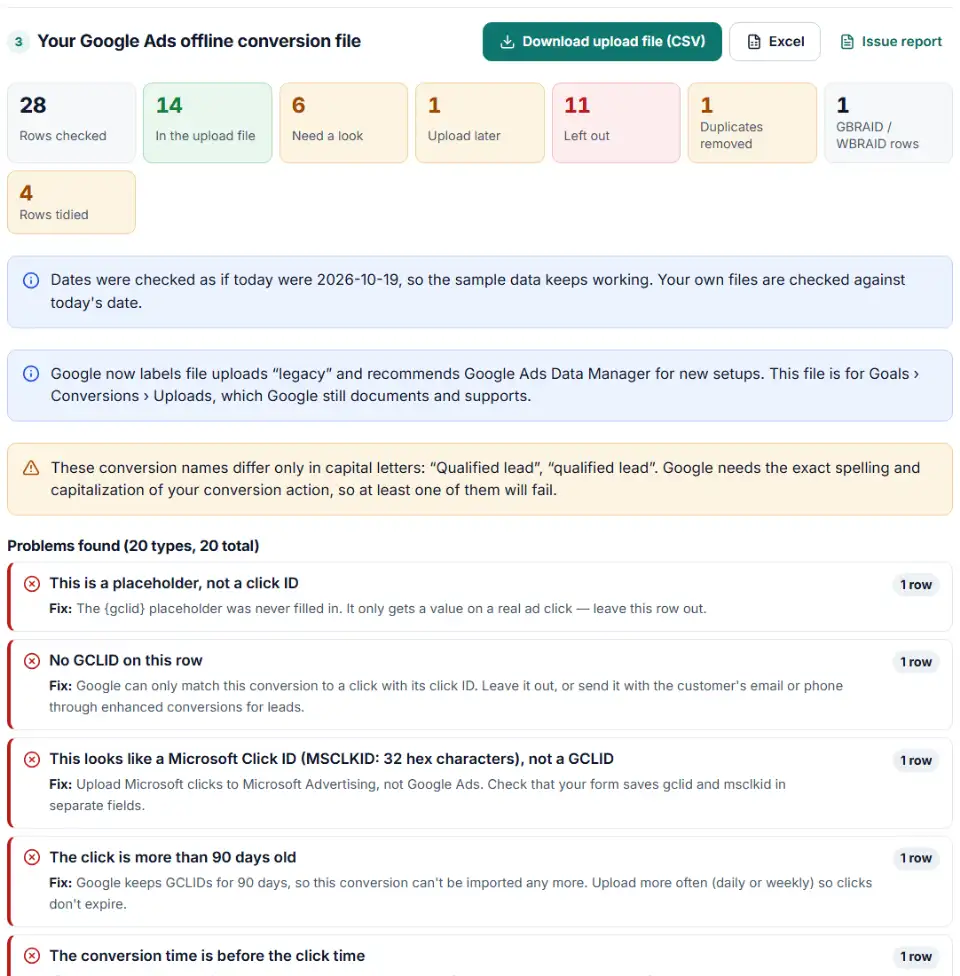
- Read the problems, then download. Rows Google would reject are left out with the reason. Clicks under 6 hours old go into an “upload later” file.
Google Ads offline conversion CSV example
A finished file looks like this. The first line sets the time zone; the second holds Google's headers. A filled-in Google template works as input too: its own Parameters line is used to read the times.
Parameters:TimeZone=America/New_York
Google Click ID,Conversion Name,Conversion Time,Conversion Value,Conversion Currency
Cj0KCQjw…BwE,Qualified lead,2026-10-14 14:30:00-0400,1250,USD
How to upload click conversions in Google Ads
- Check your conversion action. In Goals › Conversions › Summary, the action's source must be Import from clicks. If you just created it, wait 4–6 hours before the first upload; Google says early uploads can take two days to show.
- Open the uploader. Go to Goals › Conversions › Uploads and click the plus button. Choose Upload a file as the source and pick the CSV you downloaded here.
- Preview, then apply. Use Preview for Google's own check, then Apply file. Upload to the account that owns the conversion action (the manager account with cross-account tracking).
- Download Google's results. Use Download errors on the upload for a result per row, and fix those rows in your CRM so they don't come back.
- Report by conversion time. Imported conversions are dated by the click, so compare with your CRM using the Conversions (by conv. time) column.
Common Google Ads offline conversion import errors
“This click is too old for its conversion to be imported” (older than 90 days)
Google keeps a GCLID for 90 days, and some actions have a shorter window. Upload weekly, or import an earlier funnel step, such as a qualified lead.
“Conversion date precedes click date”
The time in the file is earlier than the click — usually a time zone mix-up, or a date-only CRM field read as midnight. Pick the right time zone above; date-only rows get the end of the day (or the current time, if dated today).
“Click too recent”
The click happened less than 6 hours ago. Nothing is wrong with the row: upload the “upload later” file after 6 hours.
“We cannot find this conversion name in the target account”
The name has a typo, different capital letters or an extra space, or the file went to the wrong account. The results chart lists every name in your file, so variants stand out.
“No Google Ads conversion types were defined when this GCLID's click occurred”
The conversion action was created after the click. Create the Import from clicks action before the clicks you plan to upload.
Google Ads conversion time format: the patterns Google accepts
These are the patterns listed on Google's help page for click-conversion files. “+z” means a plus or minus sign and a 4-digit GMT offset; “zzzz” means a time zone name.
| Pattern | Example |
|---|---|
MM/dd/yyyy hh:mm:ss aa | 08/14/2012 5:01:54 PM |
MMM dd,yyyy hh:mm:ss aa | Aug 14, 2012 5:01:54 PM |
MM/dd/yyyy HH:mm:ss | 08/14/2012 17:01:54 |
yyyy-MM-dd HH:mm:ss | 2012-08-14 13:00:00 |
yyyy-MM-ddTHH:mm:ss | 2012-08-14T13:00:00 |
yyyy-MM-dd HH:mm:ss+z | 2012-08-14 13:00:00+0500 |
yyyy-MM-ddTHH:mm:ss+z | 2012-08-14T13:00:00-0100 |
yyyy-MM-dd HH:mm:ss zzzz | 2012-08-14 13:00:00 America/Los_Angeles |
yyyy-MM-ddTHH:mm:ss zzzz | 2012-08-14T13:00:00 America/Los_Angeles |
Frequently asked questions
What columns does the Google Ads offline conversions template need?
A Parameters:TimeZone= row, then a header row with Google Click ID, Conversion Name, Conversion Time, Conversion Value and Conversion Currency. Optional documented columns (Order ID, Ad User Data, Ad Personalization) are added only when your file has them. Google doesn’t publish the column order of the template in your account, so the file follows Google’s documented header names.
What date and time format does Google Ads accept for Conversion Time?
Google lists nine patterns (see the table below). The hardest to get wrong is a time with its own offset, like 2026-10-14 14:30:00-0400, because each row then says exactly which moment it means.
How do I set the time zone in a Google Ads offline conversion file?
Put it in the first row without quotes, as a time zone name like Parameters:TimeZone=America/New_York or an offset like Parameters:TimeZone=-0500. Google recommends the name because it handles daylight saving. This builder also writes the offset into each Conversion Time by default.
How old can a click be for a Google Ads offline conversion upload?
90 days. Google keeps a GCLID for 90 days, and the conversion must also fall inside the click-through window of your conversion action — 30 days unless you changed it, 90 at most.
Is Google Ads offline conversion file import still supported?
Yes, but Google now calls it a legacy feature and recommends Google Ads Data Manager for new setups. One-time and scheduled file uploads are still documented under Goals › Conversions › Uploads.
Can I upload two conversions for the same GCLID?
Yes, if they are different conversions. Google counts the same GCLID, conversion name and time only once, so two sales from one click need two different conversion times.
Can I upload GBRAID or WBRAID rows in this file?
No. Google documents GBRAID and WBRAID as Data Manager fields, not template columns, so rows with only a GBRAID or WBRAID go into a second file laid out for Data Manager.
Related tools and guide
-
Find broken, changed and expired GCLIDs in your CRM export before Google Ads rejects your offline conversion upload.
Google -
Turn your call log into a Google Ads call conversion import file, with caller numbers fixed and call times and the 90-day window checked.
Google -
Build the enhanced conversions for leads file for Google Ads Data Manager, with emails, phones and hashing done the way Google asks.
Google -
Remove refunded sales from Google Ads or lower their value: build the adjustments file from your refunds export, with the 54-day limit checked.
Google -
Turn Google Ads upload errors like “click too old” or “conversion date precedes click date” into fixes, a clean re-upload file and a retry list.
Google -
Turn a Shopify orders export into Google Ads and Meta offline conversion files for in-store and draft orders, without counting online sales twice.
GoogleMeta
Need help setting this up? Talk to EmproIT