Enhanced Conversions for Leads Upload File Builder for Google Ads
Turn a CRM export of qualified leads into a Google Ads Data Manager file for enhanced conversions for leads: emails and phones normalized the way Google asks, optionally SHA-256 hashed, with time zones and the 63-day limit checked.
Enhanced Conversions for Leads Upload File Builder for Google Ads
- Upload
- Check
- Download
1 Add your lead export
Choose a file or drag it here
CSV, Excel (XLSX), TSV or TXT export from your CRM · up to 300 MB
2 Check the columns and options
Rules last checked: against the official pages:
- Prepare your data for import - Google Ads Data Manager Help (Google Ads)
- About enhanced conversions for leads (Google Ads)
- Using Google Ads Data Manager with enhanced conversions for leads (Google Ads)
- Offline conversion imports FAQs (Google Ads)
How to build an enhanced conversions for leads upload file
Google has changed how this works: an enhanced conversions for leads upload CSV now has to go through Google Ads Data Manager, as the Google Ads file import page states. This builder makes that Data Manager file from your CRM export and prepares each email and phone the way Data Manager's data guide describes.
- Export the leads that reached your goal stage. For example every lead that became qualified this week, with email, phone, the date it qualified and the GCLID if your forms capture it.
- Load the file. The tool finds the email, phone, country, date and GCLID columns, including HubSpot names like Became a Sales Qualified Lead Date.
- Set the country, time zone and date format. The country fills in missing phone country codes. The time zone is used for dates without their own offset.
- Keep hashing on unless your Data Manager connection expects plain data. Existing SHA-256 hashes are kept.
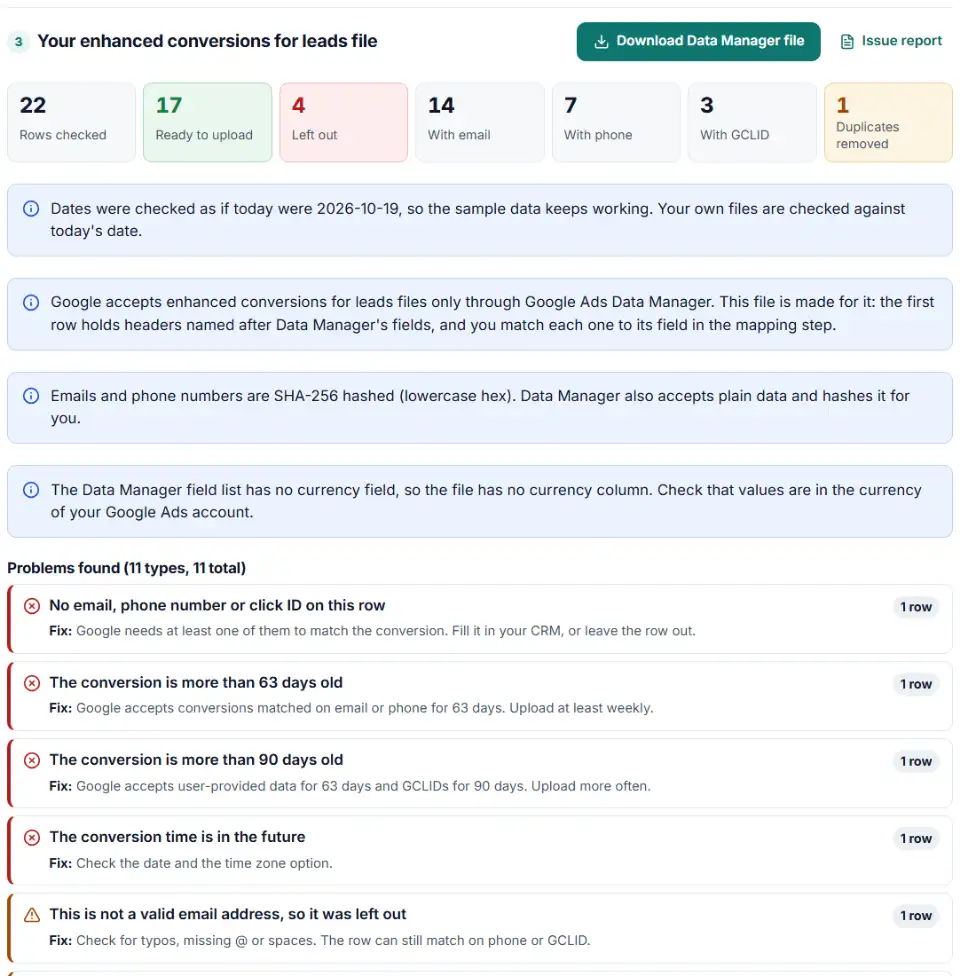
- Check and download. Rows Google can't use are left out with the reason. Download the Data Manager file and import it as shown below.
Enhanced conversions for leads CSV columns and formats
- Email: spaces trimmed and lowercased. For gmail.com and googlemail.com addresses, dots and anything after a “+” before the @ are removed, as Google's developer docs require before hashing.
- Phone: converted to E.164, including numbers Excel turned into 1.4155550123E+10 or that carry an extension.
- Time: written like Google's example
2012-08-14T17:01:54-07:00, with the offset of your time zone on that date. - Headers: named after Data Manager's fields — Email Address, Phone number, Conversion date and time, GCLID and others — so mapping takes seconds.
How to import the file with Google Ads Data Manager (ECL)
- Accept the customer data terms. Under Goals › Settings, open Customer data use and turn on enhanced conversions for leads if you haven't yet.
- Create the conversion action. Go to Goals › Summary, click + New conversion action, then Import and CRMs, files, or other data sources, and choose a tracking method. Google recommends the “Qualified lead” or “Converted lead” goal.
- Connect the file. In Data Source, choose Connect a new data source. The simplest route is to open the CSV in Google Sheets and pick Google Sheets with a Direct connection. Google's data guide describes CSV files and Google Sheets, so the download is CSV only.
- Map the fields. For each destination field, pick the column with the same name. Then click Next, name the connection and finish.
- Watch the diagnostics. Google's checklist suggests keeping a new action as secondary for the first 2–3 weeks. Check the action's Diagnostics tab before you let bidding use it.
Common enhanced conversions for leads errors
“No user-provided data matches”
This diagnostic means Google couldn't match the hashed emails or phones to its users. Check that your website tag also sends user-provided data, and that you didn't change the email from what the lead typed — for example by adding a CRM prefix — before hashing.
“Enhanced conversions has no recent data”
No new conversions arrived for a while. Make sure the file connection still runs, and that rows aren't older than 63 days when they reach Google.
Rows skipped in the “Convert date and time” step
When a CRM export has no time zone, Data Manager needs a fallback time zone in its date transformation, or it drops those rows. Files from this builder never depend on that setting.
CUSTOMER_NOT_ACCEPTED_CUSTOMER_DATA_TERMS
The account hasn't accepted the customer data terms. Accept them in Customer data use, then import again.
Gmail addresses that never match
A hash of [email protected] as typed won't match Google's. For Gmail addresses, remove the dots and the “+” tag before hashing — the builder does this for you.
Frequently asked questions
Which columns does an enhanced conversions for leads upload file need?
There is no fixed template any more: Google accepts these files only through Google Ads Data Manager, which lets you match any header to its fields. Each row needs a conversion date and time plus an email, phone number, GCLID, GBRAID or WBRAID. This builder names the columns after Data Manager’s fields.
How do I format and hash emails for enhanced conversions for leads?
Trim spaces and lowercase the address. For gmail.com and googlemail.com, also remove the dots and any “+tag” before the @, so [email protected] becomes [email protected]. Then hash it with SHA-256. Data Manager can also hash plain data for you, so hashing here is optional — it just makes the file safer to keep.
What phone number format does enhanced conversions for leads need?
E.164: a plus sign, the country code and the number, with no spaces, dashes or brackets — for example +14155550123. Google’s Data Manager page asks for 11 to 15 digits including the country code. The builder adds missing country codes from the country column or the default country you pick, and leaves out numbers outside that length.
How old can a conversion be for an enhanced conversions for leads upload?
63 days when Google matches on email or phone. A row that also has a GCLID can still match on the click for up to 90 days. Send a file at least weekly.
Can I upload enhanced conversions for leads without a GCLID?
Yes — matching on hashed email and phone is the point of enhanced conversions for leads. Google still recommends adding the GCLID whenever your forms capture it.
Why does my enhanced conversions for leads upload show unknown clicks?
That’s expected. Google asks you to upload all leads for the event, not only the ones from ads, and the leads it can’t tie to a Google Ads click show as unknown. It’s only a problem if every row does.
Why does Data Manager reject the dates in my file?
Data Manager reads 02/01/2026 as February 1, and Google warns that one day/month date makes the whole import fail. Rows without a time zone are skipped unless you set a fallback. Writing every time as 2026-10-14T14:30:00-04:00 avoids both.
Related tools and guide
-
Build a ready-to-upload Google Ads offline conversions CSV from your CRM export, with time zones, values and 90-day checks done for you.
Google -
Hash emails and phones the way Google and Meta want, and check a pre-hashed file for hashes that will never match.
GoogleMeta -
Turn messy phone numbers into E.164 in bulk, with the country code added and invalid numbers flagged before you upload.
GoogleMetaTikTok -
Build a realistic test lead for your Google Ads lead form webhook, then check what your CRM or server actually received.
Google -
Get Google Ads enhanced conversions code that sends the buyer's email, phone or address with each conversion, for the Google tag or Tag Manager.
Google -
Find broken, changed and expired GCLIDs in your CRM export before Google Ads rejects your offline conversion upload.
Google
Need help setting this up? Talk to EmproIT