GCLID Checker for Google Ads Offline Uploads
Check a column of GCLIDs before you upload conversions: find values Google can't match and clicks that are past the 90-day upload limit, using the click dates from your CRM.
GCLID Checker for Google Ads Offline Uploads
- Upload
- Check
- Download
1 Add your GCLIDs
Choose a file or drag it here
CSV, Excel, TSV or one GCLID per line · up to 300 MB
2 Check the columns and options
Rules last checked: against the official pages:
- Fix discrepancies and errors in offline conversion imports (Google Ads)
- Set up offline conversions using Google Click ID (GCLID) (Google Ads)
- About conversion windows (Google Ads)
- About auto-tagging (Google Ads)
How to use the GCLID checker
This GCLID checker looks at every Google Click ID in your CRM export before you send offline conversions to Google Ads. It follows Google's offline conversions with GCLID help page and its list of upload errors, and it works out the upload deadline for each click from the click date in your file.
- Add the GCLIDs. Upload your CRM export, or paste one GCLID per line if you only want to check the IDs themselves.
- Add dates if you have them. A click date column turns on the 90-day check and the upload-before date. A conversion date column adds the window check and finds conversions dated before their click.
- Set your time zone and window. Use the time zone your CRM stores dates in, and the click-through window of your conversion action.
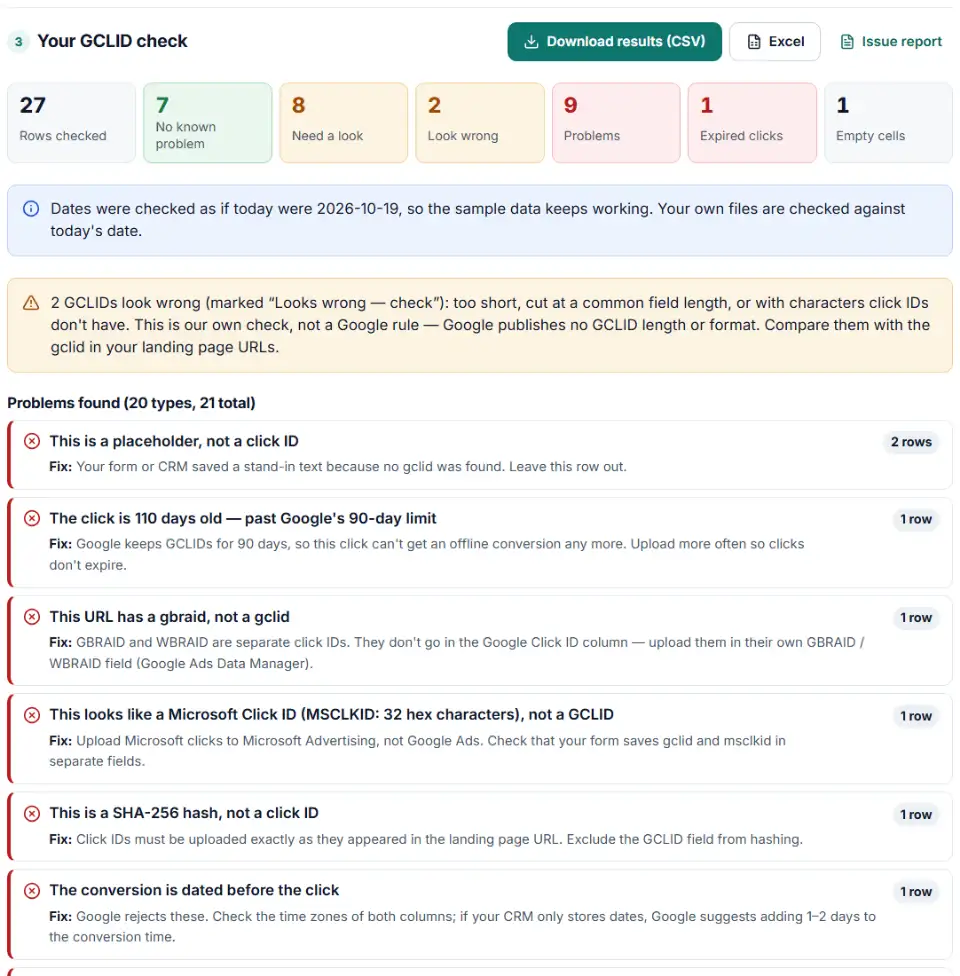
- Read the result for each row. “No known problem” rows passed every check. “Check” rows were cleaned or need a quick look. “Looks wrong — check” rows failed one of our own tests, such as a value that is very short. “Problem” rows will be rejected as they are.
- Download or move on. Get the full results, or only the GCLIDs that are safe to upload. The next step button takes those to the offline conversion builder.
What to do with the results
- Upload the oldest clicks first. Sort by Upload before. Anything with a week or less left should go into your next upload.
- Fix how GCLIDs are saved. Most problems start on the website. Store the gclid in a hidden form field and a plain text CRM field that never changes letter case or length.
- Check your redirects. If many visits have no GCLID, make sure redirects pass the gclid through to the final page. Google says some sites that block unknown URL parameters show an error page instead.
- Turn on auto-tagging. In Google Ads go to Admin › Account settings › Auto-tagging. No auto-tagging means no GCLIDs.
GCLID format problems that make uploads fail
GCLID too old to upload: “Identifiers or iOS URL parameters are too old”
Google's error page uses this label for clicks past the 90-day limit or the conversion window. The checker counts them as Expired clicks. They can't be uploaded any more, so upload more often.
“Click too recent”
Google rejects clicks under 6 hours old with this message. The row isn't broken — include it in the next upload.
A GCLID copied with the wrong case
Google says the GCLID is case sensitive. A value that is all small or all capital letters is worth checking, because it's often a sign that software changed it. Find where it happens — a CRM “format as lowercase” rule, an email tool or a spreadsheet function — and save the raw value instead.
GCLID with spaces, quotes or URL encoding
Spaces, line breaks, quotes, brackets or codes like %2D inside a GCLID mean something was added or changed when it was saved. Compare one with the landing page URL and fix the form field that stores it.
GCLIDs that were cut short
If one value is much shorter than the rest, a field limit probably cut it. When every GCLID stops at the same round length, such as 64 or 100 characters, the field cut them all. Google doesn't publish a GCLID length or format, so these are our own checks, and no tool can promise a GCLID is complete. Give the CRM field plenty of room and compare one value with the landing page URL.
“{gclid}”, “undefined” or “N/A” instead of an ID
These come from forms that save a stand-in text when no gclid was found, or from tracking templates tested without a real click. There's nothing to upload for these rows.
A gbraid in the GCLID column (or a Microsoft ID)
In a saved URL the checker sees gbraid= or wbraid= and flags the row; a bare gbraid can't be told apart, so give each ID its own CRM field. A 32-character hex value is usually a Microsoft Click ID.
Numbers like 1.23457E+15
Excel turned a value into scientific notation and the real ID is gone from that cell. Export again and open the file with the column set to Text.
Frequently asked questions
How do I check if a GCLID is valid?
Only Google can confirm a GCLID, in your upload results. Before uploading you can catch the damage that makes GCLIDs fail — changed letter case, extra text, cut-off values, placeholders, other platforms’ IDs and clicks past 90 days. That’s what this checker does.
Is the GCLID case sensitive?
Yes. Google’s help page says so directly. A GCLID that a CRM, form plugin or spreadsheet changed to all small or all capital letters won’t match its click, even though it looks almost the same.
How old can a GCLID be for an offline conversion upload?
90 days. Google keeps a GCLID for 90 days after the click. The conversion must also fall inside the click-through conversion window of your conversion action, which is 30 days unless you changed it.
Can you decode a GCLID to find the click date?
Not reliably. Google has never documented what is inside a GCLID, so a date read out of one is a guess, and the format can change without notice. That’s why this checker has no decode button: it uses the click date your CRM or form saved, which is what the 90-day limit counts from.
Why does Google say a GCLID could not be decoded?
People report this wording from tools such as Zapier and Make. Google’s help pages don’t explain it, but it points to a value Google can’t read as a click ID — usually one that was changed, cut short, URL-encoded or isn’t a GCLID. This checker shows which.
What is the difference between a GCLID and a GBRAID?
Both come from Google Ads auto-tagging. A GCLID identifies one ad click; a GBRAID is a privacy-friendly ID for some iOS traffic. In a saved URL this checker spots gbraid= and wbraid=, but a bare GBRAID can’t be told apart from a GCLID (Google publishes neither format), so keep them in separate fields.
Why does the same GCLID appear on several rows?
One click can lead to several conversions, like a form fill and a sale. That’s fine when each row has a different conversion time or name. Google counts the same GCLID, name and time only once.
Related tools and guide
-
Build a ready-to-upload Google Ads offline conversions CSV from your CRM export, with time zones, values and 90-day checks done for you.
Google -
Split click IDs and UTM tags out of thousands of landing page URLs in one go, with no spreadsheet formulas.
GoogleMetaMicrosoftTikTokLinkedIn -
Turn Google Ads upload errors like “click too old” or “conversion date precedes click date” into fixes, a clean re-upload file and a retry list.
Google -
Paste an ad click link to see what each parameter means (gclid, gad_source, srsltid and more), spot stripped click IDs and get a clean URL.
GoogleMetaMicrosoftTikTok -
Get one script that saves ad click IDs and UTM tags when visitors land and fills your form's hidden fields, ready for offline conversion uploads.
GoogleMetaMicrosoftTikTokLinkedIn -
See how many days your customers take from ad click to sale, how many sales each conversion window would miss, and which window fits your data.
Google
Need help setting this up? Talk to EmproIT