Offline Conversion Upload Error Explainer for Google Ads
Load the errors file from a failed Google Ads offline conversion upload and get every error in plain English with its fix, matched to your rows — plus a fixed re-upload file and a retry-later file.
Offline Conversion Upload Error Explainer for Google Ads
- Upload
- Explain
- Download
1 Add your upload results
Choose a file or drag it here
The CSV or Excel file from Download errors — or error messages, one per line · up to 300 MB
2 Check the columns and options
Rules last checked: against the official pages:
- Fix discrepancies and errors in offline conversion imports (Google Ads)
- Offline conversion imports FAQs (Google Ads)
- Import conversions from ad clicks into Google Ads using files (legacy) (Google Ads)
- ConversionUploadErrorEnum.ConversionUploadError (Google Ads API v26, page last updated 2026-10-13) (Google Ads)
How to fix Google Ads offline conversion upload errors
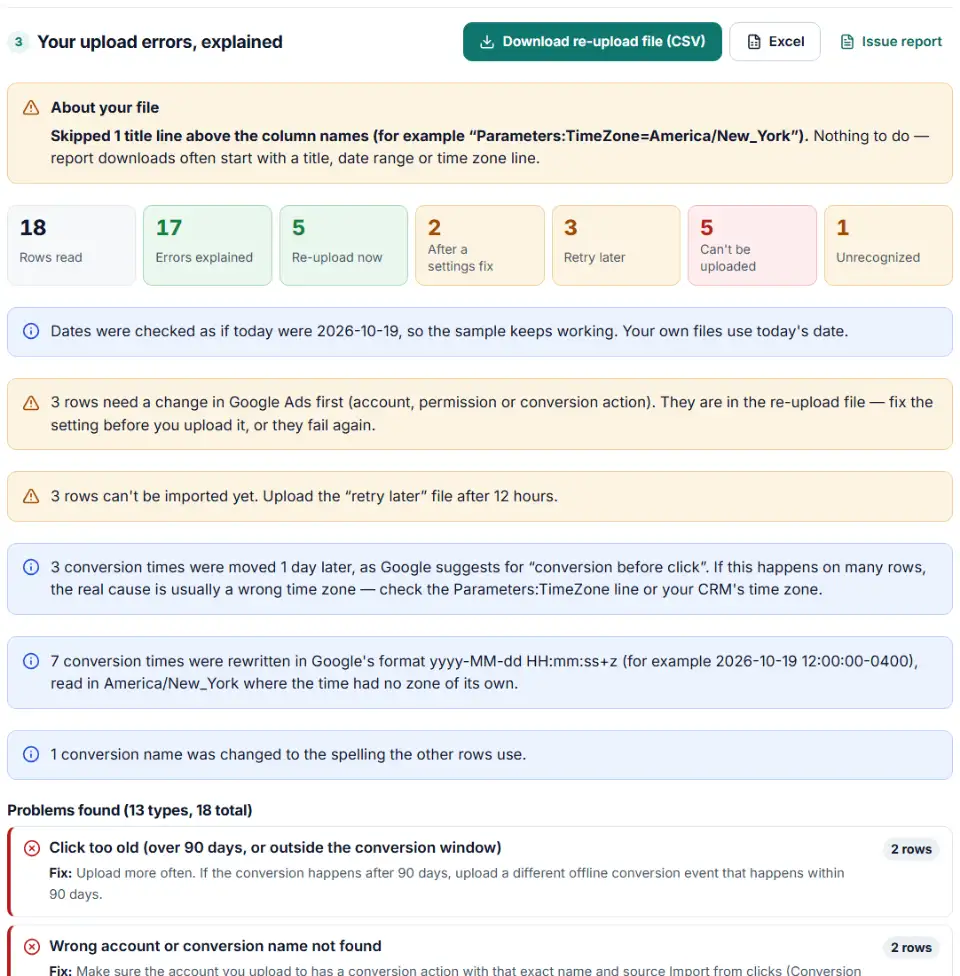
When an offline conversion upload fails, Google Ads gives you a spreadsheet with one short message per row. This tool reads Google Ads offline conversion upload errors in that file, explains each one in plain words with the fix from Google's errors and discrepancies page, and sorts every row into what you can upload again, what to retry later and what can't be imported.
- Download the errors. In Google Ads go to Goals › Conversions › Uploads and click Download errors next to the file. Drop that file here. You can also paste the messages on their own, one per line — including Google Ads API codes like
UNPARSEABLE_GCLID. - Check the columns. The tool finds the Results column and your Google Click ID, Conversion Name and Conversion Time columns by their names.
- Choose how to fix early times. For “conversion before click” rows, the tool can add 1 or 2 days, as Google suggests, or leave them out so you can fix the time zone instead.
- Read the groups. Every message is grouped by cause, with your row numbers and the fix. Rows with a damaged click ID are checked and repaired where possible, such as URL-encoded characters.
- Download your files. You get a re-upload file in your own layout, with times and values rewritten in Google's formats, a retry-later file and a report of every row.
What to do next in Google Ads
- Fix settings first. If rows failed for the wrong account, a missing conversion name or permissions, fix that in Google Ads before anything else. Check the Conversion source column on the Conversions page: it must say Import from clicks.
- Upload the re-upload file. Go to Goals › Conversions › Uploads, click +, choose Upload a file, pick the file, preview it and click Apply.
- Upload the retry-later file after the wait. 6 hours for clicks that were too recent, 12 hours for “still processing”.
- Check the result. Back on the Uploads page, the Status and Results columns show whether every row went in. Imported conversions appear by click date, so look at the by conv. time columns when you compare.
Other Google Ads upload errors and fixes
Unparseable GCLID: “The imported gclid could not be decoded”
The click ID in your file is not the one Google created. Usually a CRM, form tool or spreadsheet changed it: lowercased it, cut it short, added text or turned characters into codes like %2D. The tool repairs what it safely can and tells you which rows are lost.
Unknown clicks
Google couldn't link the conversion to a Google Ads click. With enhanced conversions for leads this is normal for customers who came from other channels, and Google says you can generally ignore it. If every row shows it, check your forms.
Not authorized to upload conversions to this account
Google's label is Check permissions. The account must be linked to your manager account, and the account that owns the conversion action must be the one that uploads.
Google Ads offline conversion duplicate error
Google drops a conversion when the same click, conversion name and time are already in your account. If two rows are really two sales, give each its own time or order ID.
Offline conversions not showing in Google Ads
If the upload worked but the numbers look low, it is often timing: Google says processing typically takes less than 12 hours, and reports count conversions on the click date. A conversion action that counts only one conversion per click also drops the rest.
Frequently asked questions
What does 'This click is too old for its conversion to be imported' mean?
Google keeps a GCLID for 90 days, so a conversion from an older click can’t be imported. The same message appears when the conversion is outside the conversion window of your conversion action. Google’s newer label for it is Identifiers or iOS URL parameters are too old. The fix is for next time: upload more often, or upload an earlier step of your sales process that happens within 90 days.
How do I fix 'Conversion date precedes click date'?
Google’s advice on its error page is to add 1 to 2 days to the conversion time, or to check the time zone. If many rows have it, the time zone is the real problem — for example CRM times in UTC uploaded as New York time. This tool moves the time for you and writes it with an explicit offset.
What should I do when Google says a click is too recent?
Nothing is wrong with the row. Google can’t import a conversion for a click that is less than 6 hours old. Upload the same row again after 6 hours — the tool puts these rows in a separate retry-later file. For “still processing this click’s information”, Google asks you to wait 12 hours.
Why can't Google Ads find my conversion name?
The account you upload to needs a conversion action with exactly that name, with the source Import from clicks. Capital letters and spaces count: “Qualified Lead” is not “Qualified lead”. If you upload at manager (MCC) level, cross-account conversion tracking must be on in the sub-account.
Where do I download the errors for an offline conversion upload?
In Google Ads, open Goals › Conversions › Uploads. Find your file and click Download errors in the Actions column. You get a spreadsheet of the rows that failed, with the message in a Results column. Google removes these links 30–60 days after the upload.
What does 'No Google Ads conversion types were defined when this GCLID's click occurred' mean?
When the click happened, the account had no conversion action yet. Google calls this Conversion actions not active. Those clicks can never be imported, but clicks after you create an Import from clicks conversion action will work.
Related tools and guide
-
Build a ready-to-upload Google Ads offline conversions CSV from your CRM export, with time zones, values and 90-day checks done for you.
Google -
Find broken, changed and expired GCLIDs in your CRM export before Google Ads rejects your offline conversion upload.
Google -
Build the enhanced conversions for leads file for Google Ads Data Manager, with emails, phones and hashing done the way Google asks.
Google -
Turn your call log into a Google Ads call conversion import file, with caller numbers fixed and call times and the 90-day window checked.
Google -
Remove refunded sales from Google Ads or lower their value: build the adjustments file from your refunds export, with the 54-day limit checked.
Google -
Turn a Shopify orders export into Google Ads and Meta offline conversion files for in-store and draft orders, without counting online sales twice.
GoogleMeta
Need help setting this up? Talk to EmproIT