Conversion Adjustments CSV Builder for Google Ads
Turn a refunds or cancellations export into a Google Ads conversion adjustments file: retract full refunds, restate partial ones, and catch rows Google would reject.
Conversion Adjustments CSV Builder for Google Ads
- Upload
- Check
- Download
1 Add your refunds export
Choose a file or drag it here
CSV, Excel, TSV or TXT from your store, CRM or payment system · up to 300 MB
2 Check the columns and options
Rules last checked: against the official pages:
- How to adjust your conversions (Google Ads)
- About conversion adjustments (Google Ads)
- Offline conversion imports FAQs (Google Ads)
How to use the conversion adjustments builder
When an order is refunded or canceled, Google Ads still counts the original sale unless you tell it otherwise. Google Ads conversion adjustments fix that: a RETRACT row removes the conversion and a RESTATE row changes its value. This tool turns the refunds report you already have into the adjustments file described in Google's How to adjust your conversions guide, and checks every row first.
- Export your refunds. From your store, CRM or payment system, export refunded and canceled orders. The order ID and refund date are enough; the order date, order total, refund amount and status make the checks smarter.
- Load the file. Drop in a CSV or Excel file, or paste rows from a spreadsheet. Click Try sample data to see a store export with common mistakes.
- Check the matched columns. Headers such as
Order ID, Shopify'sName,Refund DateandRefunded Amountare recognized. Shopify's orders export has no refund date, onlyCancelled at, so choose the current time for empty dates. - Type the conversion name. Use the exact name of the conversion action in Google Ads, then choose the time zone your dates are in.
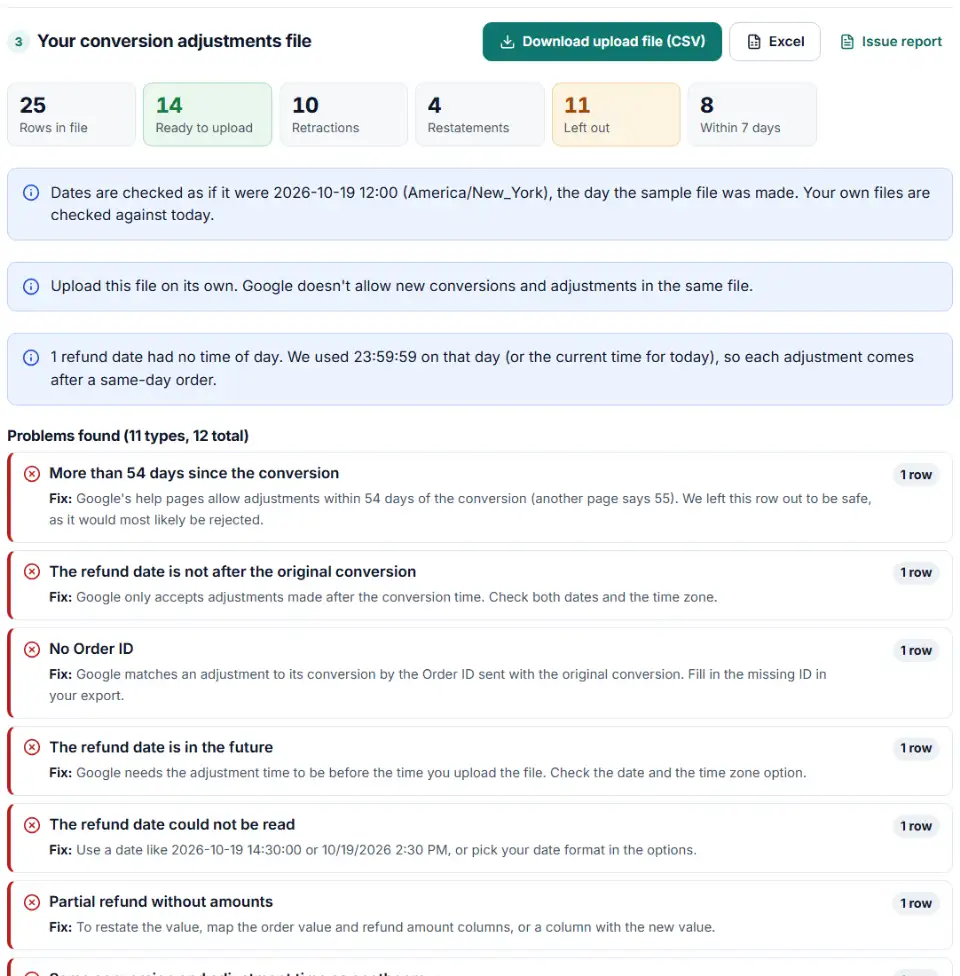
- Download two files. The upload file holds only the rows Google should accept. A second file lists every row left out, with the reason and the fix.
How the tool chooses RETRACT or RESTATE
- Full refund, cancellation, void or chargeback becomes
RETRACT. - Partial refunds become
RESTATEwith the order total minus every refund so far, so 500 becomes 400, then 350. - Paid or pending orders are skipped, so you can load a full orders export without filtering it first.
What it checks before you upload
- The 54-day limit from the original conversion, and the 24-hour wait Google recommends after a new conversion.
- That each refund comes after its order and before the upload, in your time zone.
- Duplicates by Order ID, conversion name and adjustment time, the key Google uses.
- Changes that come after a retraction, which Google ignores without an error.
Upload the adjustments file in Google Ads
- Open the uploads page. In Google Ads, click the Goals icon, open the Conversions menu and click Uploads. If a manager account tracks your conversions, do this from the manager account.
- Add the file. Click the plus button, choose Upload a file as the source and select the CSV you downloaded. Keep it separate from any new conversions.
- Preview, then apply. Preview the file to see errors before they count, then click Apply. Adjustments can't be edited after the import, so read the preview.
- Fix the rows left out. Correct them in your source system and run them through the tool again tomorrow, together with the next day's refunds.
Before your first upload, compare the header row with Google's own template under Uploads › + › View templates › Conversions adjustments, especially in GCLID mode.
Common conversion adjustment errors and fixes
The conversion couldn't be found
Google can only adjust a conversion it recorded. Orders that did not come from a Google Ads click were never conversions in your account, so they return this error. Google suggests uploading all your refunds anyway; the errors for those rows are harmless.
Adjustment time before the conversion time
The adjustment must happen after the conversion and before the upload. A refund dated in another time zone often looks earlier than the order. Pick the right time zone in the options, or check that the refund date column is not the order date.
Adjustments that seem to do nothing
A conversion less than a day old may not be recorded yet, so upload a day later. And once a conversion is retracted or restated to 0, Google silently ignores every later adjustment for it.
Duplicate adjustments are not counted
Google treats rows with the same Order ID, conversion name and adjustment time as one adjustment. This tool adds two refunds made at the same time into one row.
Wrong conversion name
The name must match the conversion action letter for letter, including capitals. Copy it from Goals › Conversions › Summary.
Adjusted value in the wrong currency
Leave Adjusted Value Currency empty and Google uses the conversion action's currency. If you enter a different currency than the original conversion, Google converts it with daily exchange rates, so a missing or wrong code quietly changes your numbers. Use 3-letter codes like USD or EUR.
Frequently asked questions
What is the difference between RETRACT and RESTATE in Google Ads?
RETRACT removes the conversion from your reports completely. RESTATE keeps the conversion but changes its value, for example from 240 to 180 after a partial refund. If a restatement brings the value down to 0, Google withdraws the conversion, just like a retraction.
What columns does a Google Ads conversion adjustments file need?
With Order IDs: Order ID, Conversion Name, Adjustment Time, Adjustment Type, Adjusted Value and Adjusted Value Currency. With GCLIDs, add Google Click ID and Conversion Time instead of the Order ID. Leave the value and currency empty on RETRACT rows, and don’t add extra columns or personal details like emails.
How long after a conversion can I upload an adjustment?
Google’s adjustment guide says within 54 days; its offline import FAQ says 55 days. This tool uses 54 to be safe. Smart Bidding can only learn from adjustments made within 7 days of the conversion, and Google recommends waiting at least 24 hours after the conversion before you adjust it.
Can I adjust a conversion without an Order ID?
Only for offline conversions you uploaded with a GCLID: then use the GCLID plus the exact conversion time you uploaded. Conversions that came with a GBRAID can only be adjusted by Order ID, adjustments don’t work with WBRAIDs, and website conversions need a transaction ID.
Can I undo a retracted conversion?
Not directly. Google ignores every later adjustment to a retracted conversion without showing an error. For offline imports counted as every conversion, Google’s workaround is to upload the conversion again as new with a slightly later time.
Can new conversions and adjustments go in the same file?
No. Google asks for separate files. Upload new offline conversions with their own template and use this file only for refunds, cancellations and value changes.
Is my refund data sent anywhere?
No. The file is read and converted in your browser. Nothing is uploaded to our server, so order numbers and amounts stay on your computer.
Related tools and guide
-
Build a ready-to-upload Google Ads offline conversions CSV from your CRM export, with time zones, values and 90-day checks done for you.
Google -
Turn a Shopify orders export into Google Ads and Meta offline conversion files for in-store and draft orders, without counting online sales twice.
GoogleMeta -
Turn Google Ads upload errors like “click too old” or “conversion date precedes click date” into fixes, a clean re-upload file and a retry list.
Google -
Build the enhanced conversions for leads file for Google Ads Data Manager, with emails, phones and hashing done the way Google asks.
Google -
Turn your call log into a Google Ads call conversion import file, with caller numbers fixed and call times and the 90-day window checked.
Google -
See how many days your customers take from ad click to sale, how many sales each conversion window would miss, and which window fits your data.
Google
Need help setting this up? Talk to EmproIT