Turn a Shopify Order Export into Offline Conversions for Google Ads and Meta
Turn Shopify's orders export into Google Ads and Meta offline conversion files: POS and draft orders by default, one row per order, refunds and cancellations removed, customer data hashed.
Offline Conversions from Shopify Orders for Google Ads and Meta
- Upload
- Check
- Download
1 Add your Shopify orders export
Choose a file or drag it here
orders_export.csv from Shopify (CSV or Excel) · up to 300 MB
2 Check the columns and options
Rules last checked: against the official pages:
- Exporting orders to a CSV file (Shopify)
- Import conversions from ad clicks into Google Ads using files (legacy) (Google Ads)
- Prepare your data for import - Google Ads Data Manager Help (Google Ads)
- Conversions API for Offline Events (Meta (Facebook and Instagram))
How to turn Shopify orders into offline conversions
Shopify offline conversions are the sales your ad tags can't see: POS sales in your shop and phone orders you enter as draft orders. This tool reads the orders export described on Shopify's exporting orders page and writes the upload files for Google Ads and Meta, so those sales count toward the ads that brought the customers in.
- Export your orders. In Shopify, go to Orders, pick a date range and click Export. Choose all order information and CSV. Drop the file here — Excel works too.
- Check the columns. Shopify's column names (Name, Created at, Financial Status, Total, Source …) are matched automatically.
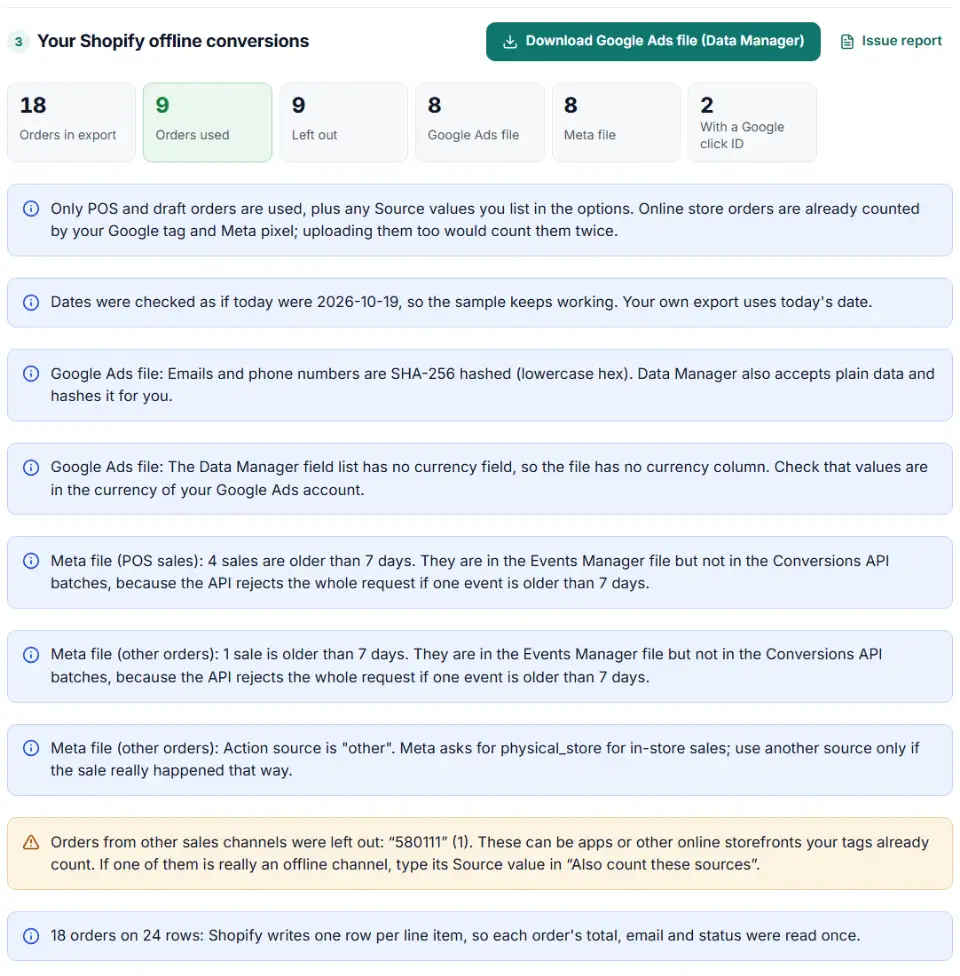
- Choose which orders count. By default only paid POS and draft orders are used; other Source values are listed so you can add the ones that are offline sales. Canceled, refunded and unpaid orders are left out, partly refunded orders count with the refund taken off.
- Type your conversion action name. It must match the Import action in Google Ads exactly.
- Download your files. You get one Google Ads file (Data Manager, or a click file if you choose it), a Meta Events Manager file, a Conversions API request, and a list of every order with the reason it was used or not.
What to do next
- Google Ads. Accept the customer data terms in Goals › Settings › Customer data use. Then upload the Data Manager file in Google Ads Data Manager and match each header to its field. Google accepts files with customer data only there now.
- Upload one Google file only. The Data Manager file already holds the GCLID of orders that have one. Use the click file in Goals › Conversions › Uploads only instead of it, never as well.
- Meta. In Events Manager, open Data sources, pick the dataset linked to your ad account, click Upload events, choose the CSV and check the column mapping before you start the upload.
- Make it a habit. Export only new orders since your last upload, every few days, so the sales stay inside each platform's upload window.
Common problems with Shopify order exports
Online orders counted twice
If you upload every order, the purchases your Google tag and Meta pixel already recorded are counted a second time, and your cost per sale looks better than it is. Keep the default filter, which uses the Source column to leave online store orders out.
POS sales with no customer
A POS sale where nobody entered an email or phone number can't be matched to anyone who saw your ads. Those orders are listed so you can see how many sales you are missing.
Shopify order export totals don't match
Because only the first row of each order holds the total, adding up the Total column of the whole file gives a wrong number. The tool reads each order once. Amounts like 1.234,50 are read per value, and unclear ones like 1,250 are left out rather than guessed. The Data Manager file has no currency column, so orders in other currencies get their own files.
Google Ads enhanced conversions for Shopify not matching
Matches need correct customer data. The tool trims and lowercases emails and writes phones with the country code, using the billing country or your default.
Shopify export orders automatically
Shopify downloads up to 50 orders straight away and emails bigger exports to you, so check your inbox after you click Export. Filtering the order list by date before you export keeps each file small and avoids uploading the same sale twice.
Frequently asked questions
How do I export orders from Shopify?
In your Shopify admin, go to Orders, filter the list (for example by date or by your POS location), click Export, choose which orders and the CSV format, and click Export orders. Up to 50 orders download straight away; bigger exports are emailed to you. See Shopify’s exporting orders page.
Why does the Shopify order export have several rows for one order?
Shopify writes one row per line item. An order with three products has three rows with the same order number, and only the first row carries the order’s total, email and status. This tool groups the rows by order number, so no order is counted twice.
Which Shopify orders should I upload as offline conversions?
Orders your website tags never saw: POS sales in your shop and draft orders you created for phone or email customers. Online store orders are already counted by your Google tag and Meta pixel, and other sales channels (apps, other storefronts) can be online too — the tool lists them so you choose. Leave out canceled, refunded and unpaid orders as well.
Can I upload Shopify POS sales to Google Ads?
Yes, as offline conversions with the customer’s email or phone number. Google accepts these files through Google Ads Data Manager, where the email and phone are matched to people who clicked your ads. POS sales without a customer attached can’t be matched, so ask for an email for the receipt.
Can I send Shopify in-store sales to Meta?
Yes. Meta takes offline sales into a dataset, either as a CSV upload in Events Manager or through the Conversions API, with the action source physical_store for in-store sales. You get both from the same export here.
Where is the GCLID in a Shopify order export?
Shopify doesn’t save the Google click ID on its own. If your theme or an app stores it at checkout, it usually ends up in the Note Attributes column, as gclid: …. The tool looks there and in Notes; orders with a GCLID also go into a separate Google click file.
Related tools and guide
-
Send in-store and phone sales to Meta: get an Events Manager upload file and Conversions API batches with hashed email and phone, date limits checked.
Meta -
Build the enhanced conversions for leads file for Google Ads Data Manager, with emails, phones and hashing done the way Google asks.
Google -
Build a ready-to-upload Google Ads offline conversions CSV from your CRM export, with time zones, values and 90-day checks done for you.
Google -
One Shopify customers CSV in, Google, Meta and TikTok audience files out, filtered by marketing consent and tags.
GoogleMetaTikTokShopify -
Get custom pixel code for Shopify that sends checkout and cart events to Meta, Google, TikTok and Pinterest, plus a checker for wrong event names.
ShopifyMetaGoogleTikTokPinterest -
Get one script that saves ad click IDs and UTM tags when visitors land and fills your form's hidden fields, ready for offline conversion uploads.
GoogleMetaMicrosoftTikTokLinkedIn
Need help setting this up? Talk to EmproIT