Click ID & UTM Capture Script Generator (Capture GCLID in Forms)
Generate one small script that saves gclid, gbraid, wbraid, fbclid (as fbc), msclkid, ttclid, li_fat_id and UTM tags when a visitor lands, and fills the hidden fields of your lead forms — with consent handling and install steps.
Click ID & UTM Capture Script Generator
1 Choose what to capture
2 Your script, fields and test link
Fill in the settings above — your result appears here instantly.
Rules last checked: against the official pages:
- Set up offline conversions using Google Click ID (GCLID) (Google Ads)
- ClickID and the fbp and fbc Parameters - Meta for Developers (Ad click and tracking URL parameters)
- Auto-tagging of Microsoft Click ID - Microsoft Advertising (Ad click and tracking URL parameters)
- Set up consent mode on websites - Tag Platform (Advanced and Basic tabs) (Google tag (gtag.js))
How to capture GCLID and UTMs in your lead forms
To capture GCLID values for offline conversions, Google asks for two things in its GCLID setup guide: a hidden field in every lead form, and a script on every page that stores the click ID and fills that field. Google's sample only handles gclid. This generator writes one script for every ad platform's click ID plus your UTM tags, with consent handling built in.
- Tick what to keep. gclid, gbraid and wbraid for Google Ads; fbc for Meta; msclkid, ttclid and li_fat_id for Microsoft, TikTok and LinkedIn; and the UTM tags for your own reports.
- Pick your site and form tool. You get the hidden fields in that tool's format.
- Choose how to handle consent. The script can wait for Google consent mode, or for your own banner, before it saves anything.
- Copy the script and add the fields. Follow the install steps shown under the code.
- Test it. Open the test link, submit your form and check that the lead shows every test value.
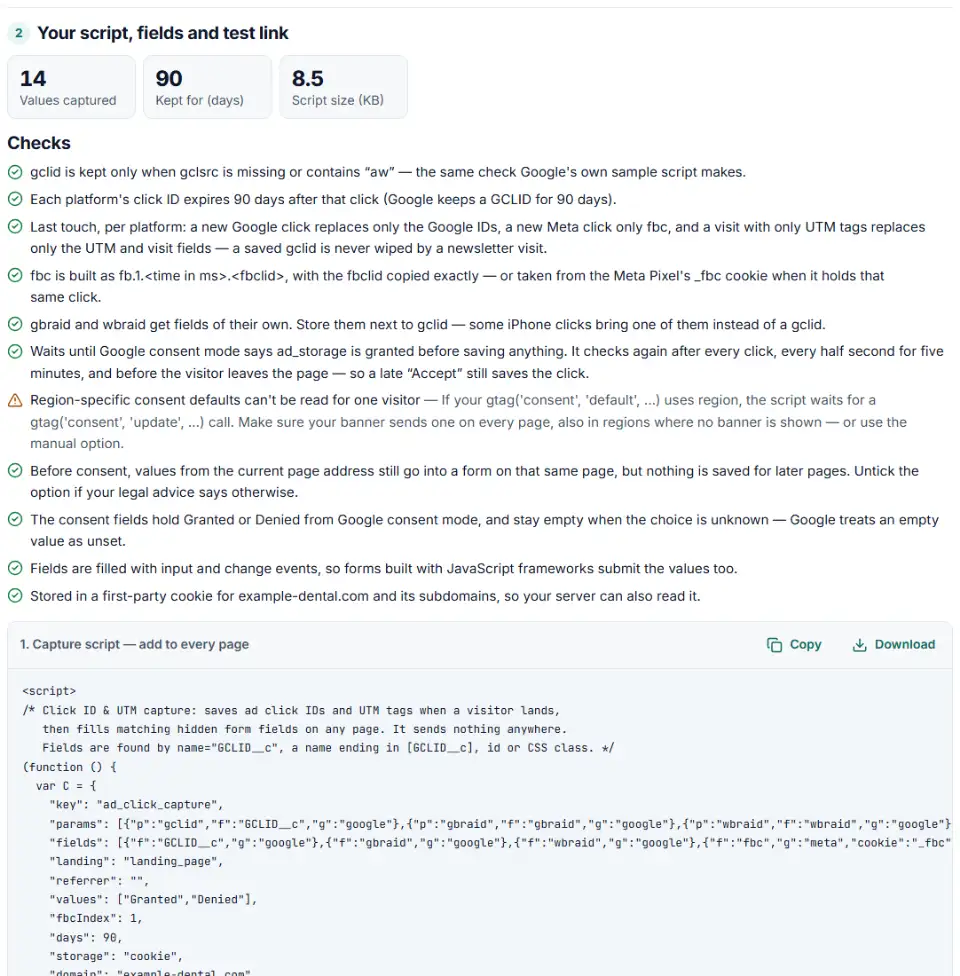
What the script does on your site
- Reads the click IDs on landing. Like Google's sample, it ignores a gclid whose
gclsrcdoesn't containaw. - Builds fbc for Meta. An
fbclidbecomesfb.1.<time in ms>.<fbclid>, the format Meta's Conversions API expects. Nothing is lowercased. - Keeps them for later pages, per platform. A new Google click replaces only the Google IDs, and a later newsletter visit replaces only the UTM tags — a saved gclid stays until it expires.
- Fills every matching field by name, ID or CSS class, including forms in pop-ups and JavaScript-built forms.
Install it and use the data
WordPress forms
- Gravity Forms: add a Hidden field from Standard Fields for each value and put the value's name (like
gclid) in Appearance › Custom CSS Class. - Contact Form 7: add
[hidden gclid]tags to the form, and the matching[gclid]mail-tags to the Mail tab. - WPForms: add a Hidden Field from Fancy Fields and type the name in Advanced › CSS Classes.
- Elementor Forms: add a field of type Hidden and set its ID on the Advanced tab.
Shopify
- Duplicate your theme first, then open Online Store › ⋯ › Edit code.
- Paste the script just before
</body>intheme.liquid. - In the contact form, add hidden inputs named like
contact[gclid]. Shopify's contact form needs custom fields namedcontact[…].
Google Tag Manager
- Create a Custom HTML tag with the script and fire it on All Pages.
- Keep Consent Settings on Not set: the script checks consent itself. “Require additional consent” only fires a tag when consent is already granted at that moment, so a first-time visitor who accepts on the landing page would lose the click ID.
- Preview with the test link, then publish.
When a lead becomes a sale, export it with its click ID and use the matching upload tool: the gclid goes into Google's Google Click ID column, the msclkid into Microsoft's Microsoft Click ID column, and fbc into the Conversions API's user_data.
Common GCLID capture problems
The hidden field stays empty
Inspect the field in your browser's developer tools. If its name, ID or CSS class doesn't match exactly — gclid, not GCLID — the script can't find it. Use the rename box if your CRM needs another name.
The gclid disappears on redirects
Google warns that the gclid must be passed through every redirect to the final landing page. Test each redirect you use.
Leads from iPhones have no gclid
Google may send gbraid or wbraid instead on some iOS traffic, which is why the script keeps them in fields of their own.
Google rejects the click ID as unreadable
The GCLID is case sensitive. If your CRM or spreadsheet changed it to lowercase or cut it short, the upload fails. Store it in a plain text field.
Frequently asked questions
How do I capture the GCLID in my lead form?
Add a hidden field named gclid to the form, then put a script on every page that reads gclid from the address bar, saves it, and writes it into that field. Google describes these steps in its GCLID offline conversions guide. The generator above writes the script and the hidden field for your form tool.
Where should I store the GCLID?
In the visitor’s browser until they fill in a form — Google’s own sample uses local storage with a 90-day expiry. After that, store it with the lead in your CRM, in a custom field of its own, as Google suggests.
Can I capture UTM parameters and other click IDs too?
Yes. The same script keeps gbraid, wbraid, fbc (from fbclid), msclkid, ttclid, li_fat_id and the UTM tags, each in its own hidden field.
How do I add a hidden GCLID field in Gravity Forms or HubSpot?
In Gravity Forms, add a Hidden field from Standard Fields and type gclid in Appearance › Custom CSS Class. In HubSpot, turn on the Hidden field switch for a gclid field; HubSpot can fill it from the query string on the page the ad opens. On other pages, test with the link above whether this script reaches the form.
Do I need cookie consent to store click IDs?
Google’s GCLID guide asks you to observe local regulations on cookie consent. In the EU and UK that usually means asking first. The script can wait for Google consent mode’s ad_storage, or for your banner to call AdClickCapture.allow(), and it can record the visitor’s choice in ad_user_data and ad_personalization fields for Google’s upload columns. This is not legal advice — check with your adviser.
How long is a GCLID valid for offline conversion uploads?
Google says it keeps the GCLID for 90 days, so you can upload a conversion up to 90 days after the click — and never later than the conversion action’s own window. That is why the script keeps values for 90 days by default.
Related tools and guide
-
Split click IDs and UTM tags out of thousands of landing page URLs in one go, with no spreadsheet formulas.
GoogleMetaMicrosoftTikTokLinkedIn -
Find broken, changed and expired GCLIDs in your CRM export before Google Ads rejects your offline conversion upload.
Google -
Build Meta's fbc click value from an ad click link, and bulk-check fbc and fbp values for the time, case and hashing mistakes that break matching.
Meta -
Build a ready-to-upload Google Ads offline conversions CSV from your CRM export, with time zones, values and 90-day checks done for you.
Google -
Turn a CRM export into a Microsoft Advertising offline conversion file with the exact template headers, checked click IDs and hashed email and phone.
Microsoft -
Get Google consent mode v2 code for your cookie banner, with defaults for EEA, UK and Swiss visitors and a check for tags that fire before consent.
Google
Need help setting this up? Talk to EmproIT