Offline Conversions Upload Builder for Meta (CSV and CAPI JSON)
Turn a spreadsheet of in-store, phone or CRM sales into an Events Manager upload file and Conversions API batches with SHA-256 hashed customer details.
Offline Conversions Upload Builder for Meta
- Upload
- Check
- Download
1 Add your offline sales
Choose a file or drag it here
CSV, Excel, TSV or TXT from your POS, CRM or booking system · up to 300 MB
2 Check the columns and options
Rules last checked: against the official pages:
- Using the Conversions API (Meta (Facebook and Instagram))
- Conversions API for Offline Events (Meta (Facebook and Instagram))
- Upload offline event data (Events Manager) (Meta (Facebook and Instagram))
- Customer Information Parameters (Meta (Facebook and Instagram))
How to use the offline conversions upload builder for Meta
A Meta offline conversions upload tells Facebook and Instagram which people who saw your ads later bought in your store, over the phone or through your sales team. Meta replaced its old Offline Conversions API with datasets, which take offline events from an Events Manager upload or from the Conversions API, as its Conversions API for offline events guide explains. This tool prepares your sales for both paths at once.
- Export your sales. From your POS, CRM or booking system, export each sale with its date and time, value, order number and as many customer details as you have: email, phone, name, city, ZIP and country.
- Load the file. Drop in a CSV or Excel file, or paste rows. Several email or phone columns are fine; Meta accepts more than one per person.
- Check the matched columns and options. Pick the event name, where the sale happened, your currency, country and time zone.
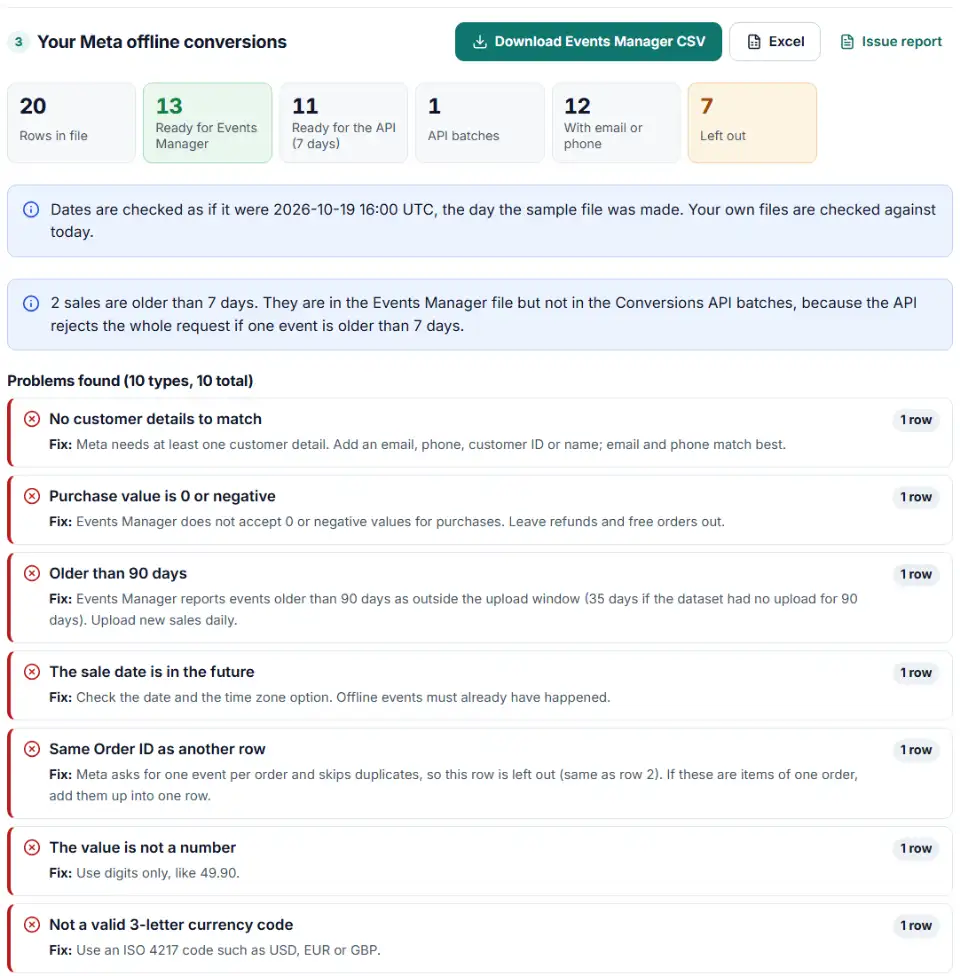
- Read the checks. Rows without a date, with a 0 purchase value, with no customer details or repeated order IDs are left out, each with a fix.
- Download. Get the Events Manager CSV, the Conversions API request body with hashed customer details, and the list of rows left out.
What the two outputs contain
- Events Manager CSV uses the column names from Meta's own example events file (
email,phone,fn,ln,event_name,event_time,value,currency), with emails cleaned, phones in international format and times in UTC. It keeps sales up to 90 days old. - Conversions API batches hold up to 1,000 events each, with
event_timein Unix seconds and every customer field normalized and SHA-256 hashed the way Meta's customer information page asks. Only sales from the last 7 days go in.
Upload your offline events to Meta
Manual upload in Events Manager
- Open Events Manager, click the Data sources icon and select your dataset. It must be assigned to your ad account.
- Click Upload events and select the CSV file.
- Click Next: Map data and check each column. If
order_idorexternal_idis not recognized, use the pencil icon to set it to Order ID or External ID, or choose Ignore. - Click Next: Review, read the match rate and warnings, then Start upload. Results can take up to 15 minutes, and uploaded events can't be deleted.
Conversions API
Send each batch file as one POST request to your dataset with a Conversions API access token, using the curl example. Add a test event code first and watch the Test events tab, then remove the code. Your developer or automation tool can repeat this every day.
Common offline event upload errors
No sample events were accepted
Meta checks a sample of the file first. If too few events are formatted correctly, or they were all uploaded before, nothing goes through. Fix the rows this tool leaves out and upload only sales that are new since the last file.
Low match rate
Meta can only credit your ads when it finds the buyer. Add more customer details per sale; email and phone help most. The chart under the results shows how many events carry each detail.
Some of your events occurred more than 90 days ago
Older sales fall outside the upload window, and the window drops to 35 days if the dataset had no upload for 90 days. Upload daily or weekly instead of saving sales up.
A sample event was not accepted
Usually a missing event name or a purchase with a value of 0 or less. Leave refunds and free orders out of a Purchase file.
Some of your timestamps are inaccurate
If many sales share one time, Meta treats them as duplicates and skips them. Export the full time of each sale, not just the date.
The whole API batch was rejected
One bad event rejects the entire request, and an event older than 7 days does the same. That is why this tool keeps older sales out of the API batches.
Frequently asked questions
How do I upload offline conversions to Meta?
Two ways, both into a dataset assigned to your ad account. Upload a CSV in Events Manager (Data sources › your dataset › Upload events) for sales up to 90 days old, or send them with the Conversions API every day, up to 7 days old. This tool builds both files from one spreadsheet.
Was the Meta Offline Conversions API replaced?
Yes. Meta discontinued the Offline Conversions API and offline event sets when Graph API v16.0 expired in May 2025. Offline events now go through the Conversions API to a dataset, with action_source set to physical_store for store sales.
How old can offline events be when I send them to Meta?
The Conversions API rejects the whole request if one event is more than 7 days old. Meta’s offline events guide asks for store sales within 62 days, and Events Manager warns about events older than 90 days (35 days if the dataset had no uploads for 90 days). Meta recommends uploading within 48 hours.
Which customer data must be hashed for Meta offline events?
For the Conversions API: email, phone, first and last name, city, state, ZIP, country, date of birth and gender must be normalized and SHA-256 hashed, and Meta recommends hashing your customer ID too. Meta’s own example file for the Events Manager upload uses plain values, which Meta reads in the Map data step.
Which action_source should I use for in-store sales?
physical_store. Meta asks advertisers to send it for all offline and store events. Use phone_call, chat or email only when the sale really happened that way.
How many events can I send in one Conversions API request?
Up to 1,000 events in the data array. If any event in the batch is invalid, Meta rejects the entire batch, so check the file first and split bigger files into several requests. This tool does the split for you.
Is my customer data sent to your website?
No. The file is read, checked and hashed in your browser. Nothing is uploaded to our server, and the tool never asks for your Meta access token.
Related tools and guide
-
Check the server events you send to Meta's Conversions API for hashing mistakes, missing fields and weak customer details, and get a fixed version.
Meta -
Build Meta's fbc click value from an ad click link, and bulk-check fbc and fbp values for the time, case and hashing mistakes that break matching.
Meta -
Turn a Shopify orders export into Google Ads and Meta offline conversion files for in-store and draft orders, without counting online sales twice.
GoogleMeta -
Turn a CRM or store export into a Facebook custom audience CSV with Meta's column names, country codes and optional hashing.
Meta -
Get Meta pixel code for purchases, leads and other events, with order value and a matching Conversions API event so no sale is counted twice.
Meta -
Build a ready-to-upload Google Ads offline conversions CSV from your CRM export, with time zones, values and 90-day checks done for you.
Google
Need help setting this up? Talk to EmproIT