Conversion Lag Calculator for Google Ads
Measure the days from ad click to sale with your own CRM data, see how many sales each conversion window would count, and find the rows Google's 90-day upload limit or your window would reject.
Conversion Lag Calculator for Google Ads
- Upload
- Check
- Download
1 Add your closed deals
Choose a file or drag it here
CSV or Excel export from your CRM with a click (or lead) date and a sale date · up to 300 MB
2 Check the columns and options
Rules last checked: against the official pages:
- About conversion windows (Google Ads)
- Find out how long it takes for your customers to convert (Google Ads)
- Offline conversion imports FAQs (Google Ads)
How to measure conversion lag in Google Ads with your CRM data
Conversion lag in Google Ads is the gap between a click and the conversion it leads to. Google's own report only sees conversions it already counted. If your deals close weeks later in a CRM, the real lag is hidden. This calculator measures it from your own rows and compares it with the limits on Google's About conversion windows page: 1 to 90 days, 30 by default.
- Export your closed deals. You need two dates per deal: the ad click (or the date the lead came in) and the date it became a sale. Add the GCLID, campaign and deal value if your CRM stores them.
- Load the file. Drop it here, paste the rows, or click Try sample data to see a remodeling company's pipeline.
- Enter your current window. Type the click-through window your conversion action uses, and choose how many of your sales the suggested window should count.
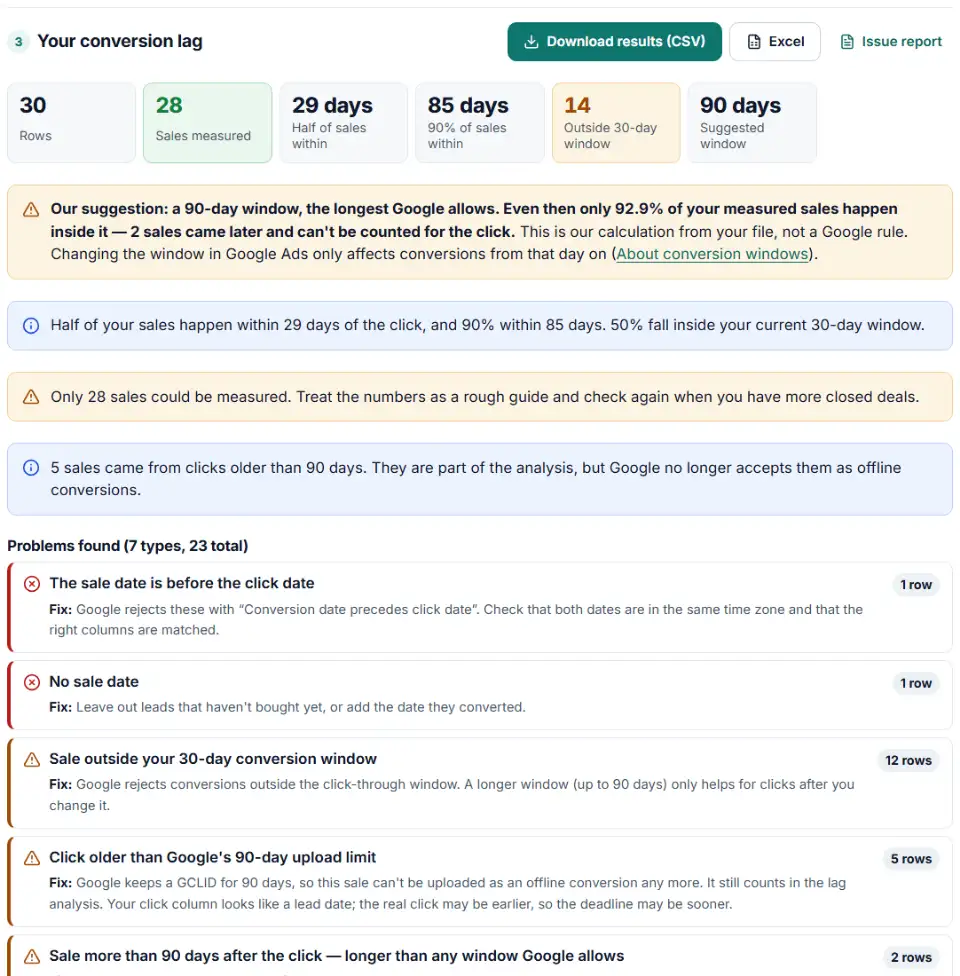
- Read the results. You get the median days to a sale, the day by which 90% of sales happen, a chart in Google's lag buckets, and a table of how many sales a 7, 14, 30, 60 or 90-day window would count.
- Download. Save the results with the lag on every row, plus a file of the sales you can still upload to Google Ads.
How the suggested window works
The suggestion is our own calculation, not a Google rule. We sort your measured sales by lag and pick the shortest window you can choose in Google Ads (1 to 30, 60 or 90 days) that counts the share you picked. If that is under 7 days, we use 7, because Google recommends at least that. If even 90 days isn't enough, the tool tells you how many sales come too late to count at all.
What to do next in Google Ads
- Change the window if it's too short. Go to Goals > Conversions > Summary, click the conversion action, then Edit settings and set the click-through conversion window.
- Give it time. The new window only counts conversions from that day on, so compare results a full window later.
- Upload the sales you still can. Take the upload-ready file to the offline conversion builder, and upload every few days from now on.
- Read reports with the lag in mind. Check campaigns on date ranges that ended at least as long ago as your median lag.
- Long cycles: count an earlier step too. If many sales take more than 90 days, think about also importing an earlier stage, such as a qualified lead, that happens inside the window.
Conversion lag problems and upload errors
“Conversion date precedes click date”
Google's upload error when the sale is dated before the click. It usually means the two dates are in different time zones, or the columns are swapped. The calculator flags these rows and leaves them out of the analysis.
“This click is too old for its conversion to be imported”
The GCLID is older than 90 days or older than the conversion window. In the results, the Status and Note columns mark rows past either limit, and the problem list shows the deadline for clicks that expire within a week.
Why recent days show fewer conversions in Google Ads
Last week's clicks haven't finished converting. With a median lag of 30 days, a week-old campaign has seen only a small part of its sales.
The Days to conversion segment looks empty
Google advises ending the date range at least 30 days ago, or longer with a longer window, before you read this segment. Recent ranges are still filling in.
Only a lead date in the CRM
Many CRMs store when the lead was created, not when the ad was clicked. Using it is fine, as long as you read the result as lead-to-sale time.
Dates read the wrong way round
“03/04/2026” is March 4 in the US and 3 April in the UK. The tool detects the order from dates like 16/09/2026, and you can set it yourself in the options.
Frequently asked questions
What is conversion lag in Google Ads?
Conversion lag is the time between an ad click and the conversion that follows it. Google can report a conversion up to 90 days after the click, depending on the conversion window you chose (Google’s time lag page). If you close sales offline, measure your lag from your CRM.
How do I see conversion lag in Google Ads?
In the Campaigns, Ad groups or Keywords table, click Segment > Conversions > Days to conversion. Conversions are split into up to 19 rows. End the date range at least 30 days ago, or longer if your window is longer. For sales Google never sees, such as deals closed in your CRM, use this calculator instead.
How is conversion lag different from the conversion window?
Lag is how long your customers actually take. The conversion window is the longest lag Google will count: anywhere from 1 to 90 days, 30 by default (About conversion windows). If your lag is longer than your window, Google misses those sales.
Does changing the conversion window change past conversions?
No. A new window only applies to conversions from the day you change it. Past conversions keep the window that was set at the time.
Why do recent days show fewer conversions?
Because many of the people who clicked recently haven’t converted yet; Google’s help pages say recent date ranges look worse for this reason. Judge results on a date range that ended at least as long ago as your typical lag.
How does conversion lag affect offline conversion uploads?
Two limits apply. Google keeps a GCLID for 90 days, so a sale must be uploaded within 90 days of the click. The sale must also fall inside the conversion action’s window. If your lag is long, upload every few days so deals don’t expire.
Related tools and guide
-
Find broken, changed and expired GCLIDs in your CRM export before Google Ads rejects your offline conversion upload.
Google -
Build a ready-to-upload Google Ads offline conversions CSV from your CRM export, with time zones, values and 90-day checks done for you.
Google -
Build the enhanced conversions for leads file for Google Ads Data Manager, with emails, phones and hashing done the way Google asks.
Google -
Remove refunded sales from Google Ads or lower their value: build the adjustments file from your refunds export, with the 54-day limit checked.
Google -
Split click IDs and UTM tags out of thousands of landing page URLs in one go, with no spreadsheet formulas.
GoogleMetaMicrosoftTikTokLinkedIn -
Turn Google Ads upload errors like “click too old” or “conversion date precedes click date” into fixes, a clean re-upload file and a retry list.
Google
Need help setting this up? Talk to EmproIT