Ecommerce dataLayer Push Generator for GA4
Build a correct GA4 ecommerce dataLayer push for purchase, add_to_cart and every recommended event — or paste your code to find wrong names, missing currency and value mismatches.
Ecommerce dataLayer Generator for GA4
1 Build or validate
2 Your dataLayer code / validation
Fill in the settings above — your result appears here instantly.
Rules last checked: against the official pages:
- Recommended events reference - Online sales (page last updated 2026-09-16) (Google Analytics 4)
- Measure ecommerce (developer guide, Tag Manager tab) (Google Analytics 4)
- Minimize duplicate key events with transaction IDs (Google Analytics 4)
How to use the ecommerce dataLayer push generator for GA4
A GA4 ecommerce dataLayer push hands your order or cart data to Google Tag Manager in the exact shape GA4 reads. This tool builds that push from a simple form and validates pushes you already have, using Google's Measure ecommerce guide and the recommended events reference.
- Pick the event. The list holds GA4's 14 recommended ecommerce events. Only the fields that event accepts stay visible.
- Add your products. Type or paste one line per product. Prices with a comma or a currency sign are converted and flagged.
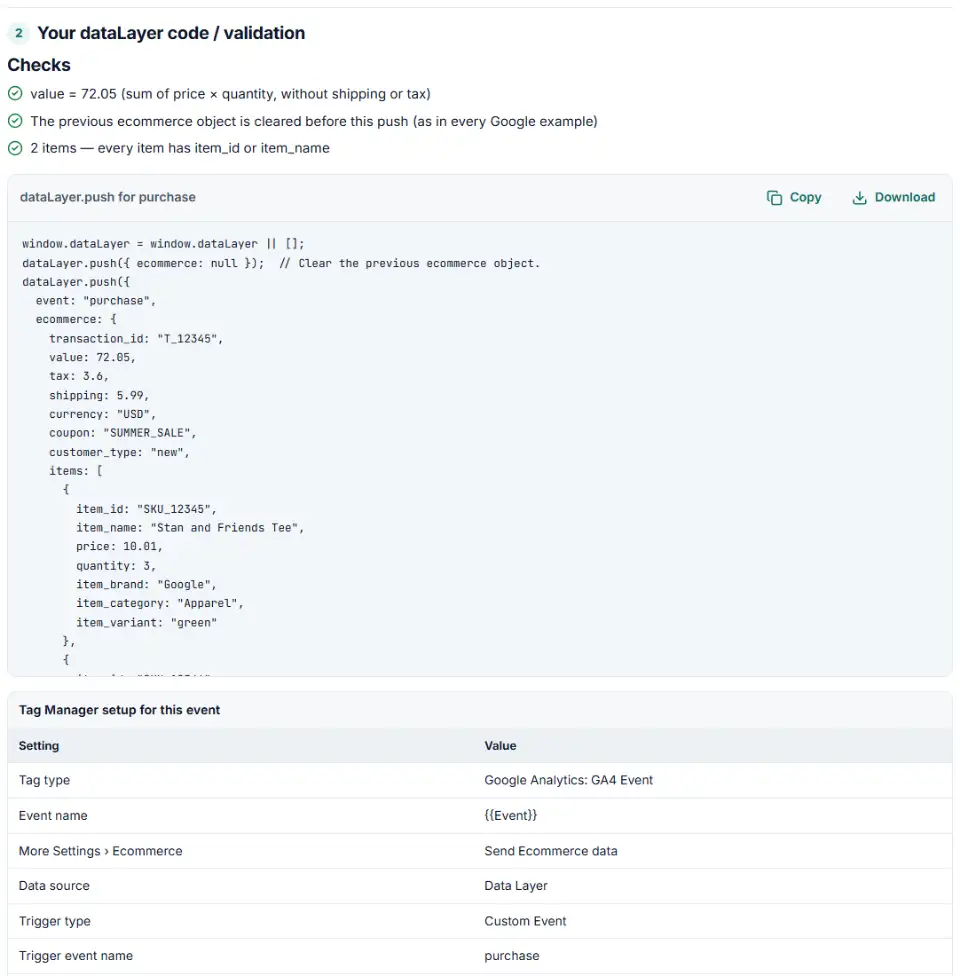
- Leave value on automatic. The tool adds up price × quantity, which is Google's rule — shipping and tax go in their own fields.
- Copy the code and the setup table. The code clears the old ecommerce object first. The table lists the Tag Manager settings that make GA4 read it.
- Validate existing code. In Validate my code, paste one or many pushes to get each problem with its line, plus a corrected version.
What to do next: put the push on your site
The push must run at the moment the action happens — the confirmation page for purchase, the button click for add_to_cart — with your real values in place of the example ones.
Plain HTML or custom code
- Put
window.dataLayer = window.dataLayer || [];above your Tag Manager snippet, so early pushes are not lost. - Have your server print the purchase push on the order confirmation page, filled with that order's number, items and totals.
- For cart and checkout events, run the push inside the click or form handler, right after the action succeeds.
WordPress and WooCommerce
- Check first whether a plugin already pushes ecommerce events — two sources mean double purchases. Open the thank-you page and type
dataLayerin the console. - If you write it yourself, print the push from your child theme on the order-received page, using the order's own data.
- Paste the plugin's pushes into the validator: plugins often use older names or send prices as text.
Shopify
- Additional scripts and theme code no longer run on Shopify's new Thank you and Order status pages, so a theme push can't report purchases.
- Load Tag Manager in a custom pixel (Settings › Customer events), subscribe to
checkout_completedand push the GA4 shape from the event data. - Our custom pixel code generator for Shopify writes that pixel with these field names.
Google Tag Manager
- Create a Google Analytics: GA4 Event tag with Event Name
{{Event}}. - Under More Settings › Ecommerce, tick Send Ecommerce data and choose Data Layer as the source.
- Add a Custom Event trigger whose event name matches the push (for example
purchase). One trigger can list several events. - Test in Preview mode, then check GA4 DebugView before you publish.
Common GA4 ecommerce dataLayer errors and fixes
GA4 purchase event not working because of the event name
GA4 event names are case sensitive. Purchase, checkout_complete or the old ecommerce_purchase are different events to GA4 and never fill the ecommerce reports. Use the exact recommended name.
Parameters outside the ecommerce object
With Send Ecommerce data, the GA4 tag reads the ecommerce object. A transaction_id or items list placed next to event is ignored. Move them inside.
Old names such as transactionId, products or id
Code copied from old Universal Analytics tutorials uses names GA4 doesn't read. The validator renames them to transaction_id, items, item_id and item_name.
Value doesn't match the items
Google's rule: value is the sum of price × quantity, without shipping or tax. Including delivery inflates revenue. Send shipping and tax in their own parameters.
Missing currency or prices as text
Revenue needs a 3-letter currency code next to value. Prices written as "12.00" or "$12" should be plain numbers like 12.00.
GA4 duplicate transactions
Missing IDs let a reloaded thank-you page count twice. A hard-coded ID does the opposite: every later order looks like a repeat of the first and is dropped, and an empty string has the same effect. Print each order's own number.
Frequently asked questions
What does a GA4 ecommerce dataLayer push look like?
Two lines: first dataLayer.push({ ecommerce: null }); to clear the last event, then dataLayer.push({ event: "purchase", ecommerce: { … } }). Inside ecommerce go the event parameters (currency, value, transaction_id …) and an items list with one object per product.
Which parameters does the GA4 purchase event need?
transaction_id and items are required. Send value with currency — Google says currency is required whenever value is set. Each item needs item_id or item_name; price and quantity make revenue add up. tax, shipping, coupon and customer_type are optional.
Why should I clear the ecommerce object before each push?
Every ecommerce example in Google’s Tag Manager guide pushes { ecommerce: null } first. Values in the data layer stay until something with the same name replaces them, so without the reset, items from an earlier event (like view_item) can leak into the next one.
Why is my GA4 purchase event not working?
The usual causes: the event name is written differently (Purchase instead of purchase — names are case sensitive), the parameters sit outside the ecommerce object, the GA4 event tag doesn’t have Send Ecommerce data ticked, or the trigger’s event name doesn’t match the push. Paste your code into the validator to find which.
How do I stop duplicate transactions in GA4?
Send a unique transaction_id with every purchase — GA4 then drops repeats of the same order on web streams. Never send an empty string: Google deduplicates all purchases with transaction_id="" against each other, so most of them disappear.
How do I check the dataLayer in my browser console?
Open the page, press F12 (or right-click › Inspect), go to the Console tab, type dataLayer and press Enter. You see every message in order — look for your event and expand its ecommerce object. Tag Manager’s Preview mode shows the same pushes per event.
Related tools and guide
-
Get custom pixel code for Shopify that sends checkout and cart events to Meta, Google, TikTok and Pinterest, plus a checker for wrong event names.
ShopifyMetaGoogleTikTokPinterest -
See every tag in a Google Tag Manager export in one Excel file, with unused, paused and outdated items flagged and two versions compared.
Google -
Get Google Ads conversion tracking code with the real order value and ID, for a thank-you page, WooCommerce or Tag Manager, and check code you have.
Google -
Get Meta pixel code for purchases, leads and other events, with order value and a matching Conversions API event so no sale is counted twice.
Meta -
Send phone, in-store or CRM sales to GA4 from a spreadsheet, with order IDs, items, values and time limits checked, plus a script that tests first.
Google -
Get Google consent mode v2 code for your cookie banner, with defaults for EEA, UK and Swiss visitors and a check for tags that fire before consent.
Google
Need help setting this up? Talk to EmproIT