Merchant Center Disapproved Products: The Most Common Feed Errors
When Google Merchant Center disapproves products, they stop showing in Shopping ads and free listings until you fix them. Most disapprovals come from a short list of feed and website problems. Here is how to find yours, what each common error means, and how to fix it at the source.
A disapproved product in Google Merchant Center is a product you are paying to stock but can’t advertise. Google’s issues page is blunt about it: “Disapproved products stop showing across Google.” The good news is that most disapprovals come from the same handful of problems, and most can be fixed in bulk once you know where they come from.
Why products get disapproved
Merchant Center checks two things: the product data you send (a feed file, a sync from your shop’s app, or a direct connection through Google’s Merchant API) and the product page on your website. A disapproval means one of them breaks a rule, or the two don’t agree.
Google sorts problems into three levels, and they need different urgency:
| Level | What happens | How urgent |
|---|---|---|
| Product warning | The product keeps showing, but its performance may be limited. Left alone, it can become a disapproval. | Fix within days |
| Product disapproval | The product stops showing across Google until fixed. | Fix now |
| Account-level issue | Affects all your products. It starts as a warning with time to fix, or a suspension that turns off every product. | Fix first |
Always start with account-level issues. One misrepresentation warning matters more than a hundred image warnings.
How to find every affected product
Don’t fix products one by one from the screen. Get the full list first.
- Open the issue list. In Merchant Center, go to Products (under “Products & store”), then the Needs attention tab.
- Turn off prioritized fixes if you want everything. Google hides lower-impact issues by default where that toggle exists.
- Download the affected products. Google’s issues page says to select the download icon for a complete .csv list of affected items, for all issues or one.
- Check the data source report. For file feeds, Google’s data sources page offers a report for each upload that lists file-level issues and the line numbers of affected products.
- Group by issue, not by product. Ten thousand rows usually come down to five or six issue types. Each type has one fix.
Step 3 matters most. If your shop or feed app sends the product data, a fix made only inside Merchant Center can be overwritten by the next sync. Fix the value in the shop, the feed app or the website, then let it flow through.
Step 4 saves you a round trip. The feed validator for Google Merchant Center reads your whole feed file against Google’s product data rules before you upload it. It groups problems by type with the share of your catalog each one affects, and repairs mistakes that have only one right answer, such as price formats.
Now the errors themselves, roughly in the order small stores meet them.
Price mismatch
What it means: the price in your product data is not the price Google sees on your product page.
Google’s mismatched price page lists the usual causes:
- Your website and Merchant Center update at different times, so for a while they disagree.
- The structured data on your page (hidden product code that tells search engines the price) is wrong.
- The price shown to shoppers differs from the price Google’s crawler reads.
- A sale’s start and end dates or time zone are wrong.
- You sell in minimum quantities but sent the price of one item.
How to fix it: make the price and currency in your data match the price shown on the page. If the page shows several currencies, match the one that is shown most prominently. Schedule your feed to update often, or use an app or API sync, so changes reach Google quickly. Then request a website check. Google says the review can take up to 12 hours, and you can’t send another request in that time.
Availability mismatch
What it means: your data says “in stock”, but the page says sold out, or the other way around.
Google’s availability mismatch page asks for the same status in your data, on the product page, at checkout and in the page’s structured data. A related issue covers products shown as in stock that can’t actually be bought at checkout, or can’t be delivered across the country you target.
How to fix it: update stock in the feed as often as it changes on the site. Use preorder for new products not yet released and backorder for items temporarily out of stock that you still take orders for. Both need an availability_date, and Google wants that date visible on the page. And don’t mark products out_of_stock just to hide them. Google’s availability attribute page says not to, and points to the pause or excluded_destination attributes instead.
GTIN errors
A GTIN (Global Trade Item Number) is the number under a product’s barcode: a UPC in North America, an EAN in Europe, an ISBN for books. Google uses it to know exactly which product you sell. There are several related issues, and they mean different things:
| Issue in Merchant Center | What it means | Fix |
|---|---|---|
| Invalid value [gtin] | Not a valid GTIN: wrong length or wrong last digit | Use 8, 12, 13 or 14 digits with a correct check digit |
| Incorrect GTIN | A real GTIN, but it belongs to a different product | Use the manufacturer’s GTIN for this exact product |
| Restricted GTIN | A number from a restricted range, starting with 02, 04 or 2, that Google says is reserved for future use | Submit the real manufacturer GTIN, or leave it empty if not required |
| Unsupported GTIN | A coupon number, for example starting with 981–984, 99 or 05 | Submit a globally valid GTIN, or leave it empty |
| Missing or incorrect GTIN | Google expects an identifier and didn’t get a usable one | Add the GTIN, or the brand plus the MPN (manufacturer part number) where there is no GTIN |
The last digit of every GTIN is a check digit, worked out from the other digits. One typo or two swapped digits makes it fail. Spreadsheets add their own damage: they drop leading zeros (a 12-digit UPC becomes 11 digits) and turn long numbers into scientific notation like 6.29104E+12.
Only set identifier_exists to “no” when the product truly has no GTIN. Google’s missing GTIN page gives one-of-a-kind and vintage items as examples. Using it to silence the error on branded goods is not the fix.
The GTIN checker tests a whole column of barcodes at once: check digit, length, lost zeros, scientific notation, restricted and coupon prefixes, and duplicates.
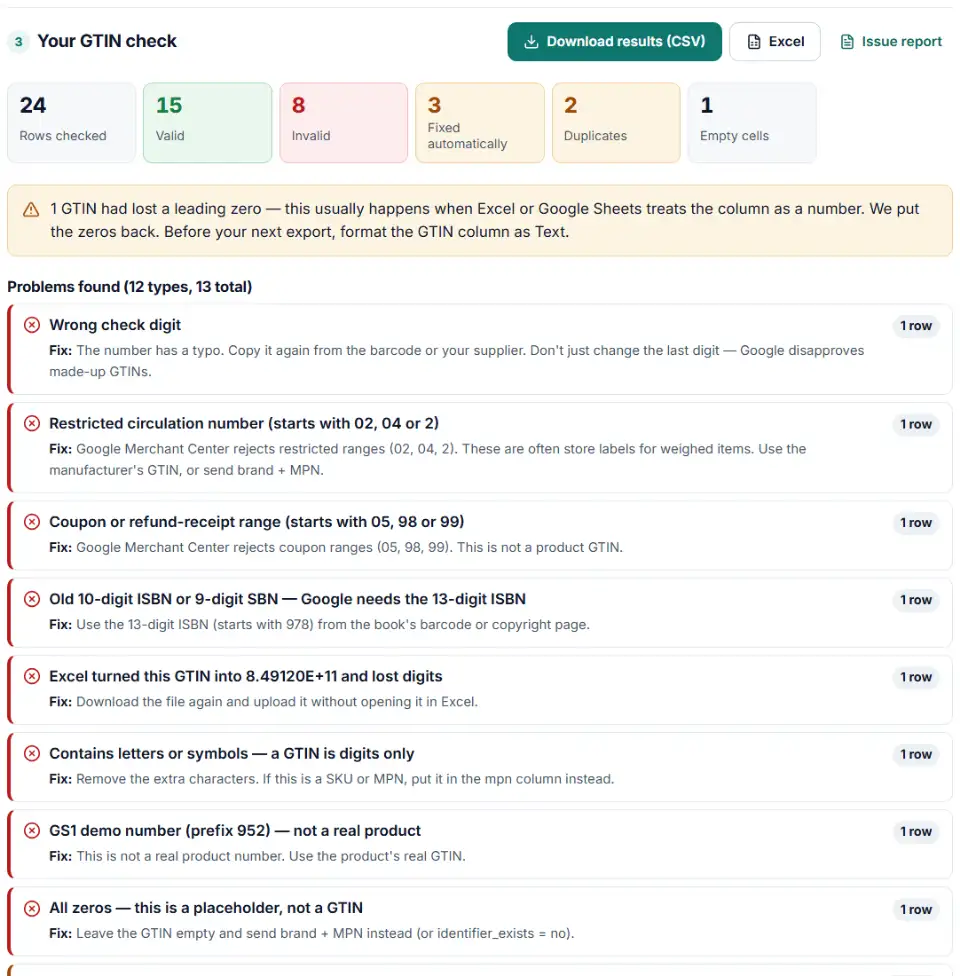
Image problems
Images cause a long list of issues. The ones small stores see most:
- Image too small. Today Google’s image size page asks for at least 100 × 100 pixels, or 250 × 250 for apparel. Plan ahead: Google tells sellers to submit at least 500 × 500 for all products to meet new requirements, with enforcement from January 31, 2027. Warnings for images under that size started in July 2026.
- Image too big. No more than 64 megapixels or 16 MB.
- Generic placeholder image. A logo or “no image available” picture instead of the product. Replace it with a real photo.
- Text on image. Promotional overlays, watermarks, prices or calls to action on the main image. Use a clean photo.
- Broken image link or missing image. The link must lead to an image file Google can read, such as JPEG, PNG or WebP.
- Can’t access product images. Often your site’s robots.txt (a file that tells crawlers what they may read) blocks Google’s image crawler. Allow
Googlebot-image.
How to fix in bulk: download the affected products, update the image links in your shop or feed, and upload again. When you replace an image, give it a new file name and URL. Google’s image too big page warns that a new image at the same URL can take up to 6 weeks to be crawled again.
Missing shipping information
What it means: Google doesn’t know what delivery costs for the country you target. Google’s missing shipping costs page offers two fixes: set up shipping in Merchant Center under Products & store, then Shipping and returns, or send a shipping attribute in your feed.
For most small stores, the account settings are easier: one set of rates covers every product. If you use the feed attribute, every value needs the country. Google’s shipping attribute page shows the format, such as US:::6.49 USD, and its missing country page explains the error you get without it.
Unavailable landing pages
What it means: Google tried to open the product page and couldn’t. Google’s product page unavailable page lists the usual causes: pages that return “not found” (404), server errors, too many redirects, a robots.txt that can’t be reached, or DNS problems (your web address doesn’t point to your server). The link must also start with http:// or https:// and sit on your verified domain.
How to fix it: open a few of the affected links yourself. Deleted products still in the feed are the most common cause. Remove them from the feed, or point the link to the live page. If your robots.txt blocks Google, Google’s crawl issue page asks you to allow its crawler.
Promotional text and misrepresentation
Promotional text in titles or descriptions. Phrases like “Best Price Guarantee” or “Free Shipping” in a product title trigger Google’s additional or promotional info issue. Keep titles to what the product is: brand, product type and key details like size or color.
Misrepresentation. This is a policy issue, often at account level, and it is the one that worries store owners most. Google’s misrepresentation policy bans offers that hide information shoppers need or misrepresent the product or the business. Examples include an unclear business identity or contact details, hidden costs or fees, return terms that aren’t honored, and offers that are too good to be real.
There is no single feed field to fix here. Work through your website as a first-time shopper would: a clear business name, real contact details, visible shipping and return policies, full prices with all fees, and products that are actually available. Only then request a review.
How long reviews take
Times differ by issue. Google’s issues page and policy pages give these:
| After you fix… | Typical wait |
|---|---|
| A technical issue, such as a page or image Google couldn’t reach | Google’s crawler usually checks again within 24 to 48 hours |
| A price mismatch, after you request a website check | Up to 12 hours |
| A Shopping ads review | Up to 3 to 5 business days |
| An account-level warning review | Up to 7 days |
| An account review for misrepresentation | Typically 7 business days, longer for complex cases |
Don’t keep re-submitting while you wait. For price checks, Google says you can’t send a new request during the review window. And Google’s misrepresentation page warns that a bulk appeal for a large set of products, sent while violations remain, risks failing right away and may limit future appeals.
How to prevent the next wave
- Check every feed before you upload it. Most disapprovals in a new feed are visible in the file itself.
- Fix data in one place. Decide whether the shop or the feed app is the source of truth, and edit there.
- Update price and stock often. Most mismatch disapprovals come from timing.
- Check new barcodes from suppliers. Supplier sheets are a common source of invalid and duplicated GTINs.
- Look at Needs attention every week. Warnings are early notice. Fixing them is cheaper than fixing disapprovals.
Clear the account-level issues first, then the biggest product groups, and keep the feed clean from there. Once products are approved, custom labels for Google Shopping help you group them in your campaigns.
Frequently asked questions
Why are my products disapproved in Google Merchant Center?
Because something in your product data or on your product page breaks Google’s rules, and the product stops showing until it is fixed. Common causes are prices or stock that don’t match your website, invalid GTINs, image problems, missing shipping costs and product pages Google can’t reach. Each issue is listed under Products, then Needs attention, as Google’s issues page explains.
How do I fix disapproved products in Google Merchant Center?
Open Needs attention, download the list of affected products, and group them by issue. Fix each issue where the data comes from: your shop, your feed app or your website. Then let Merchant Center re-check the products, or request a review where the issue offers one. Google’s issues page shows where to download the list.
What does a price mismatch error mean in Merchant Center?
It means the price in your product data differs from the price Google sees on your product page. Common causes Google lists include website and feed updates at different times, wrong structured data and wrong sale dates or time zones. Fix the data, then request a website check; Google says that can take up to 12 hours.
How do I fix an invalid GTIN in Merchant Center?
Use the exact barcode number from the product or the manufacturer. Google’s invalid GTIN page asks for 8, 12, 13 or 14 digits, and its GTIN attribute page requires a correct check digit. Check your whole list for typos, lost leading zeros and spreadsheet rounding before you upload it again.
How long does Merchant Center take to review fixed products?
It depends on the issue. Google says its crawler usually checks pages again within 24 to 48 hours after a technical fix, Shopping ads reviews can take up to 3 to 5 business days, and account-level reviews can take up to 7 days (issues page). A price website check can take up to 12 hours.
What is a misrepresentation issue in Merchant Center?
It is a policy problem, not a feed error. Google’s misrepresentation policy bans offers that hide information shoppers need or misrepresent the product or business, such as unclear business identity, hidden costs or unrealistic offers. Serious cases can suspend the whole account. Fix the website and offers first, then request a review.