Bulk GTIN Checker for UPC, EAN and ISBN Codes
Check thousands of GTIN, UPC, EAN and ISBN codes at once: check digit, length, type and the prefixes Google Merchant Center rejects.
Bulk GTIN Checker
- Upload
- Check
- Download
1 Add your GTINs
Choose a file or drag it here
CSV, Excel, TSV, TXT, XML feed or one code per line · up to 300 MB
2 Check the columns and options
Rules last checked: against the official pages:
- How to calculate a check digit manually - GS1 (GS1)
- GTIN [gtin] - Google Merchant Center Help (Google Merchant Center)
- About unique product identifiers - Google Merchant Center Help (Google Merchant Center)
How to use the GTIN checker
This GTIN checker tests every UPC, EAN, ISBN or GTIN-14 in your file against the GS1 check digit rule and the identifier rules in Google Merchant Center's GTIN [gtin] help page. It works with a product feed, a Shopify or WooCommerce export, a supplier price list, or codes pasted from a spreadsheet.
- Add your codes. Drop in a CSV or Excel file, or paste one code per line. Click Try sample data to see how it works first.
- Check the column. The tool finds the barcode column on its own (names like
gtin,barcode,upcorVariant Barcode). If it guessed wrong, pick the right column from the list. Add the SKU and title columns so you can find each product later. - Choose how to read 8-digit codes. An 8-digit number can be an EAN-8 or a short UPC-E. Codes starting with 0 are treated as UPC-E and expanded to the full 12-digit UPC, which is what Google asks for.
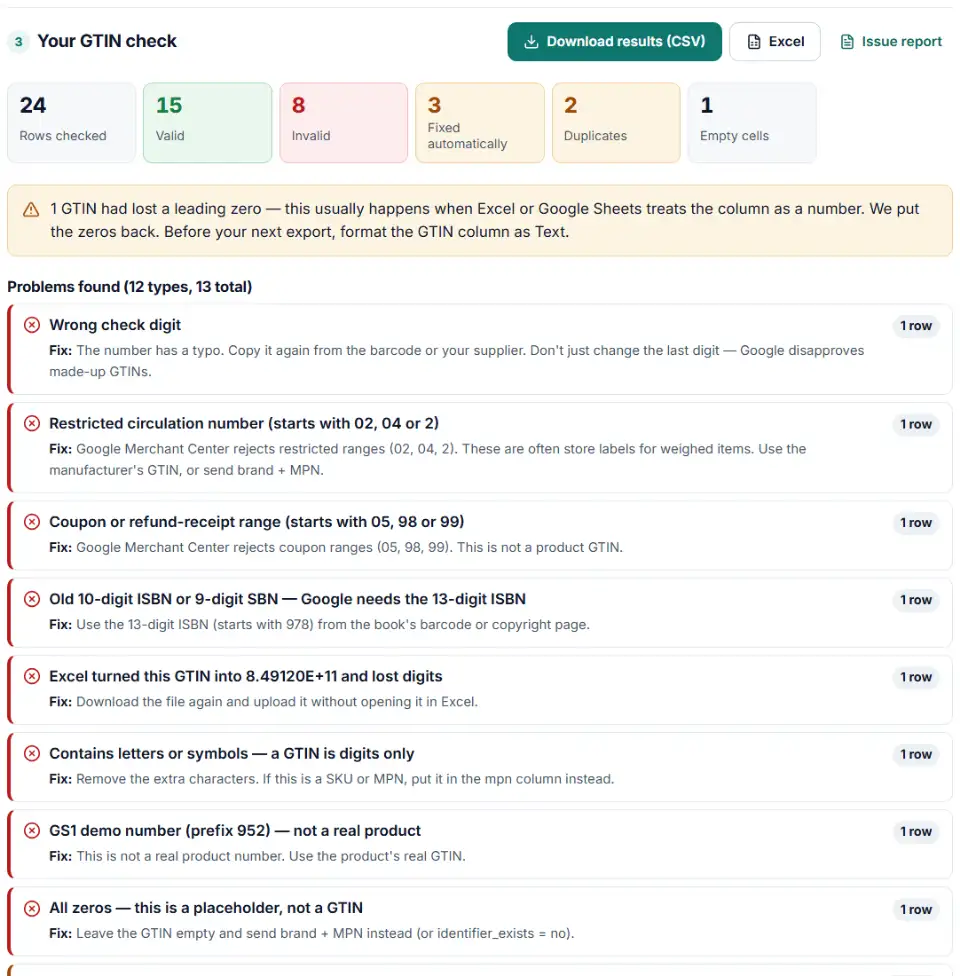
- Read the results. The summary shows valid, invalid and fixed codes. Open each problem to see the rows, what is wrong and how to fix it.
- Download. Get the full results file, the issue report, or a clean list with only the valid GTINs.
What the checker tests
- Check digit and length — one wrong or swapped digit fails. Spaces and dashes are removed, as Merchant Center ignores them.
- Spreadsheet accidents — lost leading zeros (fixed when the check digit proves it) and scientific notation such as 6.29104E+12.
- Prefixes Google refuses — restricted in-store numbers, coupon ranges and GS1's demo prefix 952.
- Type and duplicates — UPC-A, EAN-13, ISBN-13, EAN-8, UPC-E or GTIN-14, and the same GTIN on two rows.
What to do next in Merchant Center
- Fix the invalid rows at the source. Correct the barcode in your store (for example the Barcode field of each Shopify variant) or in your supplier sheet, so the next feed update does not bring the error back.
- Leave unknown GTINs empty. Google says not to guess or make up a GTIN. If a product has no GTIN, send
brandandmpninstead. If it has neither (for example a handmade item), setidentifier_existstono. - Re-upload or re-fetch your feed. In Merchant Center, open your product data source and fetch it again, or wait for the scheduled fetch.
- Check the diagnostics. After processing, look at the product issues list. A code can pass this check and still be flagged if it belongs to a different brand.
Common GTIN errors and how to fix them
“Invalid value [gtin]”
Merchant Center shows this when the number is malformed: wrong length, letters, or a wrong check digit. Copy the GTIN again from the barcode label or your supplier. Do not just change the last digit to the one this tool shows — that turns one wrong number into a different wrong number.
“Incorrect GTIN”
This one is different: the number is well formed, but it belongs to another product — often a code that was re-used for a new item or bought from a barcode reseller. A check digit test cannot catch this. Use the manufacturer's GTIN for this exact product (Google's help page for this error).
“Restricted GTIN”
Numbers starting with 02, 04 or 2 (on the 13-digit form) are restricted circulation numbers. Shops print them on things like weighed cheese or in-store labels. They are not real product GTINs. Google's GTIN rules say not to submit them. Use the manufacturer's GTIN, or brand plus MPN.
“Unsupported GTIN” (coupon ranges)
Codes starting with 05, 98 or 99 belong to coupon and refund-receipt ranges, so Merchant Center rejects them as product identifiers.
Two variants with the same GTIN
Each size and color is a different product and needs its own GTIN. If your supplier gave one code for a whole product line, ask for the variant codes.
Your ISBN has 10 digits
Google needs the 13-digit ISBN. You can find it on the book itself. An old 9-digit SBN must also be replaced by the 13-digit ISBN.
Cheap “barcode reseller” numbers
A number bought from a reseller can pass the check digit test and still be registered to another company. Google's unique product identifiers page explains that GTINs must match the brand. If you make your own products, get a GS1 company prefix in your country.
Frequently asked questions
How do I check if a GTIN is valid?
Load your file or paste the codes above. A GTIN is valid when it has 8, 12, 13 or 14 digits and its last digit matches the GS1 check digit calculation. This checker also flags ranges that Google Merchant Center refuses, such as restricted store numbers (starting 02, 04 or 2) and coupon numbers (05, 98 or 99).
How is a GTIN check digit calculated?
GS1’s rule: take every digit except the last, start from the right and multiply the digits by 3, 1, 3, 1 and so on, add the results, and subtract the total from the next multiple of ten. For 629104150021 the weighted sum is 57, so the check digit is 3 and the full GTIN is 6291041500213 (GS1 example). The Correct check digit column in the results shows this for every row.
How many digits does a GTIN have?
8, 12, 13 or 14. A UPC (GTIN-12) has 12 digits, an EAN (GTIN-13) and an ISBN-13 have 13, an EAN-8 has 8, and a GTIN-14 (cases and multipacks) has 14. Adding zeros to the front does not change a GTIN, so 036000291452 and 0036000291452 are the same number.
What is the difference between GTIN, UPC and EAN?
GTIN is the umbrella name. A UPC is a 12-digit GTIN used mostly in the US and Canada, an EAN is a 13-digit GTIN used in most other countries, and ISBN-13 numbers for books are GTIN-13s that start with 978 or 979.
Why does Merchant Center say my GTIN is invalid or incorrect?
“Invalid value [gtin]” means the number itself is malformed — wrong length, letters, or a wrong check digit. “Incorrect GTIN” means the number is well formed but belongs to a different product, often because a code was re-used or bought from a reseller. This checker catches the first kind; for the second, use the manufacturer’s GTIN for that exact product.
What if my product has no GTIN?
Don’t make one up — Google disapproves invented GTINs. Leave the field empty and send brand and mpn instead. If the product has neither (for example a handmade or custom item), set identifier_exists to no.
Is my product data uploaded anywhere?
No. Your file is read and checked by your own browser. Nothing is sent to our server or anyone else, so you can safely check supplier price lists and unreleased products.
Related tools and guide
-
Find missing attributes, bad prices, wrong availability values, invalid GTINs and duplicate IDs before Google disapproves them.
Google -
Convert a Shopify products CSV into a Google Shopping feed without an app: variants grouped, options mapped, bad barcodes left out and every row checked.
GoogleShopify -
Check a Meta catalog feed for missing required fields, bad prices, unsupported availability values, wrong image types and duplicate IDs.
Meta -
Catch missing required fields, the wrong ID column, emoji in titles, unsupported image hosts and currency mismatches before TikTok rejects products.
TikTok -
Find the missing or badly formatted required fields that make Pinterest reject a whole retail catalog, plus price, variant and length problems.
Pinterest -
Group Merchant Center product issues, count affected products and get Google's fix steps, disapprovals first.
Google
Need help setting this up? Talk to EmproIT