Shopify Products CSV to Google Shopping Feed
Turn a Shopify product export into a Google Merchant Center feed: one row per variant, item_group_id, color and size from options, valid GTINs only, sale prices and stock — then check it against Google's rules.
Products CSV to Merchant Feed Converter for Shopify
- Upload
- Convert
- Download
1 Add your Shopify products export
Choose a file or drag it here
Shopify products CSV (new or old format) or Excel · up to 300 MB
2 Check the columns and options
Rules last checked: against the official pages:
- Using CSV files to import and export products (Shopify)
- Google & YouTube channel requirements (Shopify)
- Product data specification - Google Merchant Center Help (Google Merchant Center)
- Create a tab-delimited product data source - Google Merchant Center Help (Google Merchant Center)
How to turn a Shopify export into a Google Shopping feed
A Shopify Google Shopping feed needs things the product CSV doesn't have: Google's attribute names, a currency on each price, a link per product and a stock status. This tool reads the export as described in Shopify's product CSV guide, builds a Merchant Center feed and checks it against Google's product data specification.
- Export from Shopify. From the Products page in Shopify admin, export all products as a CSV file. Old exports with headers like Handle and Variant Price work too.
- Load it here. Drop the file in, or press Try sample data to convert a small demo store.
- Enter your domain and currency. Both are missing from the export. Then pick a condition and decide what to do with products that have no identifiers.
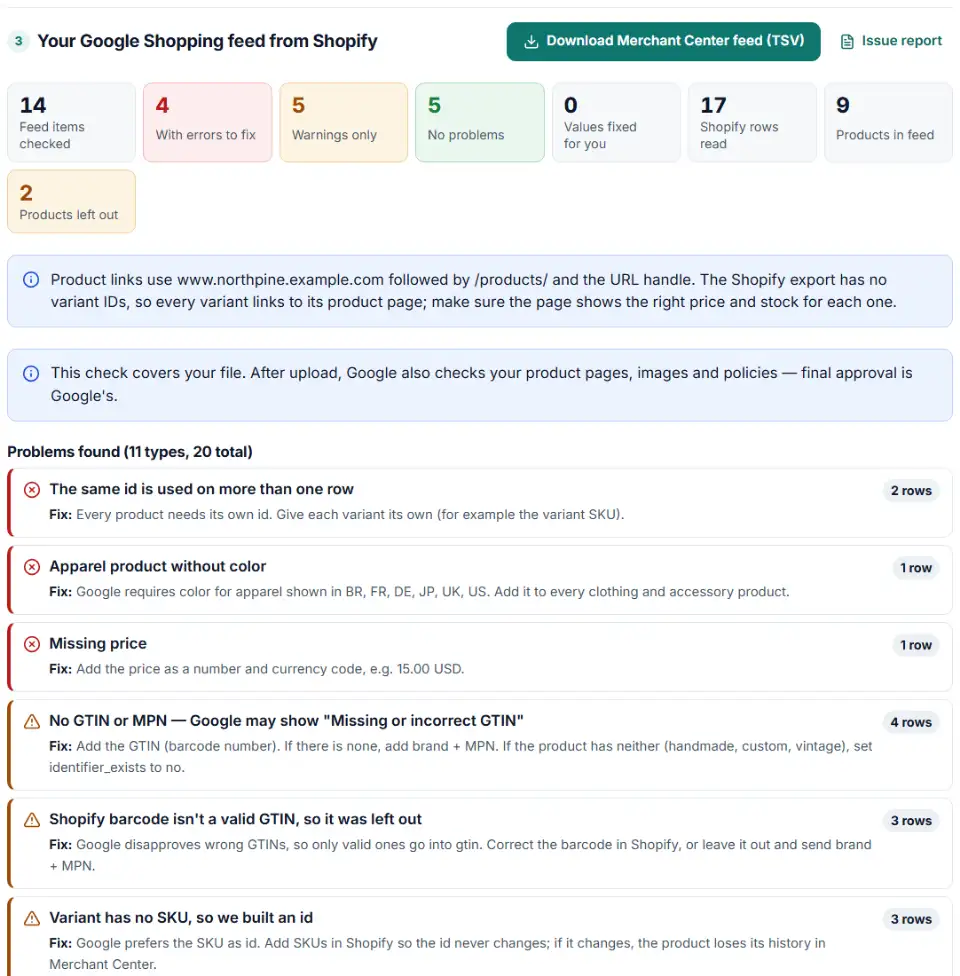
- Read the report. You see how many products went in, which were left out (drafts, archived, unpublished) and every Google problem, grouped by type.
- Download the feed. The .tsv file is ready for Merchant Center; the "feed items to fix" list tells you what to correct in Shopify.
How Shopify columns become Google attributes
- SKU →
id; without a SKU the id is built from the handle and option values. - URL handle →
item_group_idfor products with variants, and the productlink. - Title + option values →
title, e.g. "Organic Cotton Tee - M / Navy". - Price and Compare-at price →
priceandsale_price. - Inventory →
availability: in stock if quantity is above 0, stock isn't tracked, or selling continues when out of stock. - Vendor, Type, Weight value (grams) →
brand,product_type,shipping_weight. - Google Shopping / … columns → product category, gender, age group, MPN, condition and custom labels.
What to do next
- Fix the listed problems in Shopify. Wrong barcodes, missing SKUs and empty prices belong in Shopify, so the next export is clean.
- Upload the feed. In Merchant Center: Settings > Data sources > Add product source > Add products from a file. Google recommends one primary data source for all products, so don't also upload products the Google & YouTube app already syncs.
- Set shipping. The feed has no shipping column, so add rates under Products & store > Shipping and returns.
- Check variant pages. All variants link to the product page because the export has no variant IDs. Google compares price and availability with the page, so make sure each variant's details are visible there.
Common Shopify to Merchant Center problems
Shopify product CSV barcode column isn't a GTIN
Stores often keep their own codes in Barcodes. Google only wants real GTINs, so codes like INTERNAL-123 are dropped. A barcode that lost its first zero in Excel is restored when the check digit proves it.
Shopify variants item_group_id and duplicate IDs
Two variants with the same SKU become two products with one id, which Google refuses. Give every variant its own SKU in Shopify.
Apparel without color or size
Google requires age group, gender and color for clothing and accessories in Brazil, France, Germany, Japan, the UK and the US, plus size for clothing and shoes. Fill the Google Shopping columns in Shopify, or name your options Size and Color in English.
Google Merchant Center not syncing with Shopify
When products don't arrive through the app, Shopify's channel requirements are often the reason: a GTIN must be added if the product has one, products without one need brand and MPN, and option values must be in English. The problem list here shows the same gaps product by product.
Prices without a currency
The export stores 19.99 with no currency. If your Merchant Center country uses another currency than the one you picked, prices won't match the site.
Frequently asked questions
How do I make a Google Shopping feed from a Shopify product export?
Export your products from Shopify as a CSV file, load it above and enter your store’s domain. The tool writes one Merchant Center row per variant with Google’s attribute names, checks every row against Google’s product data specification and gives you a tab-delimited file to upload.
Do I need this if I use Shopify's Google & YouTube app?
Usually not — if the app syncs your products without problems, keep using it. This file helps when you can’t or don’t want to install the app: auditing a client’s catalog, a store run by an agency, a one-off feed for another channel, or finding out why products don’t sync.
How are Shopify variants handled in a Merchant Center feed?
Each variant becomes its own product with its own id (the SKU). All variants of one product share an item_group_id (the URL handle). Options named Size, Color, Colour, Material or Pattern fill those attributes; any other option, such as Grind or Scent, goes into variant_option so the variants stay distinct.
Which Shopify column becomes the GTIN?
Barcodes (Variant Barcode in older exports). Shopify allows several values separated by semicolons, with optional prefixes like gtin: or upc:. Only numbers that pass the GS1 check digit test go into gtin; internal codes and broken numbers are left out and listed so you can fix them in Shopify.
What does the tool add that the Shopify export is missing?
The export has no currency, no product links and no stock status in Google’s words. The tool adds the currency code to every price, builds link from your domain and handle, turns inventory into in_stock or out_of_stock, uses Compare-at price for sale_price, and converts the HTML description to plain text.
How do I upload the file to Merchant Center?
In Merchant Center go to Settings > Data sources > Add product source > Add products from a file and upload the .tsv. A file uploaded from your computer doesn’t update itself, so export and convert again when prices or stock change.
Is my product export uploaded to your server?
No. Your browser reads the export and builds the feed on your device.
Related tools and guide
-
Find missing attributes, bad prices, wrong availability values, invalid GTINs and duplicate IDs before Google disapproves them.
Google -
Group your Google Shopping products by price range, margin or best sellers with custom labels, in a supplemental feed kept within Google's limits.
Google -
Check thousands of product barcodes (GTIN, UPC, EAN, ISBN) at once and catch wrong check digits and restricted codes before Merchant Center does.
GoogleMetaTikTokPinterestMicrosoft -
Search the official Google product taxonomy by word or ID, and bulk-map products or product types to category IDs — no daily limit.
GoogleMetaTikTok -
Bulk-build better Shopping titles by category: front-loaded details, no promo text, every variant different, ready as a supplemental feed.
GoogleMetaTikTokPinterest -
Get custom pixel code for Shopify that sends checkout and cart events to Meta, Google, TikTok and Pinterest, plus a checker for wrong event names.
ShopifyMetaGoogleTikTokPinterest
Need help setting this up? Talk to EmproIT