Supplemental Feed and Custom Label Builder for Google Merchant Center
Build a Google Merchant Center supplemental feed that adds custom_label_0–4 to your products from price ranges, margin, best sellers, sale status or any column — checked against Google's label limits.
Supplemental Feed and Custom Label Builder
- Upload
- Set labels
- Download
1 Add your product list
Choose a file or drag it here
Feed export, Shopify or WooCommerce export, sales report: CSV, TSV, TXT or Excel · up to 300 MB
2 Check the columns and options
Rules last checked: against the official pages:
- Custom label 0–4 [custom_label_0–4] - Google Merchant Center Help (Google Merchant Center)
- Create a product data source - Google Merchant Center Help (Google Merchant Center)
- Set up your attribute rules - Google Merchant Center Help (Google Merchant Center)
How to build a Google Merchant Center supplemental feed with custom labels
This tool turns a product list into a Google Merchant Center supplemental feed: a small file with your product id and up to five custom labels. Google explains the attributes on its custom label page; this builder fills them from rules you choose and keeps every value inside Google's limits.
- Add a product list. Any file with your Merchant Center product IDs works: an export of your feed, a Shopify or WooCommerce export, or a sales report. Add cost and sales columns if you want margin and best-seller labels.
- Check the ID column. It must hold exactly the IDs in your primary data source, or the labels won't attach to anything. Pick the cost, sales and price columns too.
- Choose a rule for each label. Price range, margin, best sellers, on sale, or a column copied as it is (season, collection, brand).
- Set the breaks. Price bands, margin bands and the best-seller share. The bars under the results show how many products land in each value.
- Download or copy. Download the tab-delimited file for a file data source, or copy the rows and paste them into a Google Sheet.
Custom label ideas for Google Shopping
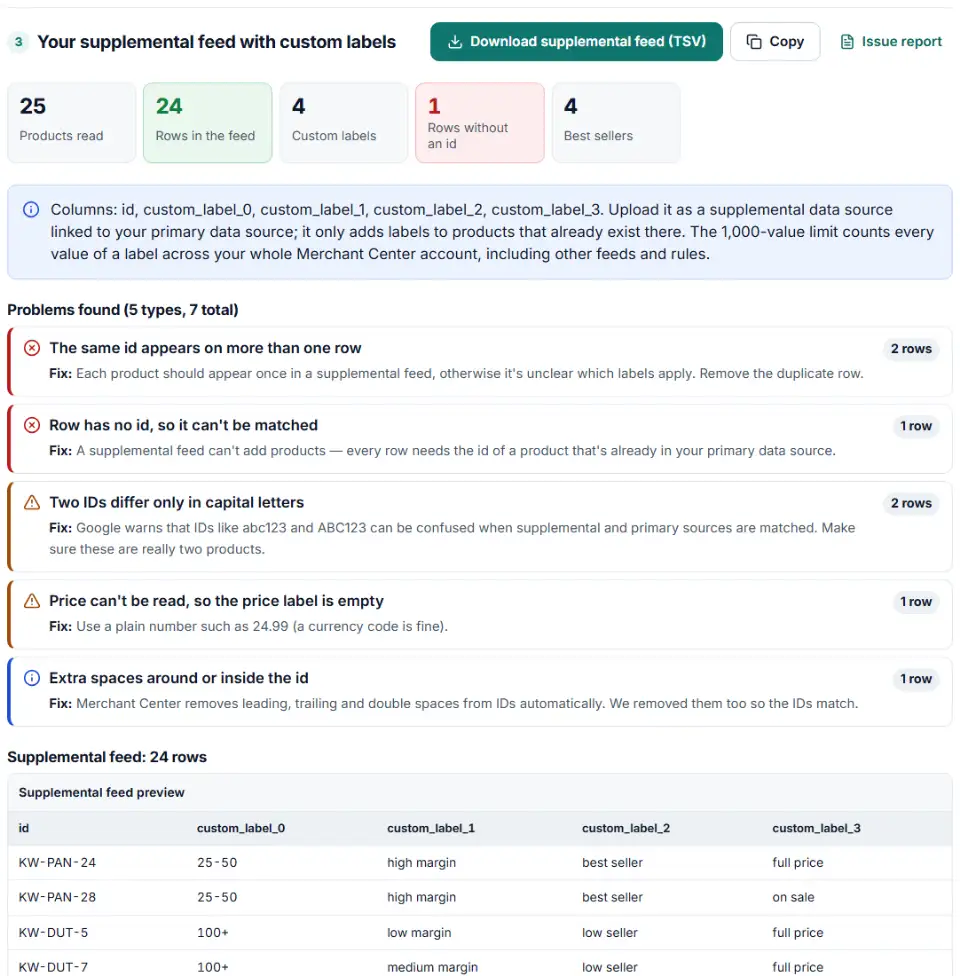
Google's own example plan uses one label each for season, selling rate, price range, margin and release year. Our defaults follow the same idea: custom_label_0 holds the price band, custom_label_1 the margin, custom_label_2 best seller or low seller, and custom_label_3 whether the product is on sale. Change any of them; the only rule is that each label keeps one meaning across the whole catalog.
What to do next in Merchant Center and Google Ads
- Turn on the add-on. In Merchant Center open Settings > Add-ons and add Advanced data source management; without it the Supplemental sources tab is hidden.
- Create the supplemental source. Go to Settings > Data sources > Supplemental sources > Add supplemental product data. Choose a file or a Google Sheets template, enter the file name, then the data source label and language of your primary source.
- Link it to the primary source and select Create data source. The label (feed label) and language must match exactly.
- Use the labels in Google Ads. Split products by custom label in your Shopping, Performance Max or Demand Gen campaigns, for example a separate group for high-margin best sellers.
- Refresh monthly. Best sellers and margins change. Re-run the file with fresh sales data and upload it again.
Common supplemental feed and custom label errors
Supplemental feed ID must match the primary feed
Labels only attach when the id is the same as in the primary data source. A product list from your shop may use different IDs from your feed, so export the IDs from Merchant Center when in doubt. IDs that differ only in capital letters are flagged, because Google warns they can be confused.
Too many unique values in a custom label
Copying a column like product title gives every product its own value and quickly passes 1,000. Use labels for groups, not for single products.
Custom labels not showing in Google Ads
New labels appear in Google Ads only after Merchant Center has processed the supplemental source and the products. A missing Advanced data source management add-on, a wrong feed label or language, or IDs that don't match are the usual causes.
Rows without an ID
A supplemental feed can't add products, so rows without an ID (like a gift-wrap service line in a sales report) are left out and listed.
Quotes in Google Sheets
Google Sheets data sources don't support quoted values: a value wrapped in double quotes keeps the quotes. Paste the copied rows, don't import a CSV with quotes.
Frequently asked questions
What is a supplemental feed in Google Merchant Center?
A supplemental data source adds or updates attributes of products that are already in your primary data source, matched by id. It can’t add or remove products. It’s the usual way to add custom labels without touching your main feed or your shop’s app.
How do I add a supplemental feed in Merchant Center Next?
Merchant Center Next is now simply called Google Merchant Center, and the steps are the same. Turn on the Advanced data source management add-on, then go to Settings > Data sources > Supplemental sources > Add supplemental product data and link it to your primary data source.
How many custom labels can a product have?
Five: custom_label_0 to custom_label_4, with one value each. You can use any of them — only label 0 and 2, for example. Decide what each label means (price range, margin, season…) and keep that meaning the same for every product.
How long can a custom label value be?
1 to 100 characters. Google’s custom label page recommends ASCII characters, and labels are not case sensitive, so Summer and summer count as the same value.
How many unique values can each custom label have?
Up to 1,000 different values per label across your Merchant Center account, and 5,000 in total. Labels sent after the limit is reached are ignored for reporting and bidding, which is why this builder groups prices and margins into bands.
How do custom labels help Shopping and Performance Max campaigns?
Google Ads can split products by custom label in Shopping, Performance Max and Demand Gen, so you can bid harder on high-margin best sellers or keep clearance items in their own group. Shoppers never see the labels. They don’t work for Display dynamic remarketing, which uses ads_labels and ads_grouping instead.
Is my product and sales data uploaded?
No. Your browser builds the file on your own device, so costs and sales figures stay private.
Related tools and guide
-
Find missing attributes, bad prices, wrong availability values, invalid GTINs and duplicate IDs before Google disapproves them.
Google -
Convert a Shopify products CSV into a Google Shopping feed without an app: variants grouped, options mapped, bad barcodes left out and every row checked.
GoogleShopify -
Bulk-build better Shopping titles by category: front-loaded details, no promo text, every variant different, ready as a supplemental feed.
GoogleMetaTikTokPinterest -
Build a Google Merchant promotions feed for many promos at once: IDs, date ranges with time zones, codes, product filters and title rules checked.
Google -
Group Merchant Center product issues, count affected products and get Google's fix steps, disapprovals first.
Google -
Search the official Google product taxonomy by word or ID, and bulk-map products or product types to category IDs — no daily limit.
GoogleMetaTikTok
Need help setting this up? Talk to EmproIT