Diagnostics Analyzer for Google Merchant Center
Upload the Merchant Center “Needs attention” download to group every product issue, count disapproved and limited products, and get Google's fix and help page for each issue — disapprovals first.
Diagnostics Analyzer for Google Merchant Center
- Upload
- Group
- Download
1 Add your Needs attention download
Choose a file or drag it here
CSV from Merchant Center, or any sheet with an issue column · up to 300 MB
2 Check the columns and options
Rules last checked: against the official pages:
- Issues in Merchant Center - Google Merchant Center Help (Google Merchant Center)
- Troubleshoot my data source - Google Merchant Center Help (Google Merchant Center)
- Fixing Merchant Center disapprovals for product data quality violations - Google Merchant Center Help (Google Merchant Center)
- REST Resource: accounts.products | Merchant API | Google for Developers (ItemLevelIssue) (Google Merchant Center)
How to analyze Google Merchant Center diagnostics
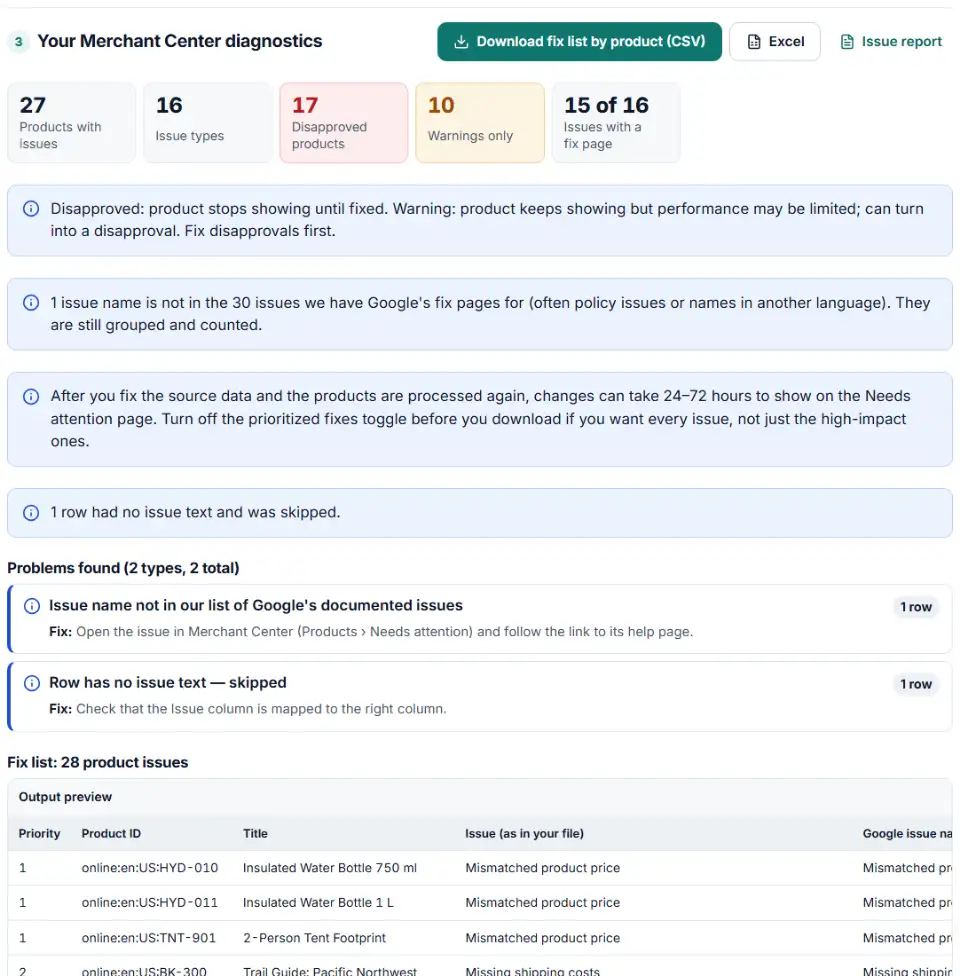
Google Merchant Center diagnostics list every product with a problem, but a long download is hard to act on. This analyzer groups the rows by issue, counts the products behind each one and attaches Google's fix and “How to fix” page, with disapprovals at the top. Issue names and severities follow Google's Issues in Merchant Center page.
- Download the affected products. Go to Products › Needs attention, turn off the prioritized fixes toggle, and click the download icon.
- Drop the .csv in. Google doesn't publish the column names of this file, so the analyzer finds the issue, product ID, title and impact columns by name. Check the matches and fix any that are wrong.
- Read the fix plan. Issues are sorted by disapproved products first, then by how many products they touch. Each matched issue gets Google's fix in one line and a link to its help page.
- Download the fix list. One row per product and issue, in priority order — hand it to whoever edits your store or feed.
- Keep the summary. The issue summary file is a short to-do list for the team or a client update.
How issue names are matched
The analyzer knows 30 issues by their English names on Google's help pages, including older names such as “Limited performance due to missing identifiers” and close variants such as “Image too small for upcoming enforcement”. Matching ignores capitals and punctuation. Anything else — often policy issues or names in another language — is still grouped and counted, with a link to Google's issues page.
What to do next in Merchant Center
- Fix at the source. Correct prices, GTINs, images or availability in your store or feed file, then upload or fetch the data source again. Google's fix pages describe this bulk route for most issues.
- Or edit single products. In Products › Needs attention, click a product title, choose Edit product, change the value and save.
- Check file-level errors. Under Settings › Data sources, open the source, then Latest update and Download report. It lists file issues with the line numbers of affected products.
- Request a review where the issue offers one. Price and availability mismatches often need a website check after the fix.
- Download again after a few days. Allow 24–72 hours, then run the new file through the analyzer and compare the counts.
Merchant Center issues and fixes you will see most
Mismatched product price
The price in your data doesn't match the price Google reads from the landing page. Googlebot checks the HTML your server returns, so prices filled in later by scripts can confuse it. Also check sale price dates and their time zone.
Missing or incorrect GTIN
Send the manufacturer's GTIN, or brand plus MPN. Use identifier_exists set to no only for products that truly have no identifiers, such as one-of-a-kind or vintage items.
Image too small
Google's minimum is 100 × 100 pixels (250 × 250 for apparel) today, and 500 × 500 becomes the rule for all products from January 31, 2027. Warnings named “for upcoming enforcement” are an early notice — fix them before they turn into disapprovals.
Product page unavailable
Google hit a 404, a server error, a broken redirect chain or a blocked robots.txt. Open the link from a clean browser and make sure it lands on the product, on your verified domain.
Missing shipping costs
Set up shipping in Products & store › Shipping and returns, or add a shipping attribute with its country to each product.
Misrepresentation
This is a policy issue, usually for the whole account. Make your business identity, prices, delivery and return terms clear on the website, then request a review.
Frequently asked questions
Where is the diagnostics page in the new Google Merchant Center?
Product issues now live under Products (in the Products & store section), on the Needs attention tab. Each issue there opens an issue details page with the affected products and Google’s suggested fix.
How do I download all product issues from Merchant Center?
On the Needs attention tab, optionally filter by issue impact, status or what needs attention, then click the download icon to get a .csv of every affected product. Turn off the prioritized fixes toggle first, or low-impact issues are left out. One issue’s full product list can also be downloaded from its issue details page.
What is the difference between a warning and a disapproval?
A warning means the product keeps showing, but its performance may be limited — and some warnings turn into disapprovals later. A disapproved product stops showing until you fix it. Fix disapprovals first.
How long do Merchant Center fixes take to show?
After the corrected data is processed, changes can take 24 to 72 hours to show on the Needs attention page. When you request a website check, Google may take up to 12 hours to review the site, and you can’t send a new request in the meantime.
Can I fix Merchant Center product issues in bulk?
Yes. Download the affected products, correct the source — your store, feed file or supplemental source — and upload or fetch it again. You can also fix products one at a time: open the product from Needs attention, choose Edit product and save.
What does the prioritized fixes toggle hide?
It is on by default where available and hides low-impact issues so you see what matters most first. Switch it off before you download if you want a complete list for this analyzer.
Related tools and guide
-
Find missing attributes, bad prices, wrong availability values, invalid GTINs and duplicate IDs before Google disapproves them.
Google -
Check thousands of product barcodes (GTIN, UPC, EAN, ISBN) at once and catch wrong check digits and restricted codes before Merchant Center does.
GoogleMetaTikTokPinterestMicrosoft -
Group your Google Shopping products by price range, margin or best sellers with custom labels, in a supplemental feed kept within Google's limits.
Google -
Convert a Shopify products CSV into a Google Shopping feed without an app: variants grouped, options mapped, bad barcodes left out and every row checked.
GoogleShopify -
Build a local inventory feed from your stock sheet: one row per product per store, store codes matched to Business Profile, availability from quantity.
Google -
Check a Meta catalog feed for missing required fields, bad prices, unsupported availability values, wrong image types and duplicate IDs.
Meta
Need help setting this up? Talk to EmproIT