Bulk Sheets Builder for Amazon Sponsored Products
Turn a plain list of products and keywords into Amazon Sponsored Products bulk sheet rows — campaigns, ad groups, product ads, keywords and ASIN targets — checked against Amazon's limits before you upload.
Bulk Sheet Builder for Amazon Sponsored Products
- Upload
- Check
- Download
1 Add your plan
One row per keyword or ASIN target. Rows with only a SKU or ASIN add a product ad. Add file 2 to put new keywords into existing campaigns.
1. Your keywords and products
Choose a file or drag it here
CSV or Excel with keywords, SKUs/ASINs and optional campaign, ad group and bid columns · up to 300 MB
2. Bulk operations download (optional)
Choose a file or drag it here
Only to add to campaigns you already run: it has their numeric IDs · up to 300 MB
2 Check the columns and options
Rules last checked: against the official pages:
- How to create Sponsored Products campaigns in bulksheets (Amazon Ads)
- Get started with bulksheets for Sponsored Products (Amazon Ads)
- Bulksheets error messages (Amazon Ads)
- Limits, constraints, and quotas (bid, budget, keyword and name constraints) (Amazon Ads)
How to build Amazon bulk sheets with this tool
This builder writes Amazon bulk sheets for Sponsored Products in the bulksheets 2.0 layout: the 31 columns, entity names and values shown in Amazon's How to create Sponsored Products campaigns in bulksheets guide. You bring a simple plan; it turns every line into the right Campaign, Ad group, Product ad, Keyword and Product targeting rows.
- Make a plain list. One row per keyword or ASIN you want to target. Add campaign, ad group, SKU (or ASIN), match type and bid columns if you have them; common names are matched automatically.
- Add file 2 if the campaigns already exist. A bulk operations download gives the numeric Campaign Id and Ad Group Id. Matching campaign names are reused instead of created again.
- Pick your defaults. Seller or vendor, marketplace, budget, default bid, match types and bidding strategy. Optional: split match types into separate campaigns, or add an auto campaign for the same products.
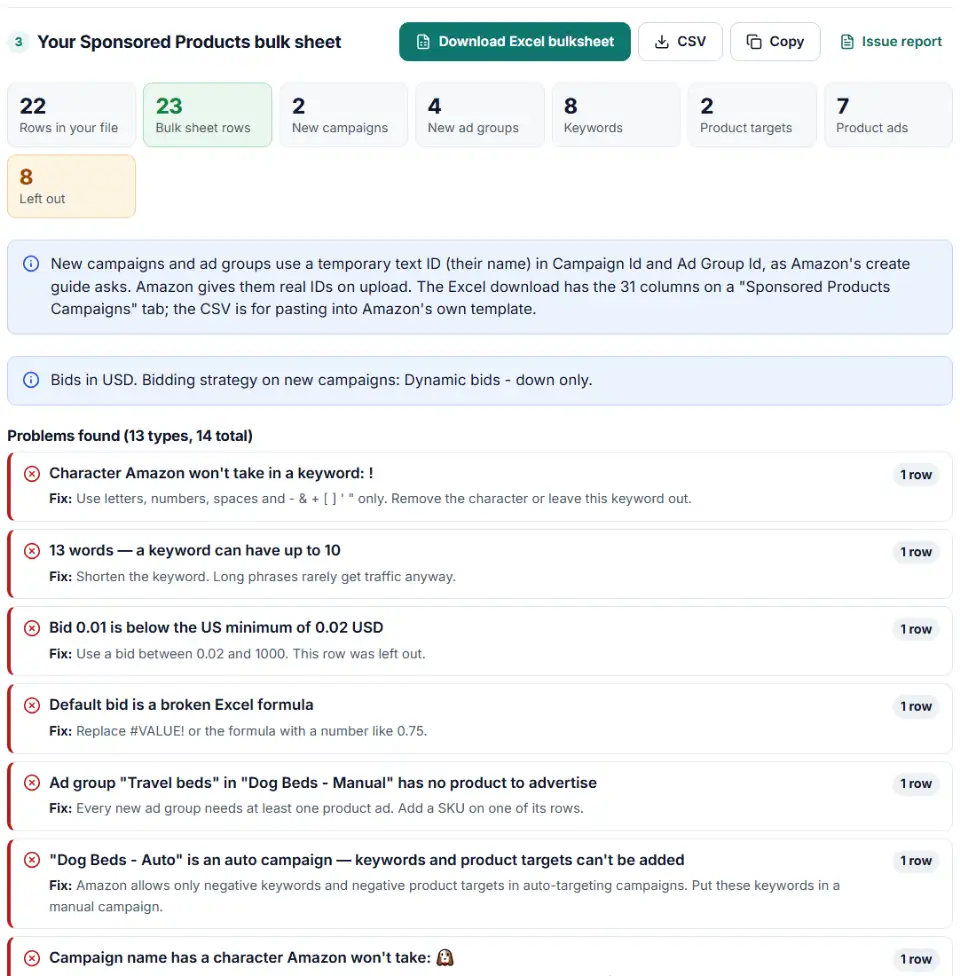
- Read the checks. Red rows break an Amazon rule — a symbol in a keyword, more than 10 words, a bid outside the marketplace range, or an ad group without a product.
- Download the Excel file and upload it on the Bulk operations page.
Rules the builder follows
- Temporary IDs on Create. New campaigns and ad groups get a text ID (their name). Each child row repeats it exactly, so Amazon can link them.
- Product targeting stays separate. Amazon won't mix keywords and product targets in one ad group, so ASIN targets move to their own ad group with the same products.
- No keywords in auto campaigns. A campaign with products but no keywords is built as auto targeting.
What to do next: upload on Bulk operations
- Open Bulk operations. Sellers: Seller Central › All campaigns › Bulk operations. Vendors: the advertising console under Sponsored ads.
- Upload the Excel file. Its tab is named “Sponsored Products Campaigns”. To use Amazon's own template instead, copy the rows and use Paste Special › Values, so the template's input guidance keeps working.
- Watch Bulk spreadsheet history. “Finished with errors” means some rows failed. The error report has an Upload Processing Summary tab plus a campaign tab with the original record number and the error message for each row.
- Fix and re-upload only the failed rows. Correct them in the report's campaign tab, then upload that file again.
Amazon bulksheet errors when creating campaigns
“This Create operation requires you to specify a temporary Campaign ID”
On a Create row, Campaign Id must be text that is not a number. A campaign called “2026” would break this, so the builder writes “Campaign 2026” as its ID and keeps the real name in Campaign Name.
“This Update operation requires you to specify an actual Campaign ID”
Rows that point at a campaign you already have need its real numeric ID from a bulksheet download. Amazon says the IDs shown in the advertising console are different numbers.
“Missing value for column: Ad Group Default Bid”
Every new ad group needs a default bid. Keywords without a bid inherit it.
“Only negative keywords and negative product targets are allowed in auto-targeting campaigns”
You tried to add keywords to an auto campaign. Put them in a manual campaign. To block searches, use negative keywords instead.
“Bid is lower than the minimum allowed by the marketplace”
Limits depend on the marketplace: 0.02 to 1,000 on amazon.com, 2 to 100,000 yen in Japan. Rows outside your marketplace's range are left out.
Invalid value “#VALUE!” for column “Bid”
An Excel formula broke before you saved the file. Replace it with a plain number like 0.85.
INVALID_DATE_INPUT for Start Date
Dates must look like 20261101 (yyyyMMdd), and a start date can't be in the past. Leave it empty to start today.
“This row was not processed due to errors from other rows”
A knock-on warning: when a Campaign or Ad group row fails, its children fail too. Fix the parent row first.
Frequently asked questions
What are Amazon bulk sheets?
Bulk sheets are Excel files you upload on Amazon’s Bulk operations page to create or change many Sponsored Products campaigns at once. Each row is one entity — a campaign, an ad group, a product ad, a keyword, a product target or a bidding adjustment — and the first three columns are always Product, Entity and Operation.
How do I create Sponsored Products campaigns with a bulksheet?
Write one Campaign row, one Ad group row with a default bid, at least one Product ad row, and keyword or product targeting rows for a manual campaign. New campaigns and ad groups use a temporary text ID that every child row repeats. This builder writes all of those rows from a plain list of keywords and SKUs.
What do the Entity and Operation columns mean?
Entity says what the row is: Campaign, Ad group, Product ad, Keyword, Product targeting, Bidding adjustment and so on. Operation says what to do with it: Create, Update or Archive. Amazon skips any row with an empty Operation, and Archive can’t be undone.
Why did my Amazon bulksheet upload fail?
Download the error report from Bulk spreadsheet history. The most common causes are a number in Campaign Id on a Create row, a real campaign that was referenced by name instead of its numeric ID, a missing Ad Group Default Bid, a bid below the marketplace minimum, or keywords added to an auto campaign.
Can I add keywords to existing campaigns with a bulksheet?
Yes. Use Operation Create on the Keyword rows, but put the campaign’s and ad group’s real numeric IDs from a bulk operations download in Campaign Id and Ad Group Id. Load that download as file 2 here and the builder fills the IDs in and skips keywords you already have.
Is my product and keyword data uploaded anywhere?
No. The sheet is built in your own browser. Nothing goes to our server or to Amazon until you upload the finished file yourself.
Related tools
-
See which words in your Amazon search terms waste money and which ones sell, with ACOS per phrase, ready negatives and new keywords to add.
Amazon -
Pick the search terms that cost money without sales and get upload-ready negative exact or phrase rows for Amazon bulk operations.
Amazon -
Build an Editor-ready CSV of campaigns, ad groups and keywords from any sheet, with match types, bids and duplicate checks.
Google -
Fill Meta's Ads Manager import template from a plain sheet of campaigns, ad sets and ad copy, with checks for links, countries, CTAs and budgets.
Meta -
Break search terms into 1–3-word phrases with cost and conversions, and copy the negatives that wasted money.
Google
Need help setting this up? Talk to EmproIT