Bulk Import Sheet Builder for Meta Ads (Bulk Upload Template)
Turn a simple sheet of ads into a Meta Ads Manager bulk import file — filled into your own downloaded template — and catch the errors that stop an import before you upload.
Bulk Import Sheet Builder for Meta Ads
- Upload
- Check
- Download
1 Add your ads
File 2 makes the output match your account's current template, column for column.
1. Your ads (one per row)
Choose a file or drag it here
CSV, Excel or pasted rows · up to 300 MB
2. Your Ads Manager template (recommended)
Choose a file or drag it here
The Excel template downloaded from Ads Manager, or any export · up to 300 MB
2 Check the columns and options
Rules last checked: against the official pages:
- How to bulk upload and import ads in Meta Ads Manager (Meta (Facebook and Instagram))
- Columns in the Import/Export Template in Meta Ads Manager (Meta (Facebook and Instagram))
- Download the import template for Meta Ads Manager (Meta (Facebook and Instagram))
- Troubleshoot bulk import issues when using a custom Excel sheet (Meta (Facebook and Instagram))
How to use the bulk upload template builder for Meta ads
This bulk upload template builder for Meta ads fills Ads Manager's import file from a plain sheet, using the columns and formats on Meta's Columns in the Import/Export Template page. Because Meta changes its template from time to time, the safest way is to load the template you downloaded yourself: the builder keeps its header row exactly and fills in your ads.
- Write one ad per row. Campaign, ad set, ad name, primary text, headline and website URL are needed. Add any of: description, display link, call to action, URL parameters, image file name, objective, budget, countries, ages, gender and start time.
- Download your template. In Ads Manager choose Download Excel template and load it as file 2. Without it, the builder uses the column names from Meta's help pages.
- Set the defaults. Pick an objective and a country for rows that don't have one, your Facebook Page ID, and whether new items start paused.
- Fix the red rows. Missing headlines, incomplete URLs, unknown countries and impossible age ranges are listed with the fix. Those ads stay out of the file until fixed.
- Download the Excel file or copy. Both are formats Ads Manager imports.
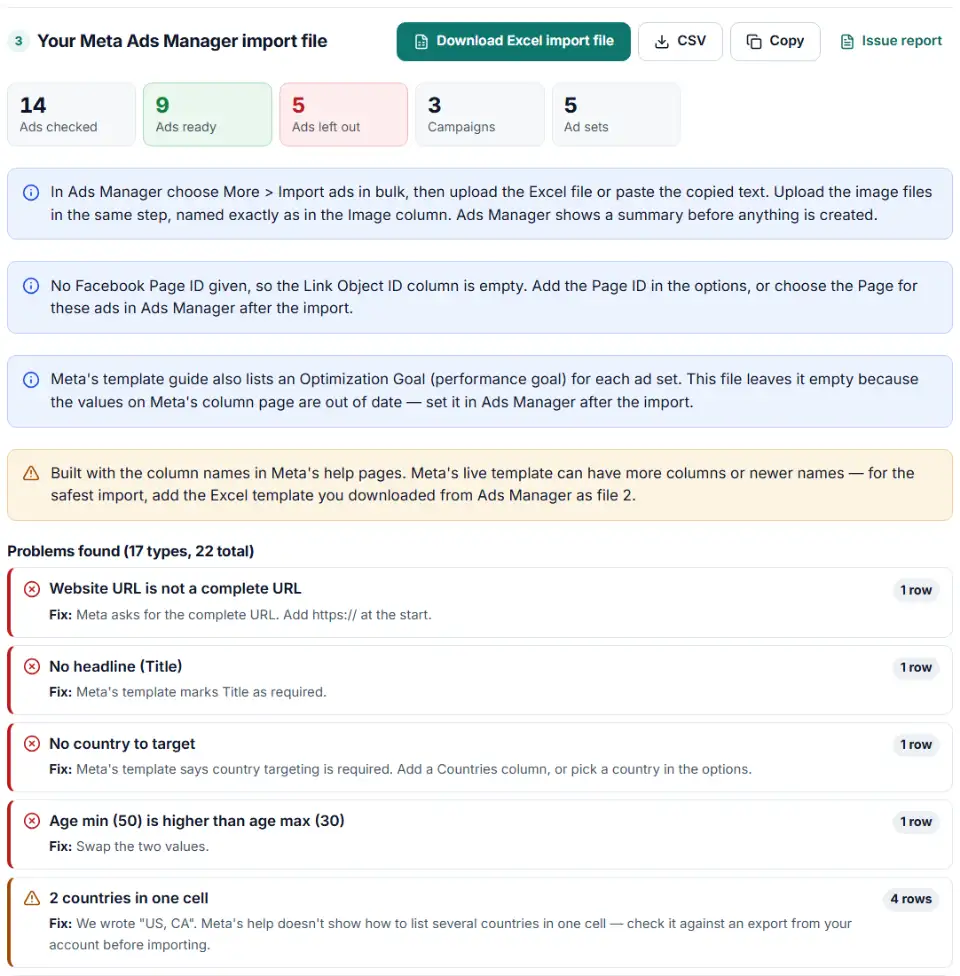
What the builder fixes and checks
- Names to template columns: Primary text becomes Body, Headline becomes Title, Website URL becomes Link, and labels like "Shop now" become the CTA code
SHOP_NOW. - Formats: budgets without currency symbols and with two decimals, country names turned into ISO codes (Deutschland → DE), start times in Meta's MM/DD/YY HH:MM format, display links without https://, URL parameters without a leading question mark.
- One value per ad set: every row of an ad set gets the same budget, countries, ages and start time. If your sheet disagrees with itself, the first value wins and you see a warning.
- Old IDs: rows that still carry a campaign, ad set or ad ID are left out, because Meta says to delete existing ad IDs when you import new ads.
What to do next in Ads Manager
- Open Ads Manager on a computer. Bulk import isn't available in the mobile app.
- Start the import. Below the Campaigns, Ad sets and Ads tabs, choose More > Import ads in bulk. Upload the Excel file, or paste the copied text.
- Add your images. Upload the image and video files in the same step. Their names must match the Image column exactly.
- Read the summary. If Meta finds blocking errors, choose View errors in Excel, fix the rows and import again. Delete any row that still has an issue code before you re-import.
- Review, then publish. Check one ad of each type in the preview, especially placements and the call to action.
Common Meta bulk import errors and fixes
Bulk import fails with a custom Excel sheet
Meta's troubleshooting page for custom sheets gives three fixes: include every template column, delete existing ad IDs, and try another file format. Use the downloaded template as file 2 so every column is there, let the builder drop old IDs, and if it still fails, save the file as Unicode text (.txt) and import that.
Ads were created in new ad sets
Without an Ad Set ID, Meta matches by ad set name and creates a new ad set when the name differs by even one character. Copy names from an export instead of typing them.
Ads imported but don't run
Meta says the campaign, ad set and ad statuses should match. A paused campaign with active ads stays off. The builder writes the same status at every level, and leaves it empty for ad sets with a future start time, as Meta advises.
Drafts full of errors after a re-import
When you fix an error file, delete the rows that have issue codes in column A. Deleting only the issue code column creates drafts that still carry the errors.
Features that don't survive export and import
Reservation campaigns, carousel ads with customized placements and ads with placement asset customization in several languages aren't supported in import files. A/B tests, offers and branded content partner Pages are removed. Build those in Ads Manager.
Learning phase restarts
Changing some fields through an import can restart the learning phase or send ads back to review.
Frequently asked questions
How do I bulk upload ads to Meta Ads Manager?
Fill one row per ad, build the file here, then in Ads Manager on a computer choose More > Import ads in bulk. Upload the Excel file or paste the copied text, add your images in the same step, and read the summary before anything is created.
Where do I get the Meta Ads Manager import template?
In Ads Manager, open the import/export menu (or More) and choose Download Excel template. A template for new ads has fewer columns than an export of ads you already run. Load it here as file 2 and the builder writes your ads into its exact columns.
Why is my Meta Ads import file rejected?
Meta’s troubleshooting points to missing template columns, old ad IDs left in a custom sheet, and the file format. Rows with issue codes from an earlier attempt must be deleted, not just the issue code column. Some features, such as reservation campaigns, can’t be imported at all.
Which file types can I import into Meta Ads Manager?
Meta’s help describes importing an Excel spreadsheet or pasting text, with a file limit of about 2 MB; CSV is listed as an export format. Use the Excel download or click Copy and paste. If a custom sheet still fails, Meta suggests saving it as a Unicode text file.
Can I create campaigns, ad sets and ads in one import file?
Yes. Each row is one ad and carries its campaign and ad set. When a row has no IDs, Meta looks for a campaign or ad set with the same name and creates a new one if none matches. Spell names exactly as in your account to add ads to existing ones.
How do I add images to a bulk import?
Put the exact file name, with its extension, in the image column (for example intro-a.jpg). When you import the file, Ads Manager lets you upload the images and videos in the same step.
Is my ad copy uploaded anywhere?
No. Your sheet and template are read in your own browser. Nothing is sent to our server or to Meta until you import the file yourself.
Related tools and guide
-
Rename Facebook and Instagram campaigns, ad sets and ads in bulk to one naming convention — with a before/after preview and an Ads Manager import file.
Meta -
Tag every Facebook and Instagram ad with one URL parameters string that fills in campaign and ad names, with syntax checks and a GA4 channel preview.
Meta -
Clean a Facebook leads CSV for your CRM: strip “p:” and ID labels, split names, fix dates and merge duplicate leads.
Meta -
Compare cost per result by placement, age, gender or device from an Ads Manager export, without falling for the breakdown effect.
Meta -
Build an Editor-ready CSV of campaigns, ad groups and keywords from any sheet, with match types, bids and duplicate checks.
Google -
Get Meta pixel code for purchases, leads and other events, with order value and a matching Conversions API event so no sale is counted twice.
Meta
Need help setting this up? Talk to EmproIT