Campaign CSV Builder for Google Ads Editor (Bulk Upload Template)
Turn a plain keyword sheet into a Google Ads Editor import file with campaign, ad group and keyword rows, and catch the errors Editor would show before you import.
Campaign CSV Builder for Google Ads Editor
- Upload
- Check
- Download
1 Add your keyword sheet
Choose a file or drag it here
CSV, Excel, TSV or TXT · one keyword per row · up to 300 MB
2 Check the columns and options
Rules last checked: against the official pages:
- CSV file columns - Google Ads Editor Help (Google Ads)
- Prepare a CSV file - Google Ads Editor Help (Google Ads)
- Add multiple keywords - Google Ads Editor Help (Google Ads)
- Add keywords (Google Ads)
How to use the bulk upload template builder for Google Ads Editor
This bulk upload template builder for Google Ads Editor turns a simple keyword list into a CSV file with the column headers from Google's CSV file columns help page. Editor reads one item per row, so the tool writes a row for each campaign, each ad group and each keyword, and repeats the names on every row.
- Start with a plain sheet. One keyword per row, with its campaign and ad group. Extra columns are optional: match type, max CPC, final URL, status, daily budget and ad group bid. Click Try sample data to see the format.
- Load or paste it. Drop in a CSV or Excel file, or paste rows from Google Sheets. The builder matches your column names on its own; change any match that is wrong.
- Choose what you are building. New campaigns adds the campaign settings: daily budget, networks, language codes and a Paused status. Keywords for existing ad groups writes keyword rows only, so nothing else in the account changes. Use new campaign names: an existing name is edited, and its settings are replaced by the file's.
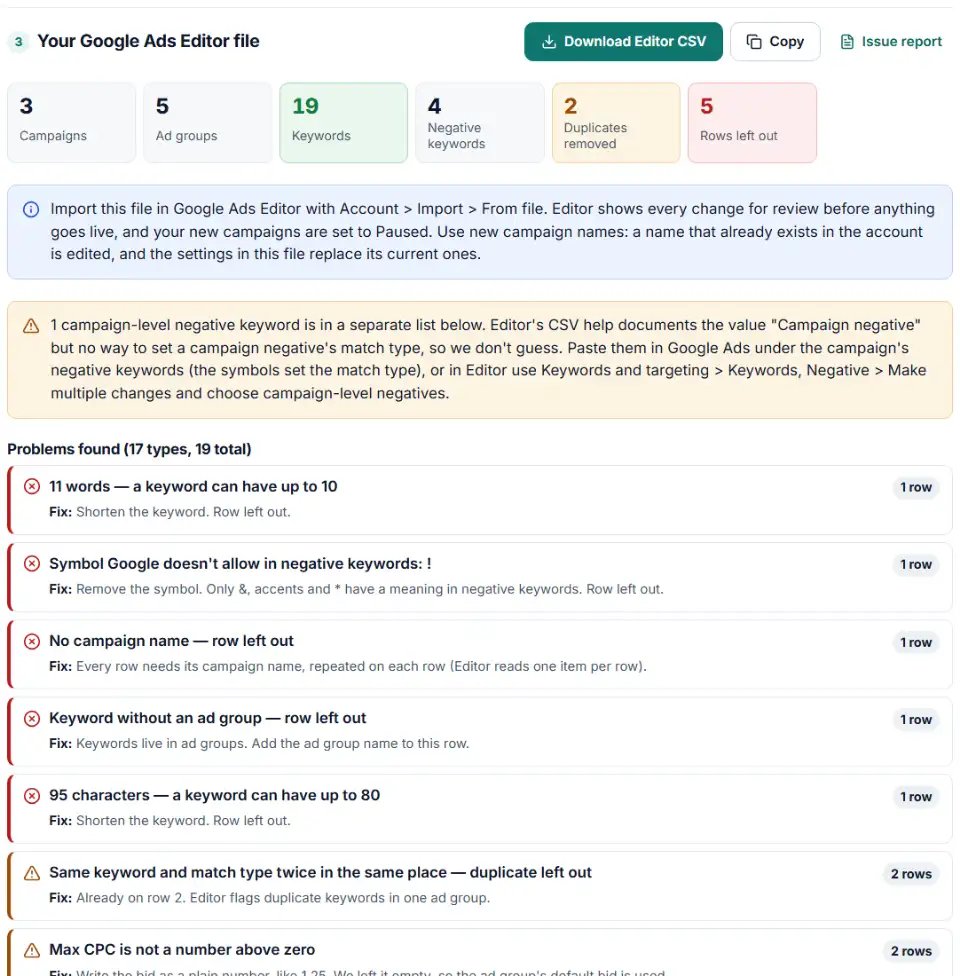
- Fix what the check finds. Rows with a missing ad group, a keyword over the length limit or a bad bid are listed with the fix. Duplicates are removed for you.
- Download or copy. Get the CSV for Import from file, or copy the rows and use Paste text in Editor.
How match types are read
Square brackets like [24 hour plumber] mean exact match and straight quotes like "burst pipe repair" mean phrase match. A match type column (Exact, phrase match, Negative exact…) wins when it disagrees with the symbols. The tool writes the result into Editor's Criterion Type column.
What gets checked
Keywords over Google's 10-word or 80-character limits, duplicate keywords in one ad group, keywords blocked by an identical negative, bids and budgets that aren't numbers above zero, final URLs without https://, and statuses such as Inactive, which Editor reads as Enabled.
What to do next in Google Ads Editor
- Open the account in Editor. Accept or reject any pending changes first. The import menu stays gray while proposed changes are waiting.
- Import the file. Go to Account > Import > From file… and pick the CSV. If you copied the rows, choose Paste text instead.
- Check the headers. Editor shows how it read each column. If one is wrong, choose the right header from the drop-down, then select Import.
- Review and keep. Select Review imported changes, then Keep proposed changes. Nothing reaches Google Ads yet.
- Finish the campaigns, then post. New campaigns still need ads. Also check the bid strategy and the location targets: a campaign with no targeted locations can show its ads in all locations. When it all looks right, post the changes.
Common Google Ads Editor import errors and fixes
Editor doesn't recognize your columns
Editor matches columns by their English header names; capital letters and spaces don't matter. Headers in another language aren't recognized automatically, but you can pick the right one from the drop-down during the import. This tool writes the standard names.
"Google Ads Editor doesn't import XLS files"
Editor needs a CSV or Unicode text file, not an Excel workbook. Use the CSV download, or copy the rows and paste them. If you re-save the file in Excel, choose Unicode Text so accents survive.
Duplicate keyword warnings
Two rows with the same keyword and match type in one ad group show up as a conflict in Editor. The builder keeps the first one — Running Shoes and running shoes count as the same — and lists the rest. Exact and phrase versions of the same words can live side by side.
Negative keywords blocking your keywords
If leak detection is both a keyword and a negative exact keyword in one ad group, the ad never shows for it. The builder flags that clash; test broad and phrase negatives with the Negative Keyword Conflict Checker.
Frequently asked questions
How do I bulk upload campaigns into Google Ads Editor?
Put one keyword per row with its campaign and ad group, build the file here, then in Editor open Account > Import > From file. Check the column headers, select Import, review the changes, keep them and post. The file has a row for each campaign, ad group and keyword, because Editor reads one item per row.
Which columns does a Google Ads Editor CSV need?
At least Campaign, Ad group, Keyword and Criterion Type (the match type) for keywords. New campaigns can also take Campaign daily budget, Networks, Language targeting and Campaign status, and ad groups a Max CPC. The headers must be in English; capital letters and spaces don’t matter. Google lists them all on its CSV file columns page.
How do I add many keywords at once in Google Ads Editor?
Two ways. Select Keywords, click Make multiple changes, choose the destination ad groups and paste the list. Or import a file with campaign and ad group columns, like the one this builder makes — that works across many ad groups in one go. To add keywords without touching campaign settings, pick Keywords for existing ad groups.
What should I do if Google Ads Editor shows import errors?
Editor lists the errors and warnings after the import. Check the header drop-downs first: a column read as the wrong header causes many problems. Then fix the rows it names, or run your sheet through this builder, which catches missing ad groups, keywords that are too long, bad bids and duplicates before you import.
Do I need Google Ads Editor to use this template?
Yes — this file is made for Google Ads Editor, Google’s free desktop app. The bulk uploads inside the Google Ads website (Tools > Bulk actions > Uploads) use different column headers, so this file isn’t meant for them.
Can I add negative keywords in the same file?
Yes, for ad group negatives: write negative phrase, negative exact or negative broad in the match type column. Campaign-level negatives (a negative with no ad group) go into a separate list: Editor’s CSV help documents the value Campaign negative but not how to give it a match type. Add them in Google Ads under the campaign’s negative keywords, or in Editor with Make multiple changes on the negative keywords view, choosing campaign-level negatives.
Is my keyword list uploaded anywhere?
No. The file is read and built by your own browser. Nothing is sent to our server or to Google, so you can safely build files for client accounts.
Related tools
-
Turn a sheet of headlines and descriptions into responsive search ads for Google Ads Editor, with character limits, paths and pins checked.
Google -
Upload your keywords and negatives to see which negatives stop your own keywords from showing, with a removal file for Editor.
Google -
Break search terms into 1–3-word phrases with cost and conversions, and copy the negatives that wasted money.
Google -
Turn days and hours into Google Ads Editor ad schedule rows with bid adjustments, the 6-per-day limit and time zone shifts handled.
Google -
Turn a list of ZIP codes, cities or counties into Google Ads location IDs, with warnings for look-alike places and locations Google plans to remove.
Google -
Clean a messy list of websites, apps and YouTube channels into Google Ads placement exclusions, with duplicates and already-covered entries removed.
Google
Need help setting this up? Talk to EmproIT