Import CSV Formatter for Mailchimp (Tags, Groups, Birthdays)
Turn any contact export into Mailchimp's import format: Email Address first, tags merged into one Tags column, groups and birthdays written the Mailchimp way, one file per subscription status.
Import CSV Formatter for Mailchimp
- Upload
- Check
- Download
1 Add your contact export
Choose a file or drag it here
CSV, Excel, TSV or TXT from your store, CRM or another email tool · up to 300 MB
2 Check the columns and options
Rules last checked: against the official pages:
- Format Guidelines for Your Import File (Mailchimp)
- Import Contacts to Mailchimp (Mailchimp)
- Troubleshooting Contact Imports (Mailchimp)
How to get the Mailchimp import CSV format right
Mailchimp's format guidelines for import files are strict about a few things: one Tags column, a comma and a space between groups, birthdays without a year, the whole address in one field. Exports from stores and CRMs never look like that. This tool rewrites any export into the Mailchimp import CSV format and explains every row it had to leave out.
- Export your contacts. Use the CSV or Excel export of your store, CRM or old email tool. Excel files are fine here — the download is always CSV, which Mailchimp needs.
- Check the matched columns. Pick every column that holds tags (they are merged) and each column that is a group category. A status column splits the file by status.
- Match the formats of your audience. Choose the Birthday format your Birthday field uses, and the phone format of your phone field.
- Review the problems. Role-based addresses, typos, bounced contacts, long address lines and future opt-in dates are flagged with the row number.
- Download one file per status. Subscribed, non-subscribed and unsubscribed contacts each get their own file, because Mailchimp applies one status to a whole import.
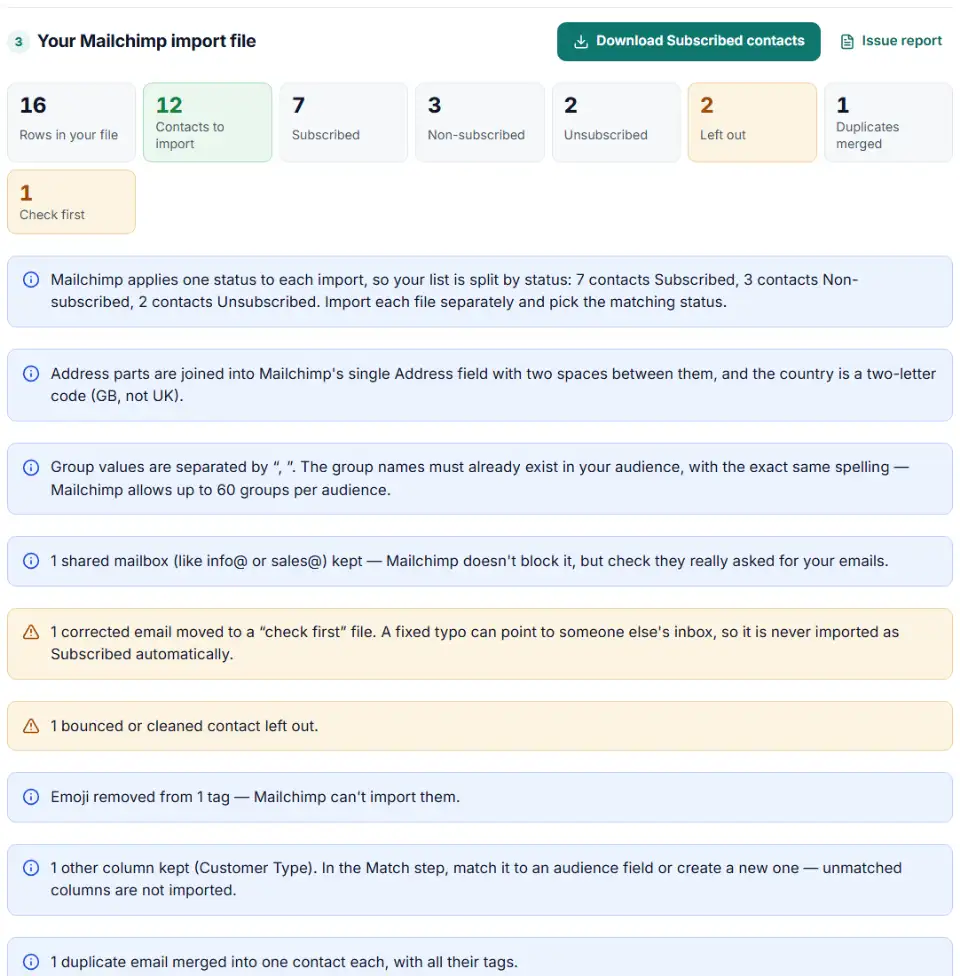
What changes in your file
- Email Address comes first, lowercased, with one address per contact. Duplicates are merged and keep all their tags.
- Tags from every tag column end up in one cell, separated by commas, without emoji and cut at 100 characters. A tag with a comma is wrapped in double quotes, as Mailchimp asks.
- Groups written as
Weekly deals, New arrivals, whatever separator your export used. - Birthday as
10/19or19-10, from full dates or month-day values. - Address in one field with two spaces between the parts and a two-letter country code:
12 Market St San Francisco CA 94103 US. The UK becomes GB. - Empty columns removed, because blank cells erase existing data when you update contacts.
How to import the file into Mailchimp
- Start the import. Go to Audience › Add contacts › Import contacts, choose Upload a file and click Continue.
- Pick the file and audience. Select the CSV, choose the audience and decide whether to tick Update any existing contacts.
- Add tags if you like. The Tag step adds the same tags to everyone in this import, on top of the Tags column.
- Match the columns. Match each column to an audience field, or create a new one. Send Birthday to a Birthday field, not a Date field, so birthday automations work.
- Choose the status and finish. In the Subscribe step pick the status that matches the file name, then Finalize import › Complete Import. Repeat for the other status files.
Common Mailchimp import errors
The file is not accepted
Mailchimp takes CSV or tab-delimited TXT only. An .xls workbook or a vCard is refused. The download here is always a UTF-8 CSV.
All data lands in one column
European spreadsheet programs often save with semicolons. Mailchimp needs commas, so the tool reads semicolon files and writes commas.
Mailchimp import contacts not working for some rows
Addresses with syntax errors, accents before the @ and common typos such as gamil.com are skipped by Mailchimp, and so are the role-based prefixes on Mailchimp's blocked list, like admin@ or support@. Those go to the left-out file; shared inboxes that are not on the list, like info@, stay in with a warning.
Addresses are not imported
Mailchimp drops an address with commas between the parts, a line of 45 characters or more, or the country written as UK. The tool fixes the separators and the country and flags long lines for you to shorten.
OPTIN_TIME errors
Mailchimp shows an error for opt-in times in the future and only reads OPTIN_TIME the first time a contact is imported. Future dates are left blank here, and the others are written year-first (2025-05-02), the date format Mailchimp recommends.
Frequently asked questions
What format does a Mailchimp import CSV need?
A CSV or tab-delimited TXT file — not an Excel file — with a header row. The only column Mailchimp requires for email contacts is Email Address, one address per contact. Other columns can come in any order; you match them to audience fields during the import.
How do I import contacts with multiple tags in Mailchimp?
Put all of a contact’s tags in one column called Tags, separated by commas, like VIP,Newsletter. A tag that contains a comma goes in double quotes. Each tag can be 100 characters at most, and emoji can’t be imported. This tool merges several tag columns into that one column.
How should groups be written in a Mailchimp import file?
Use one column per group category, with the category name as the header (for example Newsletter Preferences). Separate the groups in a cell with a comma and a space: Student Events, News, Donations. The groups must already exist in your audience.
Can I import subscribed and unsubscribed contacts in one file?
No. Mailchimp gives every contact in an import the same status, which you choose in the Subscribe step. Split mixed lists into one file per status — this tool does that for you when your file has a status column.
Why is my Mailchimp import not working?
The usual causes are an Excel file instead of CSV, a semicolon-separated file that lands in one column, email syntax errors, and addresses with commas or lines of 45 characters or more. Mailchimp also blocks role-based addresses on its list (like admin@ or support@) and common domain typos, so the count can be lower than expected. See Mailchimp’s troubleshooting page.
Do imported contacts get a welcome email?
No. Contacts you import as subscribed skip the signup process, so they don’t get the final welcome email. That is also why you must already have their permission to email them.
Related tools and guide
-
Fill Klaviyo's import template from any export, with the right email and SMS consent columns, international phone numbers and SMS country checks.
Klaviyo -
Get a health score for a customer list, fix email typos in one click and send the clean list to the Google, Meta or TikTok formatter.
GoogleMetaTikTok -
Turn messy phone numbers into E.164 in bulk, with the country code added and invalid numbers flagged before you upload.
GoogleMetaTikTok -
One Shopify customers CSV in, Google, Meta and TikTok audience files out, filtered by marketing consent and tags.
GoogleMetaTikTokShopify -
Turn WooCommerce's built-in Customers report CSV into Google, Meta and TikTok audience files — no plugin, nothing uploaded.
WooCommerceGoogleMetaTikTok
Need help setting this up? Talk to EmproIT