Bulk UTM Builder from Spreadsheet
Turn a spreadsheet of landing pages and UTM values into hundreds of tagged links at once — cleaned, checked against GA4's channel rules and your team's naming rules, up to 100,000 links per file.
Bulk UTM Builder from Spreadsheet
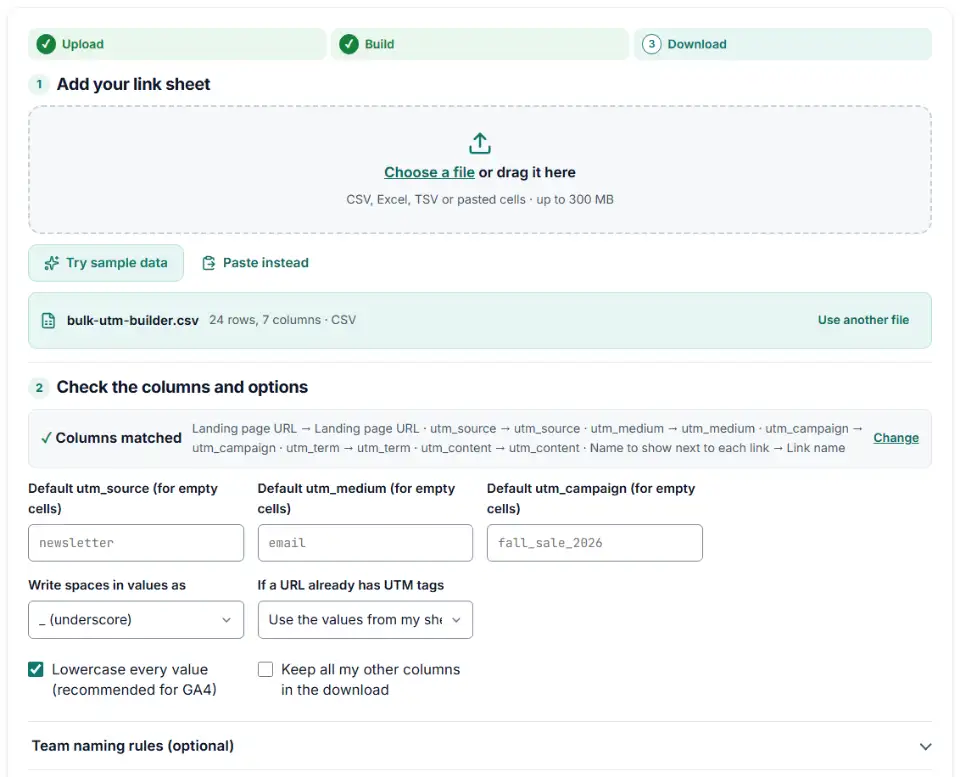
- Upload
- Build
- Download
1 Add your link sheet
Choose a file or drag it here
CSV, Excel, TSV or pasted cells · up to 300 MB
2 Check the columns and options
Rules last checked: against the official pages:
- URL builders: Collect campaign data with custom URLs (Google Analytics 4)
- Default channel group (Analytics Help) (Google Analytics 4)
How to use the bulk UTM builder
This bulk UTM builder turns a planning sheet into finished campaign links in one go. It writes the UTM tags described in Google's custom campaign URL guide, cleans every value the same way, and tells you which GA4 channel each link will count toward — before a single link goes live.
- Start from your sheet. One row per link: the landing page plus the tag values. Try the sample first to see a sheet with typical mistakes.
- Check the columns. Names like “Campaign Source”, “source” or “utm_source” are matched automatically. Add a name column so you can find each link later.
- Set defaults for gaps. If every link in the sheet is for one campaign, type it once as the default instead of filling a whole column.
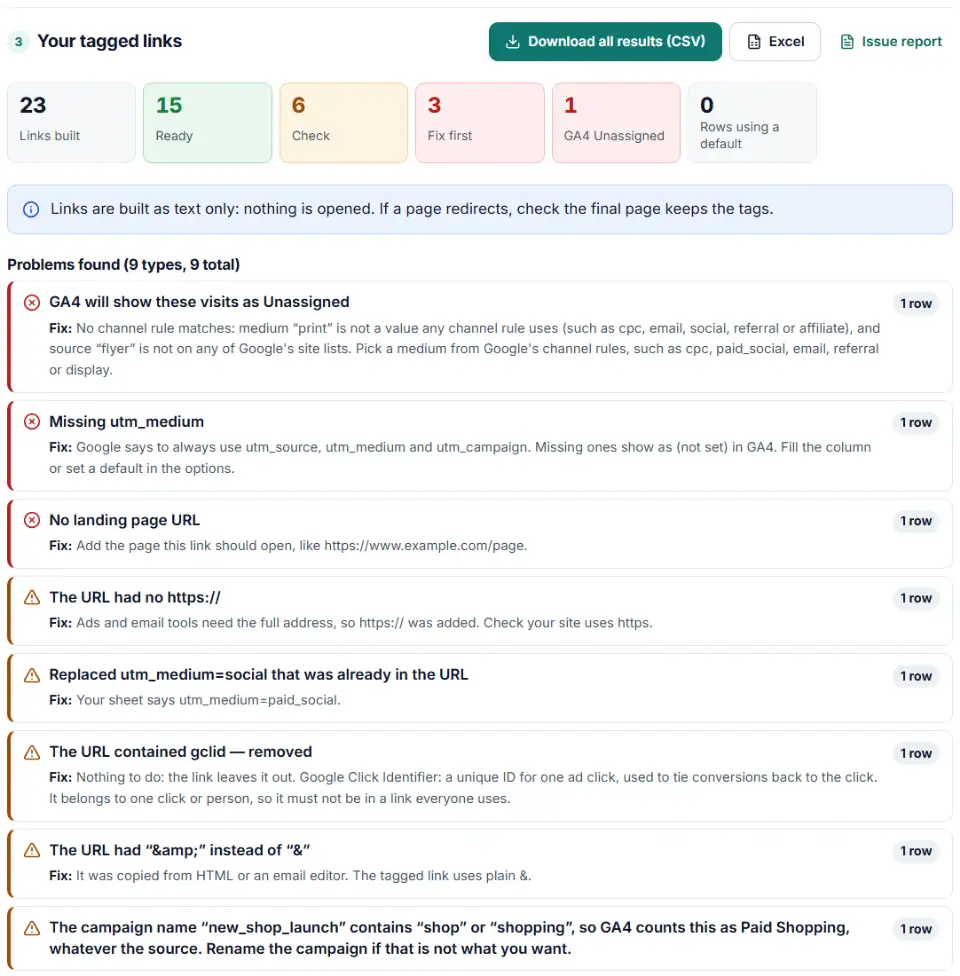
- Read the problems. Rows marked “Fix first” would track badly; “Check” rows were built but changed something you should know about.
- Download. Take the full results, or the short file with just names and tagged links for pasting into your ad platform or email tool.
What to do next with your tagged links
- Paste each link where it will be clicked: the email button, the social post, the QR code, the partner's banner. For ads, the platform's own URL parameter field is often easier — see the builders for Meta, LinkedIn or TikTok.
- Keep the sheet as your record. Save the results file next to your campaign plan so anyone can see which link went where.
- Share one set of rules. If several people tag links, agree on sources and mediums in the UTM Naming Convention Builder and load that file here every time.
- Check GA4 after launch. In Reports › Acquisition › Traffic acquisition, switch the table to Session source / medium and look for your new values.
Common mistakes in UTM spreadsheets
Spreadsheet formulas that leave spaces or capitals
A UTM builder Excel formula that joins cells with & copies whatever is typed: “Fall Sale” becomes a value with a space, “Facebook” stays capitalized. The builder lowercases and swaps spaces for you, so the sheet can stay readable.
A second question mark
Pages that already have ?ref=nav need the tags joined with &. Sheet formulas often add another ?, which breaks the tags. Existing parameters are kept here and the tags are added correctly.
Tags after the # sign
For a link to /careers/#open-roles, the tags must come before the #. The builder moves the anchor to the end.
Mediums GA4 doesn't recognize
Values such as print or qr match none of GA4's default channel rules, so those visits show as Unassigned. Each flagged row suggests a medium that works.
Two spellings of one value
paid_social on most rows and paid-social on one gives two lines in every report. The builder points out the odd one and the spelling most rows use.
Click IDs copied from a live ad
URLs copied from your browser after clicking an ad carry gclid or fbclid. Those belong to one click; the builder strips them, along with email recipient IDs such as mc_eid.
Frequently asked questions
How do I create many UTM links at once?
Put one link per row in a spreadsheet with columns for the page URL, utm_source, utm_medium and utm_campaign (plus utm_content or utm_term if you use them). Load it above and every row comes back as a finished link, ready to download as CSV.
Can I build UTM links from a Google Sheet or Excel file?
Yes. Download the Google Sheet as CSV or Excel (File › Download), or copy the cells and use Paste instead. Excel files load directly. Up to 100,000 links per file; very large sheets show a progress bar while they build.
Which columns does my spreadsheet need?
Only the landing page URL is required in the sheet. Source, medium and campaign can come from columns or from the default values in the options, which fill any empty cell. Column names are matched for you — “Campaign Source” or “source” both work.
Does the bulk UTM builder check my UTM values?
Yes. Each link gets the GA4 channel it will land in, and rows that would be Unassigned are flagged with a suggested medium. It also flags missing tags, the same value spelled two ways in one sheet, click IDs copied into a URL and, if you load them, your team’s naming rules.
How are spaces and capital letters handled?
By default every value is lowercased, because GA4 treats “Facebook” and “facebook” as two sources. Spaces become underscores (or hyphens, or %20 if you prefer). Platform tags like {{campaign.name}} are left exactly as typed.
Is my spreadsheet uploaded anywhere?
No. The sheet is read and the links are built inside your browser. Nothing is sent to our server or to Google, so campaign plans and unreleased landing pages stay private.
Related tools and guide
-
Build a UTM naming convention your team can follow: GA4-safe sources and mediums, a campaign pattern, a printable guide and a built-in link checker.
GoogleMetaTikTokMicrosoft -
Paste or upload your campaign links and find broken, inconsistent or Unassigned UTM tags — with a corrected link for every row.
GoogleMetaTikTokMicrosoft -
Paste a link or a GA4 report and see the default channel for every row — with the rule that matched and a fix for Unassigned traffic.
Google -
Tag every Facebook and Instagram ad with one URL parameters string that fills in campaign and ad names, with syntax checks and a GA4 channel preview.
Meta -
Build LinkedIn tracking links with the new campaign, ad set and ad name macros, convert strings from before the 2025 rename and see the GA4 channel.
LinkedIn -
Build a Google Ads tracking template or final URL suffix with UTM and ValueTrack tags, catch errors before you save and see the GA4 channel.
Google
Need help setting this up? Talk to EmproIT