Tracking Template Generator for Google Ads
Build a Google Ads tracking template and Final URL suffix with UTMs, ValueTrack and custom parameters — checked against Google's rules and shown with the GA4 channel your clicks will get.
Tracking Template Generator for Google Ads
1 Choose your tracking setup
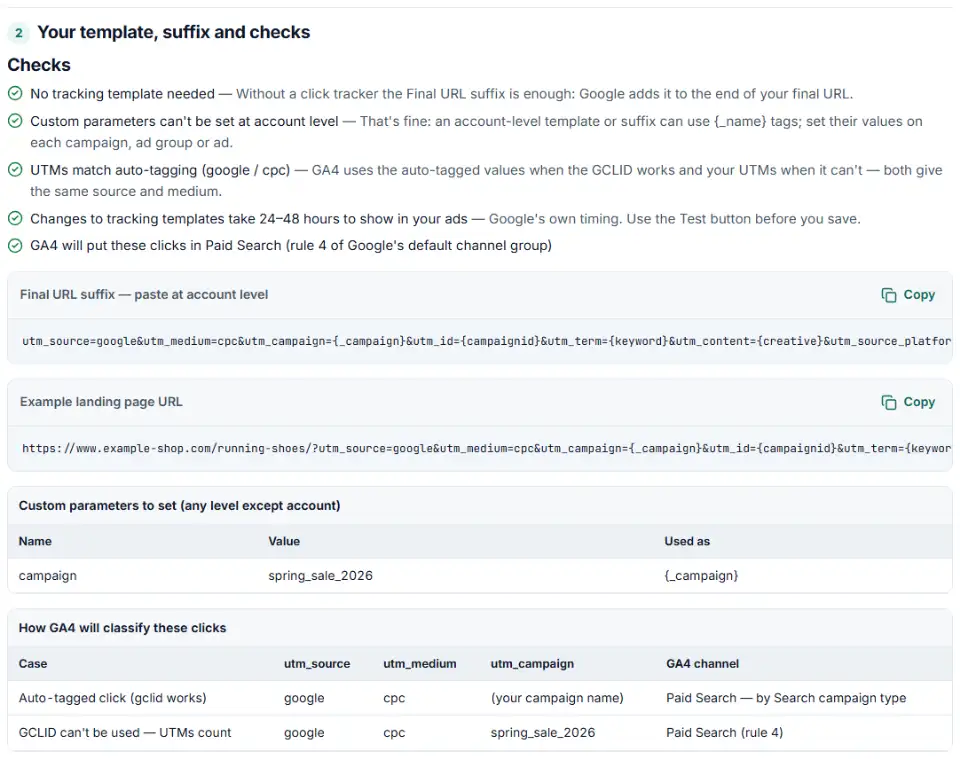
2 Your template, suffix and checks
Fill in the settings above — your result appears here instantly.
Rules last checked: against the official pages:
- Set up tracking with ValueTrack parameters (Google Ads)
- Create custom parameters for advanced tracking (Google Ads)
- Add a Final URL suffix (Google Ads)
- About parallel tracking (Google Ads)
How to use the tracking template generator for Google Ads
This tracking template generator for Google Ads writes the tracking template and Final URL suffix for you, then checks them against Google's ValueTrack setup page and the Final URL suffix and custom parameter rules. It also shows how GA4 will group the clicks.
- Pick the campaign type and level. An account-level setup covers every campaign. Choose a campaign or ad group only when it needs different values.
- Say if you use a click tracker. Most small businesses don't. Then the generator puts everything in the Final URL suffix and tells you no tracking template is needed.
- Choose the UTM values.
googleandcpcmatch what auto-tagging reports. For the campaign name, use a custom parameter such as{_campaign}— Google Ads has no ValueTrack tag for names. - Tick extra ValueTrack tags. Match type and device are the most useful for keyword analysis.
- Copy and check. Copy the template or suffix, look at the example landing page URL, and fix anything marked in red.
Tracking template or Final URL suffix?
Both can carry UTMs and ValueTrack tags. A template that starts with {lpurl}? has its parameters added to the final URL, as in Google's own {lpurl}?matchtype={matchtype} example. The Final URL suffix is simpler: it is just the parameters, and it can't break the landing page by missing {lpurl}. Parallel tracking is mandatory for Search, Shopping, Display, Video and Performance Max, so a third-party click tracker loads in the background — then the parameters your landing page needs must go in the suffix.
What to do next in Google Ads
- Account level: go to Admin › Account settings, select Tracking Template, paste into the Final URL suffix field (and the tracking template field if you have one), then select Save.
- Campaign level: go to Campaigns, select the Settings tab, select the pencil icon in the Tracking template column, paste into the Final URL suffix field and save.
- Set custom parameter values: in Campaigns › Settings, select the campaign, open Additional settings › Campaign URL options, enter the name and value next to “Custom parameter”, then save.
- Test before you save a template: select Test next to the tracking template. Allow 24–48 hours for changes to reach your ads.
- Check in GA4 a day later: the clicks should show as
google / cpcin Traffic acquisition.
Common tracking template errors and fixes
“The tracking url template must contain at least one tag”
Account, campaign and ad group templates need {lpurl} or a variant like {escapedlpurl}. Without it Google says the landing page URL breaks. The template must also start with https:// or an lpurl tag.
{lpurl} in the middle of a third-party URL
When {lpurl} isn't at the start, Google escapes the final URL. Follow it with %3F, not ?. For two redirects in a row, use {lpurl+2} followed by %253F.
“The final url suffix cannot begin with '?' or '&'”
Start the suffix with the first parameter, like utm_source=google. The suffix can't contain {lpurl} or {ignore}.
Literal {campaign} or {{campaign.name}} in GA4
Google Ads only fills in tags on its ValueTrack list. {campaign} and Meta's double-brace tags are not on it, so they reach GA4 as text. Use {campaignid}, or a custom parameter holding the campaign name.
Custom parameter rejected
Names are up to 16 letters and numbers — no underscore in the name itself — and each level takes at most 8. You can't set custom parameter values at account level.
Your UTMs say one channel, auto-tagging another
If utm_medium isn't cpc, GA4 reports google / cpc when the GCLID works and your value when it doesn't. The same ads then appear in two channels.
Frequently asked questions
What is a tracking template in Google Ads?
It is a URL pattern Google Ads uses to record a click. It must contain {lpurl}, which Google replaces with your final URL. In Google’s own example, {lpurl}?matchtype={matchtype} sends visitors to your final URL with ?matchtype=… added. A template can also point to a third-party click tracker.
How do I create a tracking template in Google Ads?
Build it above, then in Google Ads go to Campaigns, open the Settings tab, hover over the “Tracking template” column, select the pencil icon, paste the template, select Test and then Save. At account level use Admin › Account settings › Tracking Template.
What does {lpurl} mean in a tracking template?
{lpurl} is replaced by your final URL. At the very start of the template it is inserted as is. Anywhere else Google escapes it, so the next ? must be written %3F. Account, campaign and ad group templates must include it, or Google says your landing page URL will break.
Which ValueTrack parameters can I use in a tracking template?
Common ones are {campaignid}, {adgroupid}, {keyword}, {matchtype}, {device}, {network}, {creative}, {targetid} and {loc_physical_ms}. Some don’t work in every campaign type — for example Demand Gen doesn’t support {keyword} or {network}. The builder warns you when a tag doesn’t fit the campaign type you pick.
Can I add UTM parameters with a Google Ads tracking template?
Yes. With a template that starts with {lpurl}?, Google adds the parameters after your final URL, so {lpurl}?utm_source=google&utm_medium=cpc works. This generator uses the Final URL suffix by default because it does the same job without a template, and it is where landing-page parameters belong when you use a third-party click tracker.
Does a tracking template replace auto-tagging?
No. Auto-tagging adds the gclid to every click and is separate from templates. Keep it on. Google’s GA4 help says GA4 uses the auto-tagged values when both are present, and your UTM values only when the GCLID can’t be used.
Why is my Google Ads tracking template not working?
Check the usual causes: no {lpurl}, a ? right after an {lpurl} that is not at the start, http:// instead of https://, a space, or a tag Google doesn’t know such as {campaign}. Also remember changes take 24–48 hours to reach your ads.
Related tools and guide
-
Build a Microsoft Advertising tracking template or final URL suffix, catch Google-only tags that break after an import and see the GA4 channel.
Microsoft -
Paste a link or a GA4 report and see the default channel for every row — with the rule that matched and a fix for Unassigned traffic.
Google -
Paste or upload your campaign links and find broken, inconsistent or Unassigned UTM tags — with a corrected link for every row.
GoogleMetaTikTokMicrosoft -
Build a UTM naming convention your team can follow: GA4-safe sources and mediums, a campaign pattern, a printable guide and a built-in link checker.
GoogleMetaTikTokMicrosoft -
Paste an ad click link to see what each parameter means (gclid, gad_source, srsltid and more), spot stripped click IDs and get a clean URL.
GoogleMetaMicrosoftTikTok -
Get one script that saves ad click IDs and UTM tags when visitors land and fills your form's hidden fields, ready for offline conversion uploads.
GoogleMetaMicrosoftTikTokLinkedIn
Need help setting this up? Talk to EmproIT