Bulk Upload Sheet Formatter for Google Business Profile
Turn any store list into a Google Business Profile bulk upload sheet: business codes, names, addresses, phones, categories and opening hours checked against Google's rules, with hours split into one column per day.
Bulk Upload Sheet Formatter for Google Business Profile
- Upload
- Check
- Download
1 Add your store list
Choose a file or drag it here
CSV, Excel, TSV or a sheet pasted from Google Sheets · up to 300 MB
2 Check the columns and options
Rules last checked: against the official pages:
- Create a bulk upload spreadsheet for Business Profiles - Google Business Profile Help (Google Business Profile)
- How to set Special hours - Google Business Profile Help (Google Business Profile)
- Import and update Business Profiles in bulk - Google Business Profile Help (Google Business Profile)
- Resolve bulk upload error messages - Google Business Profile Help (Google Business Profile)
How to prepare a Google Business Profile bulk upload
A Google Business Profile bulk upload adds or updates many locations from one spreadsheet. This formatter takes the store list you already have, in any layout, and writes it with the field names and formats from Google's Create a bulk upload spreadsheet page, checking each value against the rules there.
- Add your list. Upload a CSV or Excel file, or paste from Google Sheets. Old headers like City, State, Main phone, Categories, Description or Hours are recognized.
- Check the columns. Match your code column to the business code. Opening hours can sit in one column (“Mon-Fri 9am-5pm; Sat 10am-2pm”) or in one column per day. Times are never guessed: “12-5pm” is read as noon to 5 pm and shown for you to check, while “9-5” without am/pm is flagged as an error.
- Pick your options. Choose Business code or Store code as the header name, 24-hour or AM/PM hours, and a default country.
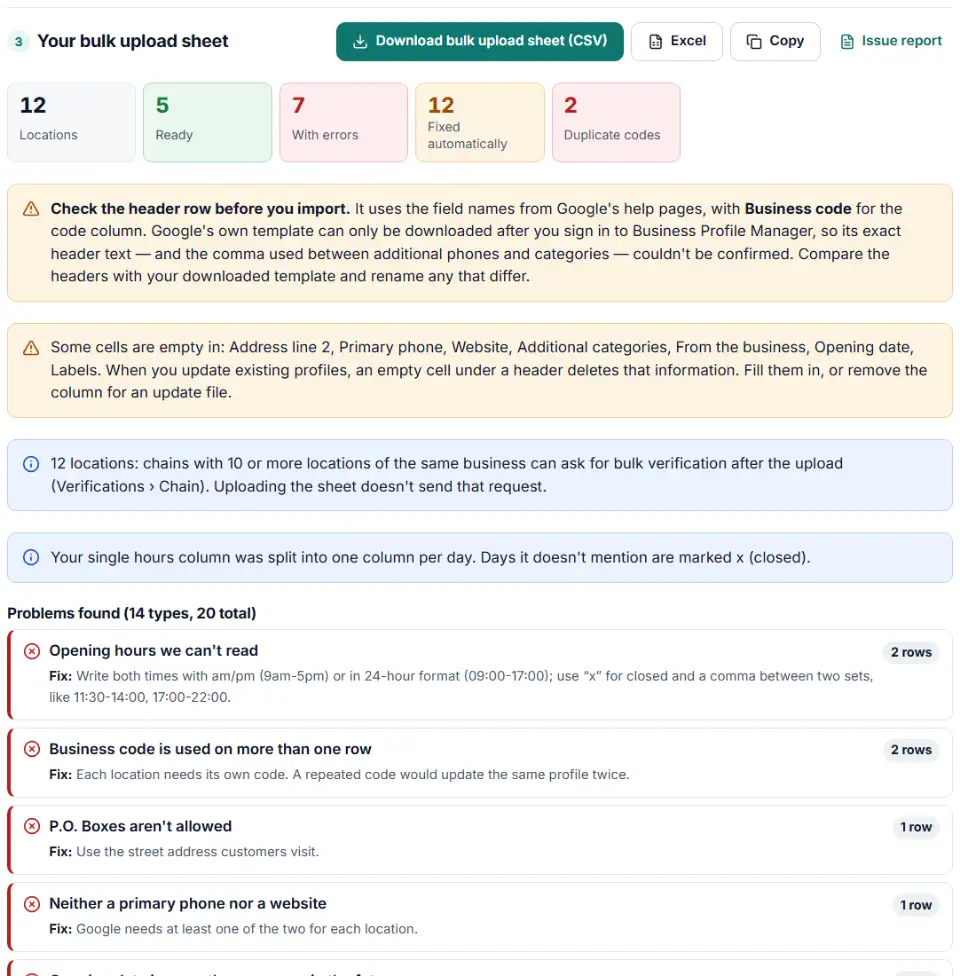
- Fix the errors. Each problem names the row, the rule and the fix. Spaces, country names, missing https:// and hours formats are fixed for you, and US ZIP codes shorter than 5 digits get their leading zeros back (our fix — check those rows).
- Download and import. Take the CSV or Excel file to Business Profile Manager.
About the header row
Google's template can only be downloaded after you sign in to Business Profile Manager, so we could not confirm its exact header text. The file uses the field names written on Google's help pages, such as Address line 1, Locality, Primary phone and Sunday hours. Before you import, download Google's template yourself and check every header against it — rename any that differ. Optional columns that are empty for every location are left out, because an empty column can wipe existing information when you update profiles.
What to do next in Business Profile Manager
- Updating existing locations? Download your current locations first and keep the same codes, so the import updates them instead of creating duplicates. To change only a few fields, keep just the code column plus those fields.
- Import the file. Choose Add business, then Import businesses, and select the file.
- Review the preview. Rows are marked New, Updates, No updates or Errors. Use Download details to see what changed and why a row failed.
- Apply. Locations with errors won't appear on Maps until they are fixed. Correct them and import again.
- Verify the chain. With 10 or more locations of one business, request bulk verification under Verifications › Chain.
Google Business Profile bulk upload errors and fixes
Missing store code or duplicate codes
Every row needs a code, and no two rows may share one. A spreadsheet that turns 0004 into 4 makes Google see a new location — format the column as text.
Too much punctuation or too many digits in the name
Business names may have at most six punctuation marks and six digits. Leave out store numbers, phone numbers and taglines, and don't write the name in all capitals.
P.O. Boxes aren't allowed
Google rejects P.O. Box addresses in the address lines. Use the street address of the location itself; the formatter flags any line that looks like a box number.
Improperly formatted phone, or no phone and no website
Each location needs a valid local phone number or a website. You can add at most two additional phones.
Invalid website
Write the full URL with http:// or https://, up to 256 characters.
Invalid categories
Use Google's exact category names: one primary and up to nine additional. Some categories exist only in certain countries.
Invalid special hours
Write each date as 2026-12-24: 09:00-13:00, or 2026-12-25: x when closed, separated by commas. Special hours only work when the location has regular hours set.
Daily location upload limit exceeded
Google limits how many new locations one account can add per day. Its error help page points you to a form to ask for more, or you can split the file and import the rest the next day.
Frequently asked questions
How do I bulk upload locations to Google Business Profile?
In Business Profile Manager, choose Add business, then Import businesses, and select your spreadsheet. Fix any headers Google flags, click Preview changes to see which rows are new, updated or have errors, then click Apply.
What is a store code (business code) in Google Business Profile?
Your own unique ID for each location, such as G1 or STORE-014. Google’s newest help pages call it the business code; older pages say store code. It must be different for each location, at most 64 characters, with no spaces at the ends, no < or > and no URLs. Merchant Center local inventory uses the same codes, matched exactly.
Which columns are required in the bulk upload spreadsheet?
Business code, business name, address line 1, country/region and primary category on every row — plus a primary phone or a website. Locality (city), administrative area and postal code are required in most countries, depending on the address format.
How many locations do I need for bulk verification?
Ten or more locations of the same business. Agencies managing several brands in one account can’t bulk verify, and uploading the sheet doesn’t send the request: submit it under Verifications › Chain.
Which file types can I upload?
Google accepts .xls, .xlsx, .ods and .csv. This tool gives you a CSV, or an Excel file with every cell stored as text so codes like 0004 keep their zeros.
Can I change a store code with the spreadsheet?
No. A code can only be changed in that profile’s Advanced settings. Adding a new code to an existing location by spreadsheet creates a duplicate location instead.
Related tools
-
Build a local inventory feed from your stock sheet: one row per product per store, store codes matched to Business Profile, availability from quantity.
Google -
Group Merchant Center product issues, count affected products and get Google's fix steps, disapprovals first.
Google -
Turn messy phone numbers into E.164 in bulk, with the country code added and invalid numbers flagged before you upload.
GoogleMetaTikTok -
Find missing attributes, bad prices, wrong availability values, invalid GTINs and duplicate IDs before Google disapproves them.
Google -
Turn an auction insights download into competitor charts, a trend table and a list of who entered or left your auctions.
Google -
Find the Quality Score part to fix first — expected CTR, ad relevance or landing page — ranked by keyword spend.
Google
Need help setting this up? Talk to EmproIT