Quality Score Checker for Google Ads Keyword Reports
Upload a Google Ads keyword report with Quality Score columns to see which part — expected CTR, ad relevance or landing page — is below average on the keywords that spend most, with Google's own fix for each.
Quality Score Checker for Google Ads
- Upload
- Check
- Download
1 Add your keyword report
Choose a file or drag it here
Excel CSV, TSV, XLSX or Google Sheets download · up to 300 MB
2 Check the columns and options
Rules last checked: against the official pages:
- About Quality Score for Search campaigns (Google Ads)
- 5 ways to use Quality Score to improve your performance (Google Ads)
- Using Quality Score to improve your performance (Google Ads)
- About columns in your statistics table (Google Ads)
How to use the quality score checker for Google Ads
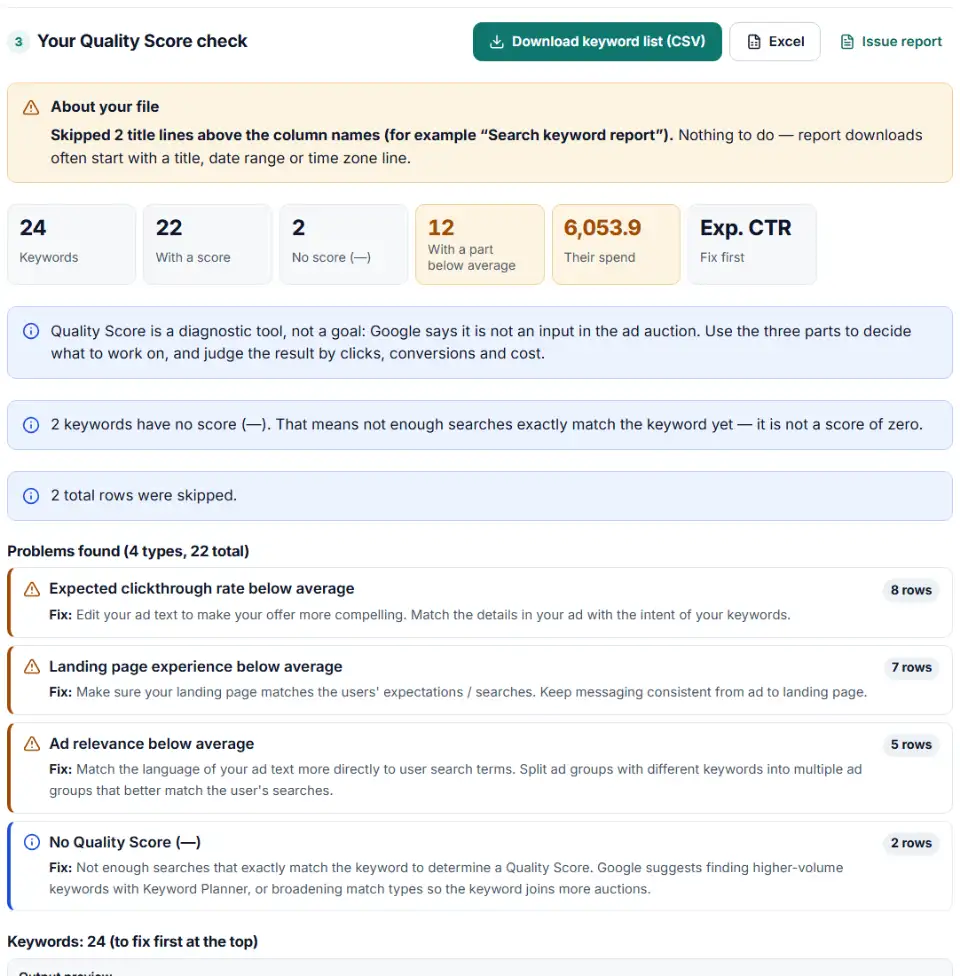
This quality score checker for Google Ads reads a keyword report and tells you which of the three parts holds each keyword back, starting with the keywords that spend the most. The parts, values and fixes come from Google's About Quality Score for Search campaigns page and its guide to using Quality Score to improve performance.
- Add the Quality Score columns. In Keywords, use Columns › Modify columns and tick Quality Score, Exp. CTR, Ad Relevance and Landing Page Exp. Keep Cost so the tool can rank by spend, and Final URL to group landing page problems.
- Download and drop in the report. Any format works, including the UTF-16 “Excel CSV”. Title rows and total rows are skipped.
- Check the columns. Current and (hist.) columns are told apart. Pick which set to read if your file has both.
- Start with “Fix this first”. It names the part that is Below average on the most spend, with Google's advice for it.
- Work down the list. Download the keyword file: each row has a priority number, the weak parts and what to do.
Why rank by spend, not by score
A keyword with a score of 3 and almost no clicks matters less than a score-6 keyword that eats a fifth of your budget. Google also warns against averaging Quality Score or chasing it as a number. So this check never shows an “account score”. It counts keywords per score and adds up spend per weak part instead.
What to do next in Google Ads
- Expected CTR below average: rewrite headlines so the offer is clearer and closer to what the keyword asks for. Test the new ad next to the old one.
- Ad relevance below average: use the searcher's words in the ad. If one ad group mixes different themes, such as “water heater repair” and “garbage disposal installation”, split it into tighter groups with their own ads.
- Landing page experience below average: open the page from the landing page table. Does it answer the search right away? Send each theme to the page that matches it instead of the home page.
- Leave match types alone for this. Changing a keyword's match type does not change its Quality Score, because the score is based on exact searches for that keyword.
- Check again in a few weeks. Statuses are compared over 90 days, so give changes time. Add the (hist.) columns and segment by day to see when a part moved.
Common Quality Score questions and fixes
Parts rated “Average”
Average is not a red flag, but Google's guidance says Average and Below average parts both leave room to improve. Untick the Average option above to see only the Below average parts.
Broad match keyword with a score but no impressions
If the same keyword in exact match had impressions in the same ad group during the last 90 days, the broad version shows the same score. That is expected.
Column shows “—” for a whole ad group
New or low-volume keywords have no score yet. The checker counts them separately instead of treating them as zero.
Statuses written in different capitals
Google's help pages write both “Below average” and “Below Average”, and API exports use BELOW_AVERAGE. The checker reads all of them the same way.
Score dropped after a site change
Look at landing page experience first. Compare the (hist.) columns segmented by day around the date the page changed.
Frequently asked questions
What are the three parts of Google Ads Quality Score?
Expected clickthrough rate (how likely your ad is to be clicked when shown), ad relevance (how closely the ad matches the intent behind the search) and landing page experience (how relevant and useful the page is to people who click). Each is rated Above average, Average or Below average against other advertisers whose ads showed for the exact same search over the last 90 days.
How do I add Quality Score columns to my keyword report?
In Google Ads, open Campaigns › Keywords, click Columns, then Modify columns for keywords, and tick the fields in the Quality score section. Add the (hist.) versions too if you want the values for your chosen date range, and segment by day to see daily changes.
What does a dash (—) in the Quality Score column mean?
There aren’t enough searches that exactly match the keyword to calculate a score. It is not a score of zero. Google suggests finding higher-volume keywords with Keyword Planner, or broadening match types so the keyword takes part in more auctions.
Which Quality Score part should I fix first?
The one that is Below average on the keywords that spend the most. This checker adds up spend per part and names it at the top of the results. Google gives no order of its own, so spend is a fair tiebreaker: a fix on your biggest keywords touches the most budget.
What does 'Below average' landing page experience mean?
Google thinks the page is less relevant or useful to people who click than the pages of other advertisers for the same search. Make sure the page matches what people searched for and keep the message consistent from ad to page.
What does Quality Score not take into account?
It doesn’t reflect device, user location, time of day or your assets, even though these affect real auctions. Quality Score is also not an input in the ad auction, so treat it as a diagnostic tool, not a goal.
Related tools
-
Break search terms into 1–3-word phrases with cost and conversions, and copy the negatives that wasted money.
Google -
Turn a sheet of headlines and descriptions into responsive search ads for Google Ads Editor, with character limits, paths and pins checked.
Google -
Turn an auction insights download into competitor charts, a trend table and a list of who entered or left your auctions.
Google -
Upload your keywords and negatives to see which negatives stop your own keywords from showing, with a removal file for Editor.
Google -
Build an Editor-ready CSV of campaigns, ad groups and keywords from any sheet, with match types, bids and duplicate checks.
Google -
See how your Google Ads keyword insertion ads read with each of your keywords, with capitals, character limits, countdowns and old syntax checked.
Google
Need help setting this up? Talk to EmproIT