Customer Match List Formatter for Google Ads
Turn any customer export into an upload-ready Customer Match CSV: Google's exact headers, E.164 phones, Gmail rules, duplicates removed, plain or SHA-256 hashed.
Customer Match List Formatter for Google Ads
- Upload
- Check
- Download
1 Add your customer list
Choose a file or drag it here
CSV, Excel, TSV or TXT export from your CRM or store · up to 300 MB
2 Check the columns and options
Rules last checked: against the official pages:
How to use the Customer Match list formatter
This customer match list formatter turns an export from Shopify, WooCommerce, HubSpot, Mailchimp or a spreadsheet into the file Google Ads expects. It follows Google's Customer Match data file rules: exact English headers, E.164 phone numbers, and plain or SHA-256 hashed values. It is an independent tool, not Google's own hashing demo, and your list never leaves your browser.
- Add your list. Drop in a CSV or Excel export, or paste rows. Try sample data shows a messy list being fixed.
- Check the columns. Headers like
Email AddressorBilling Phoneare matched on their own. Open Columns matched to change one. - Pick a default country. It is used for phones without a + and rows without a country — after the country of an international phone number.
- Choose plain or hashed. Plain is simplest. Choose hashed when your rules say data must be hashed before it leaves your company.
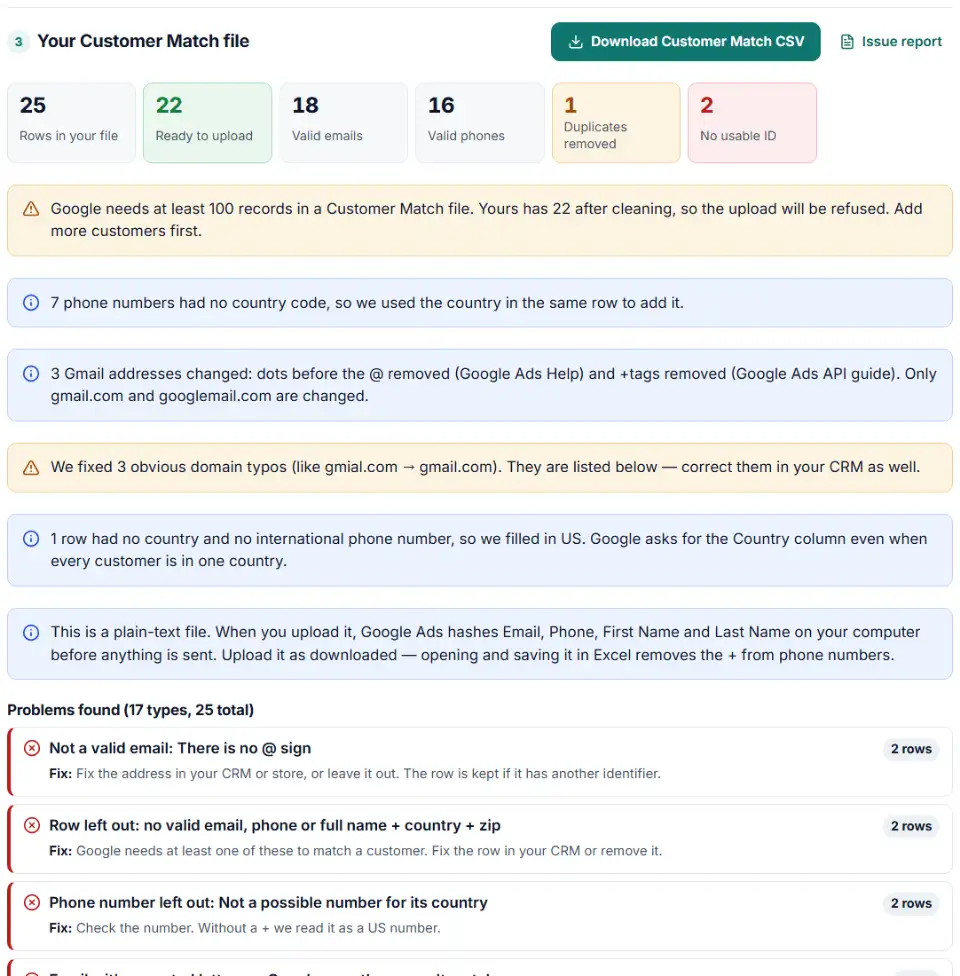
- Read the problems, then download. Every dropped or merged row and every fix is listed by row number.
The Customer Match list format, in plain words
- Email — trimmed, spaces removed and lowercased. For Gmail and Googlemail addresses, dots before the @ are removed (Google Ads Help). A +tag is removed too, which only Google's Customer Match API guide asks for. Both can be turned off.
- Phone — E.164:
+, country code, number, without extensions or "p:" prefixes. - First Name and Last Name — lowercased, without titles like Dr. or suffixes like Jr. Accents stay.
- Country and Zip — a two-letter code such as US, and the postal code. Never hashed.
Names only help together with Country and Zip — Google needs all four for an address match. Without postal codes, the tool leaves names out.
What to do next in Google Ads
- Open Audience manager. In Google Ads go to Tools › Shared library › Audience manager › Your data segments, click the plus button and choose Customer list.
- Upload the CSV. Name the list, choose to upload a file, and pick the file you downloaded here. If Google asks, choose plain text or hashed to match the file you downloaded. Upload it as it is — opening and saving it in Excel strips the + from phones and the first 0 from ZIP codes.
- Accept the policy and set the duration. Tick the Customer Match policy box and choose how long people stay on the list. Memberships expire after 540 days at most.
- Wait for processing. Google says it can take up to 48 hours. Don't upload again in the meantime: uploading more often than processing finishes keeps the list stuck on "In progress".
- Keep it fresh. Later, use the list's menu to Add more customers, Remove specific customers or Replace all data with a new export from this tool.
Common Customer Match errors and how to fix them
The list size is far below the number of rows
Google shows a rounded count of matched, active people, never your row count. A big gap usually means bad data: typos, accented emails, phones without a country code or a badly pre-hashed file — Google's troubleshooting page warns that wrongly hashed data is accepted but does not match.
Fewer than 100 records in the file
Every Customer Match file needs at least 100 user records. The tool warns you before you try. Combine lists if you can.
Headers not recognized
Google reads only its exact English headers. E-mail, Mobile or a header in another language lead to errors or a small list. Excel's "Unicode Text" (UTF-16) files are refused too. The download always uses Google's spelling and UTF-8.
Phone numbers that don't match
A number like (415) 555-0132 has no country code, so Google cannot tell which country it belongs to. The fix is +14155550132. Check the default country before you download if your list is not from the US.
Country or Zip were hashed
Some scripts hash every column. Google wants Country and Zip as plain text even in a hashed file. In hashed mode this tool only hashes Email, Phone, First Name and Last Name.
Frequently asked questions
What columns does a Google Ads Customer Match file need?
The English headers Email, Phone, First Name, Last Name, Country and Zip, but only the ones you have — an email-only list is fine. Email, Phone and Zip may repeat. Names only count together with Country and Zip.
Do I have to hash my customer list before uploading it to Google Ads?
No. If you upload plain text, Google Ads hashes the email, phone and name columns on your computer before anything is sent. If you hash it yourself, use SHA-256 in lowercase hex and never hash Country or Zip.
How should phone numbers be formatted for Customer Match?
In E.164 format: a plus sign, the country code and the number, with no spaces or dashes, like +14155550123. This formatter adds the country code from the row’s country or your default country.
What is the minimum number of rows for a Customer Match upload?
Google’s troubleshooting page says every file needs at least 100 user records. To show ads, the list then needs 100 matched people active in the last 30 days, so bigger lists work better.
Why is my Customer Match list size so small after upload?
Google only counts people it matched to an active Google account, so the size is always lower than your row count. Typos, phones without a country code and badly pre-hashed data make the gap much bigger.
Is this the same as Google's own Customer Match list formatter?
No. This is an independent free tool, not made by Google. Google’s demo page only hashes values; this one also maps your columns, fixes phones, removes duplicates and explains every dropped row.
Related tools and guide
-
Get a health score for a customer list, fix email typos in one click and send the clean list to the Google, Meta or TikTok formatter.
GoogleMetaTikTok -
Turn a CRM or store export into a Facebook custom audience CSV with Meta's column names, country codes and optional hashing.
Meta -
Build a TikTok custom audience file from a messy export, with TikTok's template columns, phones with country codes and the 1,000-entry check.
TikTok -
Hash emails and phones the way Google and Meta want, and check a pre-hashed file for hashes that will never match.
GoogleMeta -
Turn messy phone numbers into E.164 in bulk, with the country code added and invalid numbers flagged before you upload.
GoogleMetaTikTok -
Turn a customer export into a Microsoft Advertising customer match file, with emails cleaned the way Microsoft asks, hashed and de-duplicated.
Microsoft
Need help setting this up? Talk to EmproIT