Custom Channel Grouping Builder for GA4
Plan a GA4 custom channel grouping: add AI assistants, paid social per platform, brand search or your own channels, get paste-ready regex in the right order, and test it on your own traffic.
Custom Channel Grouping Builder for GA4
1 Choose your channels
2 Your channel group
Fill in the settings above — your result appears here instantly.
Rules last checked: against the official pages:
- Custom channel groups (Analytics Help) (Google Analytics 4)
- About regular expressions (regex) (Analytics Help) (Google Analytics 4)
- Default channel group (Analytics Help) (Google Analytics 4)
How to plan a GA4 custom channel grouping
A GA4 custom channel grouping sorts your traffic into channels you define, on top of Google's default ones. The hard part is not the regex — it's the order, because Google's custom channel groups page says the first matching channel wins. This builder writes the conditions, puts each new channel in a safe position and shows where your real traffic would land.
- Pick the channels to add. Tick AI assistants, the paid social platforms you buy ads on, or brand search. Each comes with conditions built from Google's own lists and patterns.
- Add your own channels. One line per channel: name, dimension, values and how to match. You can use Campaign id, Campaign name, Default channel group, Manual ad content, Medium, Source, Source platform.
- Paste some traffic. Copy Session source / medium rows from Reports › Acquisition › Traffic acquisition. The table shows each row's default channel next to its channel in your new group.
- Read the warnings. If a test row matches a new channel but an earlier channel takes it, the tool tells you which one to move.
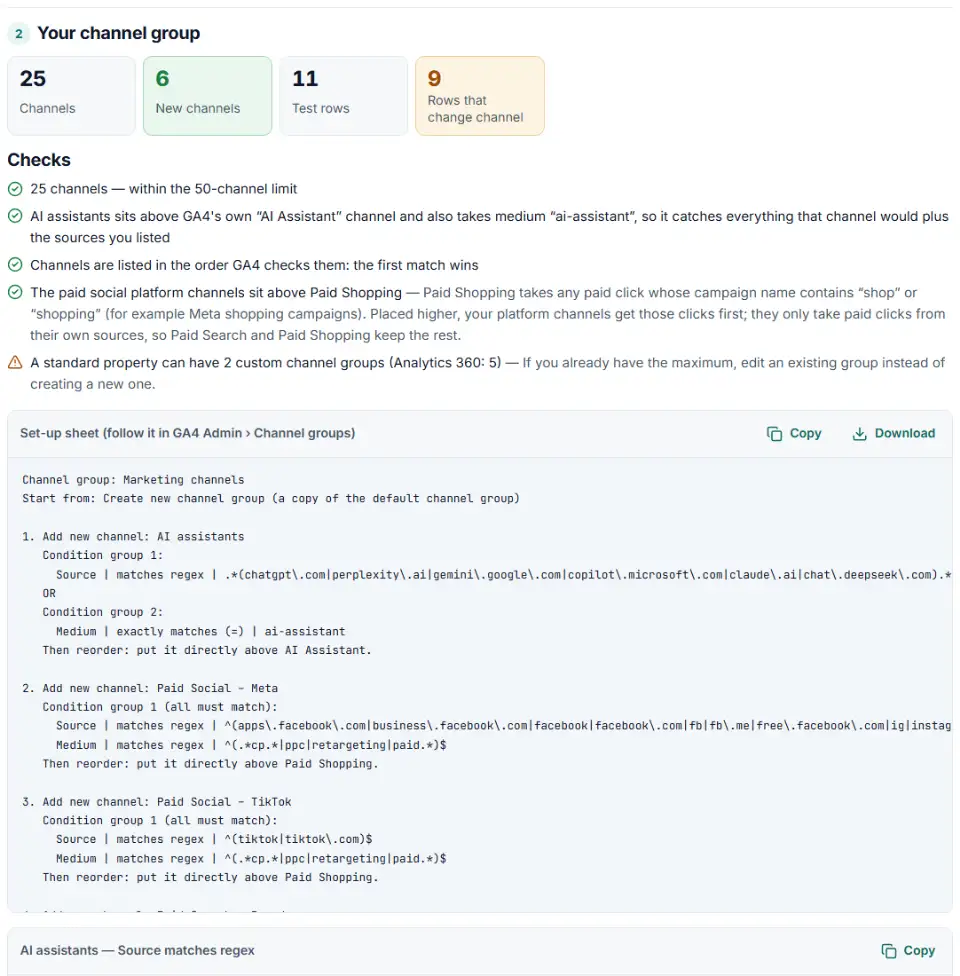
- Copy the set-up sheet. It lists every channel, condition and regex in order, ready to follow in GA4 Admin.
What to do next in GA4 Admin
- Create the group. In Admin › Data display › Channel groups, click Create new channel group and give it the name from the set-up sheet. It starts as a copy of the default group.
- Add each new channel. Click Add new channel, name it, click + Add condition group, choose the dimension and paste the value or regex from this page. Click Save channel.
- Reorder. Open Reorder, drag each new channel to the position in the sheet and click Apply. Then save the group.
- Check a report. In Traffic acquisition, change the primary dimension to your new group. Because custom groups are retroactive, last month's data shows in the new channels right away.
- Make it the default if you like. Any custom group can be set as the property's primary channel group from the Channel groups list (pencil icon). New data then uses its rules.
Common custom channel group problems
GA4 custom channel group not working
Most often the channel is simply in the wrong place. A new channel for Meta ads below Paid Social, or a partner channel below Referral, never gets a visit. Move it up and the data appears — for past dates too.
GA4 ChatGPT and Perplexity traffic in Referral
GA4's own AI Assistant channel only covers referrers on Google's list, which Google doesn't publish. Other AI tools still arrive as referrals. A custom AI channel with a source pattern catches them, as long as it sits above Referral.
Paid social split shows nothing
The platform channels sit above Paid Shopping on purpose: Paid Shopping takes every paid click from a campaign whose name contains “shop” or “shopping”, so a Meta shopping campaign would never reach a channel placed lower. They need a source on Google's social list (such as facebook.com) or, for Meta, a site_source_name value like ig or msg, and a paid medium. Links tagged utm_source=meta or utm_medium=social_paid don't qualify. Fix the tags with the UTM tools linked below, or add those values to your own channel.
Custom channel group source regex too broad
A pattern like .*ai.* also matches “mail”, “retail” and “email”. Use full source names, as the AI list here does, and test with real rows before you save.
Missing in BigQuery or audiences
Custom channel groups are not in the BigQuery export, and edits apply only going forward for audiences. Build reports on them in GA4 itself.
Frequently asked questions
How do I create a custom channel group in GA4?
In Admin, under Data display, open Channel groups and click Create new channel group. The new group starts as a copy of the default channel group. Add your channels with Add new channel, reorder them, and save the group. You need the Editor role or higher. The set-up sheet from this tool lists every step for your channels.
Does the order of channels in a GA4 custom channel group matter?
Yes, a lot. Google’s custom channel groups page says traffic goes to the first channel whose definition it matches. A channel for Meta ads placed below Paid Social never receives a visit, because Paid Social catches it first.
Is a GA4 custom channel grouping retroactive?
Yes. A custom channel group applies to your reports and explorations retroactively, so you see older data in the new channels too. Audiences are the exception: changes there apply only going forward.
How many custom channel groups can a GA4 property have?
Two on a standard property and five on Analytics 360, in addition to the default group. Each group can hold up to 50 channels.
How do I give AI assistant traffic its own channel in GA4?
Since 13 May 2026 the default channel group has an AI Assistant channel: GA4 sets the medium to ai-assistant when the referrer is on Google’s list of AI assistants. Google doesn’t publish that list. To catch every AI source you see in your reports, add a custom channel with a source regex and the ai-assistant medium, placed above GA4’s own AI Assistant channel.
Are GA4 channel group conditions case sensitive?
No. Google says channel definitions aren’t case sensitive, so Facebook.com and facebook.com are treated the same. Report filters are different — they are case sensitive.
Related tools and guide
-
Paste a link or a GA4 report and see the default channel for every row — with the rule that matched and a fix for Unassigned traffic.
Google -
Turn a list of pages, sources or campaigns into a GA4-ready regex and see why a pattern that works elsewhere fails in GA4.
Google -
Paste or upload your campaign links and find broken, inconsistent or Unassigned UTM tags — with a corrected link for every row.
GoogleMetaTikTokMicrosoft -
Build a UTM naming convention your team can follow: GA4-safe sources and mediums, a campaign pattern, a printable guide and a built-in link checker.
GoogleMetaTikTokMicrosoft -
Paste your event list, tracking plan or gtag code and catch names GA4 rejects, reserved words and duplicates that differ only by case.
Google -
Tag every Facebook and Instagram ad with one URL parameters string that fills in campaign and ad names, with syntax checks and a GA4 channel preview.
Meta
Need help setting this up? Talk to EmproIT