Regex Builder & Tester for GA4
Build a GA4 regex from a plain list of values, or test your own pattern the way GA4 matches it: RE2 syntax, full or partial match and case rules for the exact place you use it.
Regex Builder & Tester for GA4
1 Build or test a GA4 regex
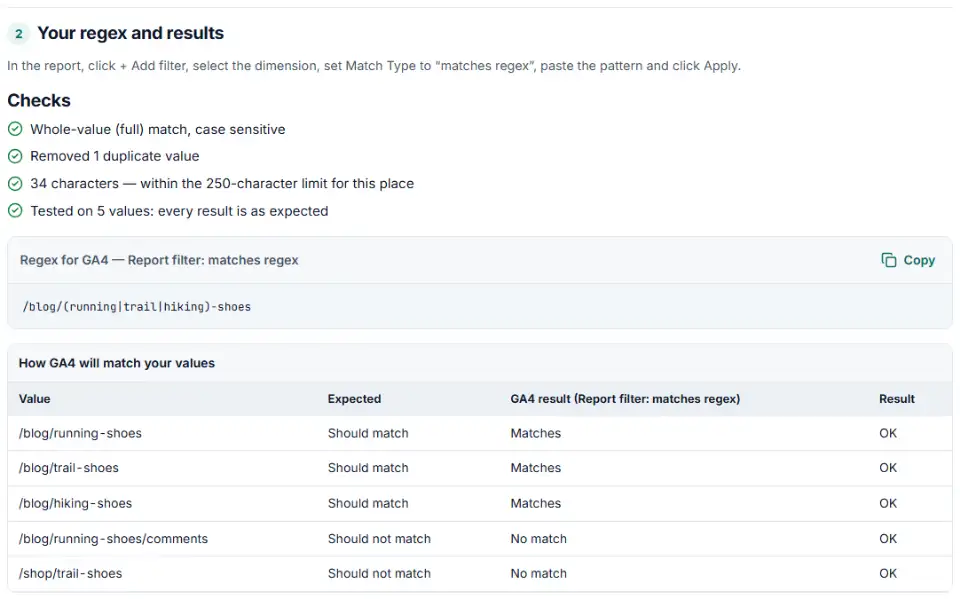
2 Your regex and results
Fill in the settings above — your result appears here instantly.
Rules last checked: against the official pages:
- About regular expressions (regex) (Analytics Help) (Google Analytics 4)
- Google RE2 regex syntax (linked as "Google RE2 regex syntax" from answer/1034324; Google's official RE2 repository wiki) (Google Analytics 4)
- [GA4] Apply filters to detail reports (Google Analytics 4)
- Create, edit, and archive audiences (Google Analytics 4)
How to use the regex builder for GA4
This regex builder for GA4 writes and checks patterns with the rules GA4 really uses, from Google's regular expressions help page: RE2 syntax, a full match by default, and case sensitivity that changes from place to place. A generic online tester checks none of that, which is why a pattern can pass there and still fail in your report.
- Choose where the regex goes. Pick the report filter match type, exploration, audience, channel group, event rule or internal traffic rule. The checks change with it.
- Build from a list. Paste the values you want, one per line, and say whether a value should be an exact match or just contain, start or end with them. The builder escapes dots and other symbols, drops duplicates and groups shared parts.
- Add values that must not match. For example, a comments page under the same path. Every value is tested, so you see the result before you save the filter.
- Or test your own pattern. Switch to Test a pattern, paste the regex and some real values from your report. Each row shows GA4's result next to what a typical online tester says, and why they differ.
- Copy the result. Paste it into GA4 using the steps shown under the pattern. If the checker found a fixable problem, such as an unescaped dot, it offers a corrected pattern.
What to do next in GA4
- Report filter. Open the report, click + Add filter, select the dimension, set Match Type to matches regex (whole value) or matches partial regex (any part), paste the pattern and click Apply. Google's report filter page lists all match types.
- Keep it under the limit. Report filter regex can be characters long. If your list is longer, group shared parts or split it across reports.
- Audiences. In the audience builder, add a condition on the dimension, choose the regex option and paste the pattern. Each audience condition can hold characters.
- Check the numbers. Compare the filtered total with an unfiltered report. If rows are missing, paste a few of the missing values into the test tab to see why.
Common GA4 regex mistakes
GA4 regex not working because of full match
The classic mistake: shoes finds nothing, because no page is called exactly “shoes”. Put .* before and after the part you want, or use the partial match type where GA4 offers one.
Does not match regex removes too much
With does not match partial regex, any value that contains the pattern anywhere is removed. A short pattern like test also removes “contest” and “latest”. Make the pattern specific, or use the full-match version with .* only where you need it.
GA4 regex lookahead not supported
Patterns copied from other tools often use (?!…) to exclude something. RE2 refuses lookaheads and lookbehinds. Use a second condition with does not match regex instead. JavaScript escapes such as é, \N{…} and \h, and repeat counts above 1,000, fail too; type the letter itself, since RE2 matches é as written.
Unescaped dots
example.com also matches “examplexcom”, because a dot means “any character”. Write example\.com. The same goes for IP addresses in internal traffic rules.
A pipe at the end
pricing|contact| has an empty last option. Google warns against ending a pattern with |: in a partial match the empty option matches every value.
GA4 regex examples
| Goal | Pattern |
|---|---|
| Several exact pages | /pricing|/contact|/request-a-demo |
| Any page in a folder | /blog/.* |
| PDF downloads | .*\.pdf |
| Campaign names starting with brand_ | brand_.* |
| Source contains facebook or instagram, any case | (?i).*(facebook|instagram).* |
Frequently asked questions
Does GA4 regex use full match or partial match?
Full match by default. Google’s regex help page says GA4 regex is full regex and case sensitive unless you add metacharacters. So shoes matches only the value “shoes”, not “red-shoes”. Report filters also offer a matches partial regex option.
Which regex syntax does GA4 use?
Google’s RE2 syntax, which GA4’s help page links to. RE2 is close to the regex most people know, but it has no lookaheads, lookbehinds or back references. Event create and modify rules are the exception: they run as JavaScript regex in the visitor’s browser.
Why does my regex work in other testers but not in GA4?
Usually for one of three reasons: the tester looks for a match anywhere in the value while GA4 needs the whole value, the pattern uses a lookahead or back reference that RE2 refuses, or the case differs. The test tab shows GA4’s result next to a typical tester’s result and says why they differ.
Is GA4 regex case sensitive?
In report filters, exploration filters and most other places, yes. Custom channel group conditions are not case sensitive. To ignore case in a case-sensitive place, start the pattern with (?i) — RE2 supports this flag. Tick Match upper and lower case in the builder to add it.
How do I match several values with one GA4 regex?
Join them with a pipe: pricing|contact|demo. Escape dots and other special characters in each value first. The builder does both, removes duplicates and pulls out a shared start, for example /blog/(running|trail)-shoes.
Is there a length limit for regex in GA4 filters?
Report filter regex is limited to 250 characters, and each audience condition to 500 characters. Google documents no limit for the other places. The builder counts the characters for the place you choose.
Related tools and guide
-
Plan GA4 custom channels for AI assistants, paid social per platform and brand search, with rules in the right order, tested on your own traffic.
Google -
Paste a link or a GA4 report and see the default channel for every row — with the rule that matched and a fix for Unassigned traffic.
Google -
Paste your event list, tracking plan or gtag code and catch names GA4 rejects, reserved words and duplicates that differ only by case.
Google -
Paste or upload your campaign links and find broken, inconsistent or Unassigned UTM tags — with a corrected link for every row.
GoogleMetaTikTokMicrosoft -
Build a UTM naming convention your team can follow: GA4-safe sources and mediums, a campaign pattern, a printable guide and a built-in link checker.
GoogleMetaTikTokMicrosoft -
Paste an ad click link to see what each parameter means (gclid, gad_source, srsltid and more), spot stripped click IDs and get a clean URL.
GoogleMetaMicrosoftTikTok
Need help setting this up? Talk to EmproIT