Lead Form Download Cleaner for Google Ads
Clean a Google Ads lead form download for your CRM: question headers matched to Google's short field names, phones in E.164, click IDs checked, duplicates and test leads removed before the 30-day download window closes.
Lead Form Download Cleaner for Google Ads
- Upload
- Check
- Download
1 Add your Google Ads leads file
Choose a file or drag it here
CSV or CSV for CRM from Google Ads, or the same data in Excel · up to 300 MB
2 Check the columns and options
Rules last checked: against the official pages:
- Download leads (Google Ads)
- About lead form assets (Google Ads)
- Testing – Lead Form Webhook (Google Ads)
- About auto-tagging - Google Ads Help (Ad click and tracking URL parameters)
How to clean a Google Ads lead form download
A Google Ads lead form download is the fastest way to get leads out of your account, but it only covers the last 30 days and its columns depend on the questions you asked. Google's Download leads page offers two files, CSV and CSV for CRM, without listing their columns. So this cleaner reads the headers in your file and matches them to the field list Google publishes for lead forms.
- Download your leads. In Google Ads, open Campaigns > Assets, find the lead form summary card and choose CSV or CSV for CRM. Load the file here, or click Try sample data.
- Check the matched columns. Names, email, phone and postal code are found whether the header says “User Email” or
EMAIL. Questions such as “Which service are you interested in?” are matched to their short names, likeSERVICE. - Pick the settings. Choose your default country, the time zone your team works in and the column names your CRM import uses.
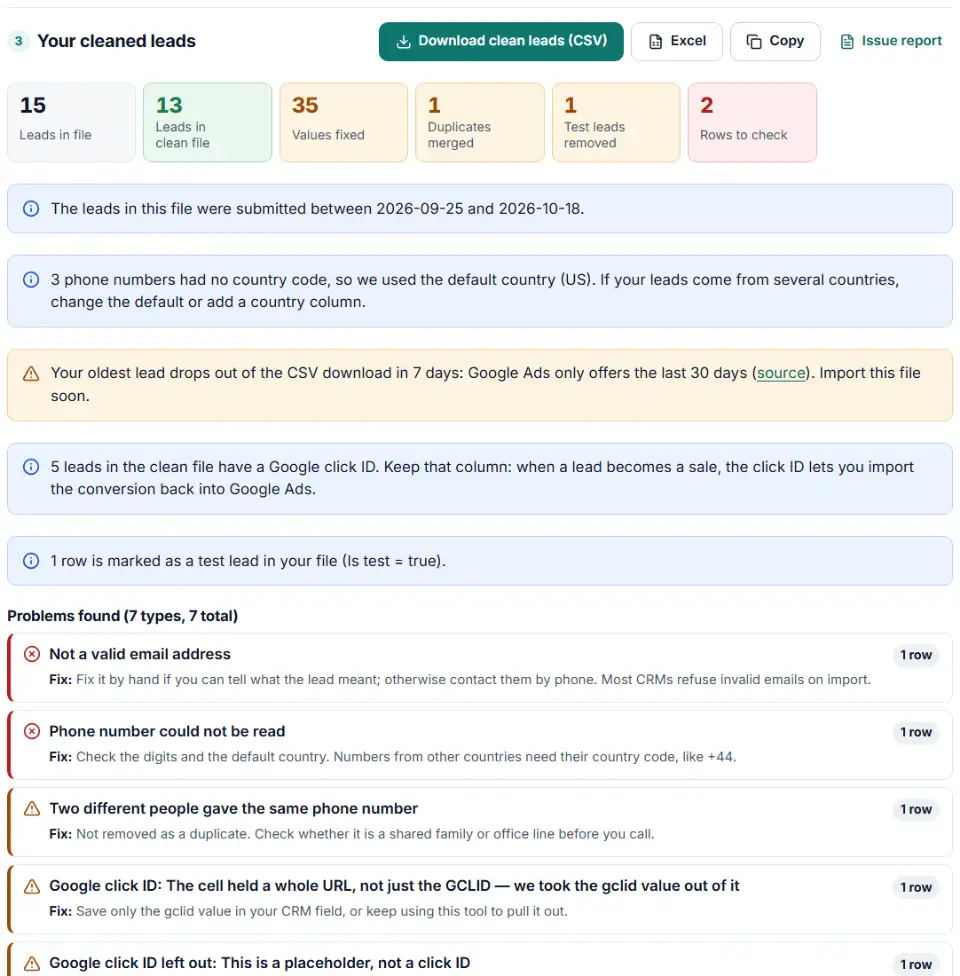
- Fix what's flagged. Invalid emails and phones, click IDs Google could never match and two people sharing one phone are listed by row.
- Download the clean file. Import it into your CRM. The rows that were taken out come as a second file.
Why the click ID column matters
If your file has a Google click ID (GCLID) for a lead, keep it. When that lead buys weeks later, the click ID lets you import the sale as an offline conversion, so Google Ads sees which search or Performance Max campaign brought a paying customer. The cleaner pulls a click ID out of a pasted URL and leaves out values like {gclid} that can never match a click.
What to do next with your Google Ads leads
- Import into your CRM today. Leads leave the CSV download after 30 days, and Google deletes them after 60.
- Keep the lead ID and click ID. The lead ID is unique across all your forms, so it is the safest way to spot a lead you already imported.
- Send results back to Google. When a lead becomes a customer, upload it with enhanced conversions for leads (hashed email or phone) or as an offline conversion with its click ID.
- Stop downloading by hand. Google can also send leads by email notification, the Google Ads API, a webhook or a CRM integration such as HubSpot or Salesforce. A webhook posts each new lead to your system as JSON.
Common Google Ads lead form download problems
google ads lead form csv is empty
Google keeps the CSV empty until the first lead comes in. Check that the form is on a live Search or Performance Max campaign, and that the leads are less than 30 days old.
You can't download leads
You need Standard or Admin access. Billing, Email only and Read only users can't download. From a manager account, the client account must have granted ownership first.
Question headers in another language
The CSV option translates question headers into the language of the Google Ads account. If you manage accounts in different languages, the same form gives different headers. CSV for CRM uses short field names instead, which keeps your CRM mapping the same. The cleaner knows the common Spanish, French, German and Italian name, email, phone and address headers, but check “Columns matched” for other languages.
google ads lead form phone number format
Google's lead form field list describes phone numbers in E.164, like +11234567890. Numbers typed without a country code are checked against the default country you pick and rewritten in E.164.
The same lead twice
Overlapping downloads or two forms on one campaign can bring the same person in twice. The cleaner matches by lead ID and email, keeps the first row and copies over anything it lacks, such as a click ID. Rows with different details are both kept and flagged.
{gclid} instead of a click ID
If your CRM or a hidden field stored {gclid}, the placeholder was never replaced by a real click ID. It can't be used for a conversion import, so the cleaner leaves it out and lists the row.
Frequently asked questions
How do I download leads from a Google Ads lead form?
Go to Campaigns > Assets and find the lead form summary card. Under the lead form, select CSV or CSV for CRM to download the leads (Google’s Download leads page). Then load the file here to clean it.
How long can I download Google Ads lead form leads?
You can only download leads from the last 30 days as a CSV. Google Ads stores leads for 60 days, then deletes them (About lead form assets). Download at least every few weeks, or connect a webhook or CRM integration.
What is the difference between CSV and CSV for CRM?
CSV uses the full question names as column headers, translated into the language of your Google Ads account. CSV for CRM uses short field names instead, which Google maps in its webhook field list (for example FULL_NAME, EMAIL and PHONE_NUMBER). This cleaner reads both and can write either style.
Why is my Google Ads lead form CSV empty?
The CSV stays empty until the first lead arrives. If your ad has been running and you expected leads, check that the lead form is attached to an active campaign and that the date range covers the last 30 days.
Which access level do I need to download leads?
Standard or Admin access. Billing, Email only and Read only users can’t download leads. Manager accounts can only download them if the client account has granted ownership.
How do I download leads from a removed lead form?
In the asset view, filter by Status > Removed to find the form, then download as usual. Leads from a removed form can still be downloaded for 30 days.
Related tools and guide
-
Build a realistic test lead for your Google Ads lead form webhook, then check what your CRM or server actually received.
Google -
Clean a Facebook leads CSV for your CRM: strip “p:” and ID labels, split names, fix dates and merge duplicate leads.
Meta -
Make a LinkedIn leads CSV CRM-ready: fix garbled accents, keep hidden fields, tidy names, format phones and merge duplicate leads.
LinkedIn -
Build the enhanced conversions for leads file for Google Ads Data Manager, with emails, phones and hashing done the way Google asks.
Google -
Build a ready-to-upload Google Ads offline conversions CSV from your CRM export, with time zones, values and 90-day checks done for you.
Google -
Map any CRM or store export to Google's Customer Match columns, fix phones and emails, and download a plain or hashed CSV.
Google
Need help setting this up? Talk to EmproIT