Dynamic UTM Parameters Builder for Pinterest Ads
Build Pinterest dynamic UTM parameters with {campaign_name}, {adgroupid} and the other documented tracking parameters for standard, shopping or collections ads — and see how they work with Pinterest's automatic URL parameters.
Dynamic UTM Builder for Pinterest Ads
1 Choose your parameters
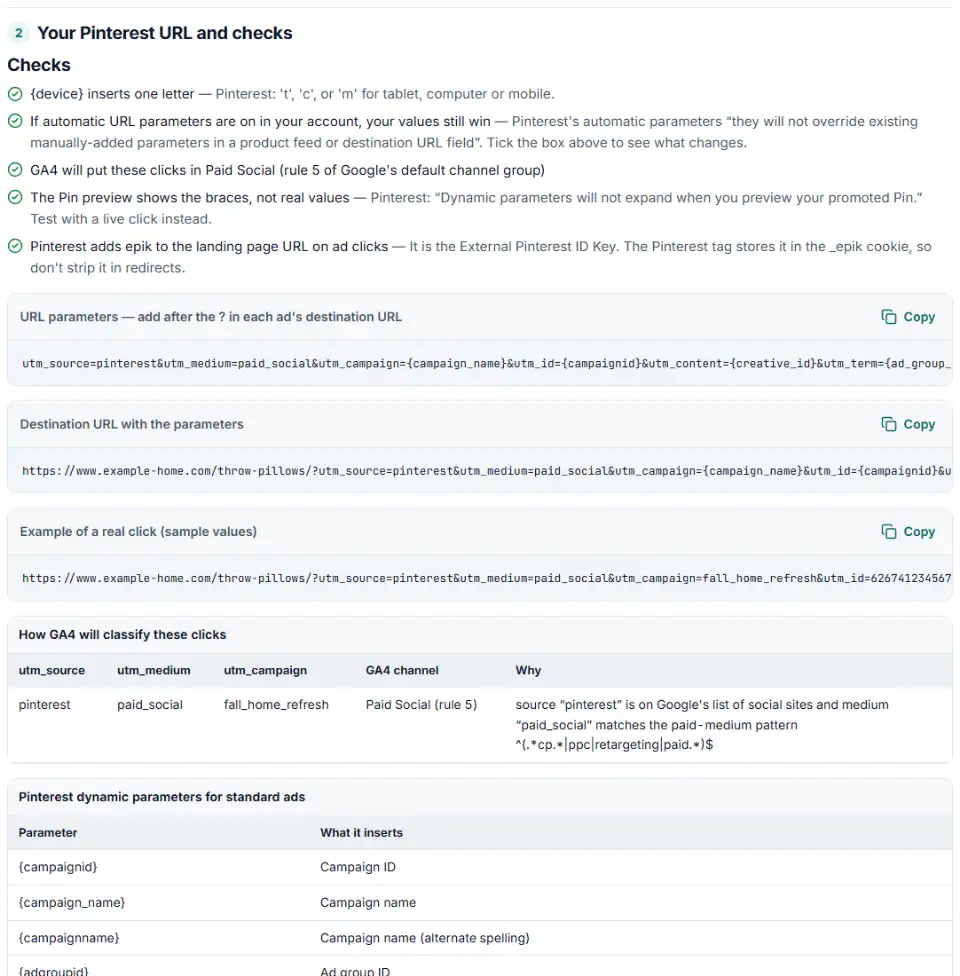
2 Your Pinterest URL and checks
Fill in the settings above — your result appears here instantly.
Rules last checked: against the official pages:
- Add third-party and dynamic tracking to your ads (Pinterest Ads)
- Add URL parameters to your ads (Pinterest Ads)
- View tag parameters and cookies (Pinterest Ads)
- Default channel group (Analytics Help) (Google Analytics 4)
How to build Pinterest dynamic UTM parameters
Pinterest dynamic UTM parameters let one tracking string report the campaign, ad group and Pin behind every click. This builder only offers the parameters on Pinterest's third-party and dynamic tracking page, checks them against the ad type you run, and shows the channel GA4 will give the clicks.
- Pick the ad type. Standard ads, shopping campaigns and collections ads each have their own list. A parameter from the wrong list is flagged.
- Say whether automatic URL parameters are on. If they are, the tool shows which values are yours and which Pinterest fills in itself.
- Decide who writes the UTMs. With automatic URL parameters on, any of utm_source, utm_medium, utm_campaign or utm_content you leave out may get Pinterest's default (pinterest, paid_social, {campaignid}, {adgroupid}, per its developer changelog). Set all four yourself for a predictable report.
- Check the GA4 table. Shopping campaigns often have “shop” in their names, and GA4 then counts the clicks as Paid Shopping instead of Paid Social. Type a real campaign name to see which one you get.
- Copy the result. Paste the string after the
?in the destination URL, or copy the values into Parameter settings. Fix red items first.
What to do next in Pinterest Ads Manager
- Per ad: paste the string at the end of each ad's destination URL. Use
&instead of?if the URL already has a question mark. - For the whole ad account: open Business Manager › Ad accounts › Settings, click the edit icon next to Parameter settings, replace the default values with yours, then Save and apply.
- For one campaign: open the campaign in Ads reporting, go to URL tracking, click Edit next to Parameter settings and save. Performance+ ad groups have their own “Include URL parameters” option.
- Shopping: if your feed links already carry UTM tags, those win. Clean the feed first, or the automatic values never show up.
- Test a live click. The Pin preview won't fill in the parameters, so click a running ad and read the address bar.
Common Pinterest tracking parameter mistakes
Using {keyword} on Pinterest
Google Ads templates often include {keyword}. Pinterest doesn't support it in tracking links on any ad, so it lands in your reports as the literal text. Remove it.
Pinterest {campaignid} and {adgroupid} parameters on the wrong ad type
Shopping campaigns list {campaignname} and {adgroupname}, without the underscore. Collections ads list {adid}, {ad_id} and {organic_url}. Stick to the list for the ad you're building.
Meta or TikTok syntax pasted in
A string copied from another platform brings {{campaign.name}} or __CAMPAIGN_NAME__. Pinterest only reads one brace on each side, so these never change.
Feed tags blocking your new values
Pinterest's own example: a feed link that already holds utm_medium=paid keeps it, even after you set utm_medium=paid_social in Parameter settings. Old tags in the feed quietly win.
Thinking the parameters are broken after a preview
Previews of a promoted Pin show the braces. That's expected; the real values appear only on real clicks.
Redirects that drop epik
If a redirect or link shortener removes epik, the Pinterest tag can't store the click ID and conversion matching gets weaker.
Frequently asked questions
What are Pinterest dynamic UTM parameters?
They are placeholders in single curly brackets, such as {campaign_name} or {adgroupid}, that Pinterest replaces with the real value when someone clicks your ad. Put utm_campaign={campaign_name} in a destination URL and each click reports its own campaign, so you never edit links one by one.
How do I add UTM parameters to Pinterest ads?
Two ways. Add the string after the ? in each ad’s destination URL, or turn on automatic URL parameters for the ad account or a campaign and type your own values in Parameter settings. Values you add by hand in a destination URL or product feed are never overwritten by the automatic ones.
What is epik in my Pinterest URLs?
epik is the External Pinterest ID Key. Pinterest adds it to your landing page URL when someone clicks an ad, and the Pinterest tag saves it in the _epik cookie so conversions can be matched to the click. It doesn’t affect your UTM values, but redirects and forms should keep it.
Why does Pinterest add UTM parameters to my links?
Because automatic URL parameters are switched on. At account level the setting adds utm_source, utm_medium, utm_campaign and utm_content to every destination URL in current and future campaigns. Pinterest’s developer changelog says that from September 15, 2026 it adds them unless you opt out, and that when you set none it may append utm_source=pinterest, utm_medium=paid_social, utm_campaign={campaignid} and utm_content={adgroupid}. Values already in your URL are never replaced.
Can I use {keyword} or {lpurl} in Pinterest ads?
{keyword} no — Pinterest says it isn’t supported in tracking links on any ad. {lpurl} and {unescapedlpurl} exist for shopping campaigns, but they insert the product’s whole web address, so they belong in a third-party tracking URL that wraps your link, not inside a UTM value.
How do I track Pinterest ads in Google Analytics?
Set utm_source=pinterest and utm_medium=paid_social yourself — in each destination URL, or as your own values in Parameter settings — so the automatic UTMs never choose them for you. Pinterest is on Google’s list of social sites, so GA4 files those visits under Paid Social.
Related tools and guide
-
Tag every Facebook and Instagram ad with one URL parameters string that fills in campaign and ad names, with syntax checks and a GA4 channel preview.
Meta -
Build TikTok tracking links with macros that fill in campaign and ad names, including Smart+ ads, with # sign and duplicate checks and the GA4 channel.
TikTok -
Build Snapchat ad tracking links with Snap's macros in one clean string, checked for typos, Dynamic Ads and Auto-UTM conflicts, plus the GA4 channel.
Snap -
Build a UTM naming convention your team can follow: GA4-safe sources and mediums, a campaign pattern, a printable guide and a built-in link checker.
GoogleMetaTikTokMicrosoft -
Paste a link or a GA4 report and see the default channel for every row — with the rule that matched and a fix for Unassigned traffic.
Google -
Find the missing or badly formatted required fields that make Pinterest reject a whole retail catalog, plus price, variant and length problems.
Pinterest
Need help setting this up? Talk to EmproIT