Offline Conversions CSV Builder for LinkedIn
Turn CRM deals or leads into LinkedIn's offline conversions CSV: exact template columns, timestamps, event types, ad account currency, hashed emails and the 90-day limit checked.
Offline Conversions CSV Builder for LinkedIn
- Upload
- Check
- Download
1 Add your CRM export
Choose a file or drag it here
CSV, Excel, TSV or TXT from HubSpot, Salesforce, Pipedrive or a spreadsheet · up to 300 MB
2 Check the columns and options
Rules last checked: against the official pages:
- CSV conversions template requirements (LinkedIn Ads)
- Manually upload a conversion data CSV file to Campaign Manager (LinkedIn Ads)
- Create a conversion with a CSV file upload (LinkedIn Ads)
- Conversion tracking event types on LinkedIn (LinkedIn Ads)
How to build your LinkedIn offline conversions file
LinkedIn offline conversions connect deals that close in your CRM to the people who saw or clicked your LinkedIn ads. LinkedIn takes them as a CSV in a fixed template, described in its CSV conversions template requirements. This tool turns a normal CRM export into that LinkedIn conversions CSV template and checks every rule on the page before you upload.
- Export your conversions. From HubSpot, Salesforce or your CRM, export won deals or qualified leads with the contact's email, first and last name, company, job title, country, date and amount.
- Load the export. Drop the file in or paste rows. Click Try sample data to see a deals export with common problems.
- Check the columns. The tool maps headers like
Contact Email,Close DateandAmountto LinkedIn's names. - Set the event type and currency. Pick the event type you chose when you created the CSV conversion, and your ad account currency.
- Download the CSV. It uses the template's exact column names. A second file lists rows that can't be uploaded and why.
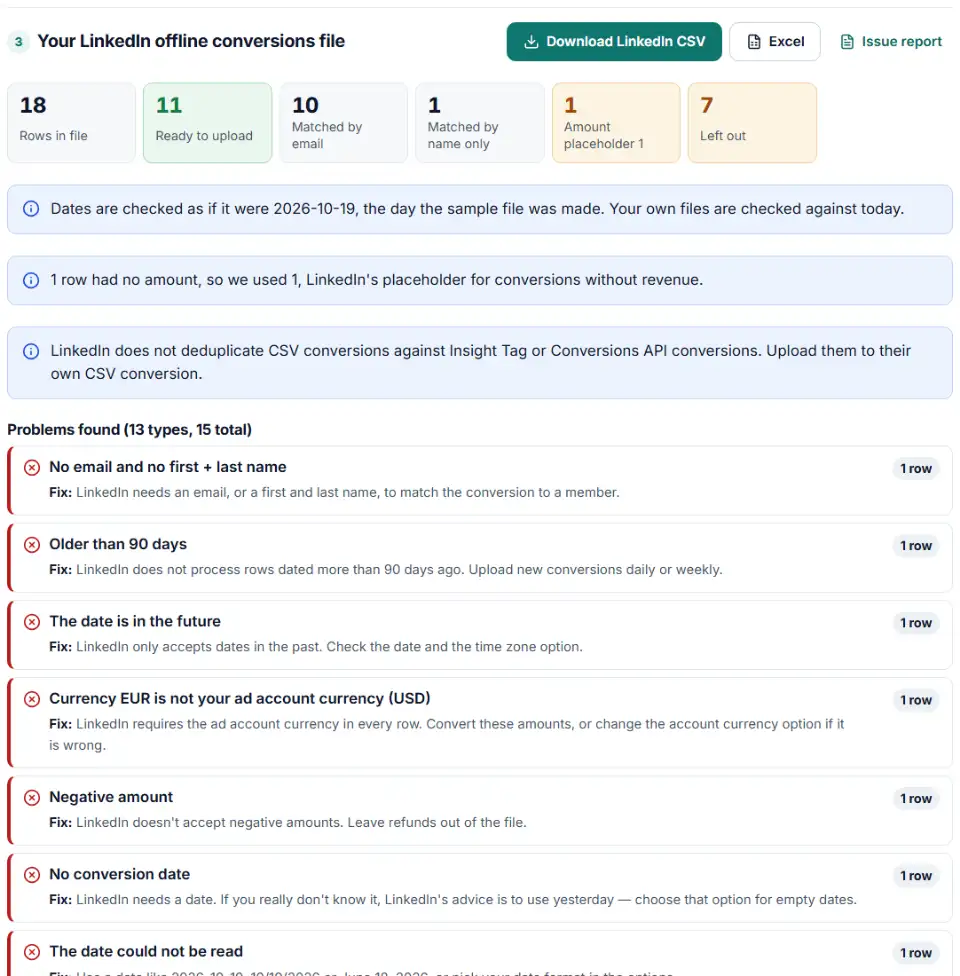
What the builder fixes and checks
- Matching: an email, or a first and last name of up to 35 characters each. Using both raises the chance of a match.
- Dates: in the past and no more than 90 days old, written as epoch milliseconds or MM/DD/YYYY.
- Amounts: no currency symbols, no negatives, up to 2 decimals, and 1 when there is no revenue.
- Currency and event type: the ad account currency in every row and a valid
eventtypecode with its underscore. - The @ sign: allowed only in the email column, so stray emails in name or title fields are removed.
Upload offline conversions to LinkedIn Ads
- Create the CSV conversion. In Campaign Manager go to Measure › Conversion tracking, click Create conversion and choose CSV conversion. Set the name, event type, value, conversion windows and attribution, then click Next step.
- Upload the file. Choose Upload a CSV list, give the source a name and select the downloaded file.
- Attach ad sets. Click Next step, pick the ad sets to measure and click Create. Conversions only count for ad sets attached to the conversion.
- Upload new rows regularly. Data can take up to 24 hours to appear. To add a new file, open Conversion tracking, filter by the CSV data source, open the conversion and upload again. Daily or weekly works best.
Want to automate it later? LinkedIn's Conversions API takes the same data from a CRM or partner tool. Keep CSV conversions separate from Insight Tag and Conversions API conversions, because LinkedIn does not deduplicate them against each other.
Common LinkedIn conversion CSV problems
Column names don't match the template
LinkedIn says the column names must be unedited from the template. A header like Email Address or Deal Amount is not recognized. The download from this tool uses the exact template names.
Rows older than 90 days are skipped
LinkedIn doesn't process them, and fewer valid rows can push the file under the 10% minimum. Upload new closed deals every week instead of a big export once a quarter.
Amount is 0 or blank
Lead and sign-up conversions often have no value. LinkedIn still needs a number, so it asks for 1 as a placeholder.
Wrong currency
A deal in EUR in a USD ad account breaks the rule that every row uses the account currency. Convert it in your CRM report before you export.
Event type doesn't match the conversion
The eventtype in the file must match the event type you picked when you created the conversion. If none fits, use other for both.
Conversions don't show up
Wait 24 hours, then check that the conversion is attached to the right ad sets. LinkedIn keeps uploaded rows for at most 180 days and then erases them, so keep your own copy of each file.
Frequently asked questions
What columns does a LinkedIn offline conversions CSV need?
LinkedIn’s template has email, firstName, lastName, employeecompany, title, country, timestamp, eventtype, amount and currency. Every row needs a timestamp, event type, amount and currency, plus an email or a first and last name. Columns can be in any order, but the names must stay exactly as in the template.
What timestamp formats does LinkedIn accept in a conversion CSV?
June 18, 2020, 18 June 2020, 06/18/2020, Dec 31, 2020, or epoch milliseconds such as 1609419600000. This tool writes epoch milliseconds by default, because that is the only format that keeps the time of day, or MM/DD/YYYY if you prefer.
Can I upload hashed emails to LinkedIn for offline conversions?
Yes. LinkedIn accepts plain emails or SHA-256 hashed emails, without salt, and hashes plain ones itself. The CSV help page gives no rule for preparing an email before hashing, so this tool sends plain emails by default. Turn on hashing and the tool follows LinkedIn’s Conversions API rule: lowercase, no spaces, then SHA-256, all in your browser. Already hashed emails are kept.
How old can offline conversions be for a LinkedIn upload?
No more than 90 days, and the date must be in the past. Rows older than 90 days are not processed. If you don’t know the date, LinkedIn says to use yesterday’s date.
Which currency should I use in a LinkedIn conversion file?
Your ad account’s currency, in every row, as a 3-letter code like USD or EUR. Convert other currencies before you upload. If you don’t track revenue, LinkedIn asks for 1 in the amount column, because it can’t be 0 or blank.
How big can a LinkedIn conversion CSV file be?
Up to 20 MB or 300,000 rows. This tool splits bigger exports into several files. At least 10% of the rows must follow the format, and rows that don’t are skipped.
Is my CRM data uploaded to your site?
No. The file is read, checked and hashed in your browser. Nothing is sent to our server, so deal values and contact details stay on your computer.
Related tools and guide
-
Fill LinkedIn's contact list CSV template from a HubSpot, Salesforce or Shopify export, with every rejected row explained.
LinkedIn -
Turn a CRM account list or contact export into LinkedIn's company list CSV for account-based targeting.
LinkedIn -
Get LinkedIn Insight Tag and conversion code for button clicks and form sends, with order value, currency and an event ID for the Conversions API.
LinkedIn -
Make a LinkedIn leads CSV CRM-ready: fix garbled accents, keep hidden fields, tidy names, format phones and merge duplicate leads.
LinkedIn -
Build LinkedIn tracking links with the new campaign, ad set and ad name macros, convert strings from before the 2025 rename and see the GA4 channel.
LinkedIn -
Build a ready-to-upload Google Ads offline conversions CSV from your CRM export, with time zones, values and 90-day checks done for you.
Google
Need help setting this up? Talk to EmproIT